
How to Change Ringtone on Samsung: A Step-by-step Guide
Are you tired of using the default ringtone on your Samsung device? Do you want to personalize your phone with a unique sound that reflects your personality? Look no further! In this article, we will guide you through the process of changing the ringtone on your Samsung device.
Preliminary Operations
Before we dive into the main steps, there are some preliminary operations that need to be completed. If you don’t want to use pre-installed ringtones, you’ll need to transfer or download new ones from your computer or Android device. Here’s what you need to do:
- Connect your phone to a computer using a USB cable.
- Install and run the Samsung Smart Switch application on your computer.
- Copy the desired ringtone file to the Ringtones folder on your phone.
If you’re not comfortable with this process, don’t worry! We’ll provide more detailed instructions later in the article.
Changing Ringtone on Samsung
Now that we’ve covered the preliminary operations, let’s move on to changing the ringtone on your Samsung device.
- Open Settings: Start by opening the Settings app on your phone.
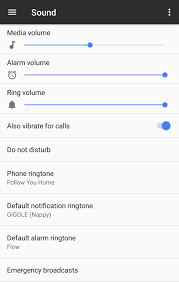
- Sounds And Vibration: Scroll down and select Sounds and vibration.
- Ringtone: Tap on Ringtone to access the list of available ringtones.
- Select a New Ringtone: Choose a new ringtone from the list or download one from the Play Store.
- Play The Ringtone: Press the + icon next to the selected ringtone to preview it.
- Save Changes: Tap on Done to save your changes.
Changing Ringtone For Specific Contacts
Want to personalize the ringtone for specific contacts? Follow these steps:
- Open Contacts App: Open the Contacts app and select the contact you want to change the ringtone for.
- Modify Contact: Tap on the Modify icon next to the contact’s name.
- Ringtone: Scroll down and tap on Ringtone.
- Select a New Ringtone: Choose a new ringtone from the list or download one from the Play Store.
- Save Changes: Tap on Save to save your changes.
Changing Notifications And Tones of Notice
Want to change the sound for notifications and tones of notice? Follow these steps:
- Open Settings: Open the Settings app and select Sounds and vibration.
- Sound of Notification: Scroll down and tap on Sound of notification.
- Select a New Sound: Choose a new sound from the list or download one from the Play Store.
- Save Changes: Tap on Done to save your changes.
Tips And Variations
Here are some additional tips and variations:
- To change the volume of the ringtone, move the indicator up or down in the Ringtone section.
- You can also regulate the volume by pressing the Volume [+] and Volume [-] buttons on the side of the device.
- To qualify the vibration, go to Sounds and vibration > Vibration call and select a pattern from the list.
- Unfortunately, you cannot modify the intensity of the vibration for each contact.
Conclusion
Changing the ringtone on your Samsung device is a simple process that can enhance your overall user experience. With these steps, you should be able to personalize your phone with a unique sound that reflects your personality. Don’t forget to check out our FAQs section below for more information!
Frequently Asked Questions (FAQs)
- Q: How do I Change The Ringtone on my Samsung Device?
A: To change the ringtone, open Settings > Sounds and vibration > Ringtone. - Q: Can I Use a Custom Ringtone on my Samsung Device?
A: Yes, you can use a custom ringtone by downloading it from the Play Store or transferring it from your computer. - Q: How do I Change The Ringtone For Specific Contacts?
A: To change the ringtone for specific contacts, open Contacts > Modify Contact > Ringtone. - Q: Can I Change The Volume of The Ringtone on my Samsung Device?
A: Yes, you can change the volume by moving the indicator up or down in the Ringtone section. - Q: How do I Qualify The Vibration on my Samsung Device?
A: To qualify the vibration, go to Sounds and vibration > Vibration call and select a pattern from the list. - Q: Can I Use Different Ringtones For Different Apps on my Samsung Device?
A: Yes, you can use different ringtones for different apps by opening the app in question and going to Settings > Tone notifications. - Q: How do I Change The Sound of Notifications on my Samsung Device?
A: To change the sound of notifications, go to Settings > Sounds and vibration > Sound of notification. - Q: Can I Modify The Intensity of The Vibration For Each Contact on my Samsung Device?
A: Unfortunately, no, you cannot modify the intensity of the vibration for each contact.


