
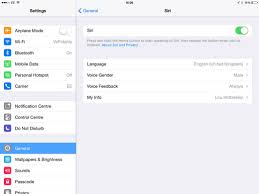
How to Change The Voice of Siri on Your Apple Devices
Are you tired of hearing the same voice from Siri on your Apple devices? Well, we have some good news for you! You can change the voice of Siri on your iPhone, iPad, Mac, and Apple Watch to one that suits your taste. In this article, we will guide you through the step-by-step process of changing the voice of Siri on each of these devices.
Why Change The Voice of Siri?
Before we dive into the tutorial, let’s talk about why you might want to change the voice of Siri in the first place. Perhaps you’re used to a different accent or tone and find it more comfortable to interact with Siri that way. Or maybe you just want to mix things up and try something new.
Whatever your reason, we’ve got you covered!
Changing The Voice of Siri on Iphone/ipad
To change the voice of Siri on your iPhone or iPad, follow these steps:
- Go to Settings > Siri & Search.
- Tap on “Siri” at the top of the screen.
- Tap on “Voice of Siri”.
- Choose the voice you want to use from the list.
If you’re using an iPhone or iPad with iOS 14 or later, you can choose between two male voices and three female voices for Siri. If you’re using an earlier version of iOS, you’ll only see two options: A classic female voice and a male voice.
Changing The Voice of Siri on Mac
To change the voice of Siri on your Mac, follow these steps:
- Click on the Apple menu and select “System Preferences”.
- Click on “Siri” in the list of options.
- Select the language you want to use from the dropdown menu.
- Choose the voice you want to use for Siri.
You can choose between three male voices and four female voices for Siri on your Mac.
Changing The Voice of Siri on Apple Watch
To change the voice of Siri on your Apple Watch, follow these steps:
- Open the Settings app on your watch.
- Tap on “Siri”.
- Select the language you want to use from the dropdown menu.
- Choose the voice you want to use for Siri.
Just like with your iPhone or iPad, you can choose between two male voices and three female voices for Siri on your Apple Watch.
How to Change The Language of Siri
Not only can you change the voice of Siri, but you can also change the language it uses. This is useful if you want to use Siri in a different language than English or Italian (the default languages).
To change the language of Siri:
- Go to Settings > Siri & Search.
- Tap on “Siri” at the top of the screen.
- Tap on “Language”.
- Choose the language you want to use from the list.
Frequently Asked Questions
Here are some frequently asked questions about changing the voice and language of Siri:
Q: Can I Change The Voice of Siri on my Apple Watch?
A: Yes, you can change the voice of Siri on your Apple Watch by following the same steps as for your iPhone or iPad.
Q: How Many Voices Can I Choose From For Siri?
A: The number of voices you can choose from varies depending on the device and iOS version. On an iPhone or iPad with iOS 14 or later, you have three female voices and two male voices to choose from. On a Mac, you have four female voices and three male voices.
Q: Can I Change The Language of Siri?
A: Yes, you can change the language of Siri on all Apple devices by going to Settings > Siri & Search and selecting the language you want to use.
Conclusion
Changing the voice of Siri is a simple process that can make interacting with your device more enjoyable. Whether you want to mix things up or simply prefer a different accent or tone, we’ve got the steps you need to follow.


