
How to Capsize Skin to Your Character in Minecraft: A Comprehensive Guide
Are you a passionate gamer looking to personalize your character’s appearance in Minecraft? Look no further! In this article, we will guide you through the process of capsizing skin to your character in both Java and Bedrock versions of Minecraft.
What is Skin in Minecraft?
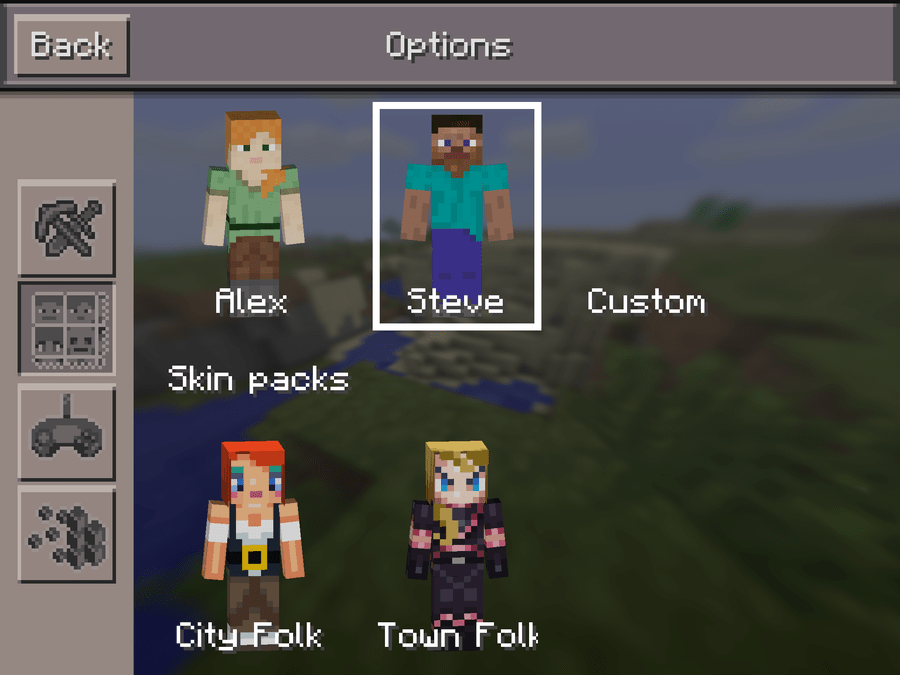
Before we dive into the nitty-gritty details, let’s first understand what skin means in the context of Minecraft. Skin refers to the custom appearance of your avatar, which can be changed to suit your preferences. While the default character, Steve (or Alex), comes with a standard look, you can now capsize skin to give your character a unique and personalized touch.
Why Capsize Skin?
The ability to change skin in Minecraft is not just for aesthetic purposes; it also allows you to express your creativity and showcase your personality. With the vast array of skins available, both official and community-created, you’ll find countless options to customize your character’s appearance.
Java Version: How to Capsize Skin
To capsize skin in the Java version of Minecraft on PC, follow these steps:
- Download The Png File: Find a skin that suits your taste from various websites, such as MinecraftSkins or other dedicated portals.
- Launch Minecraft Launcher: Open the Minecraft launcher and click on “Skin” located at the top right corner.
- Select New Skin: Click on the “New Skin” option and fill out the required form to upload your PNG file.
- Choose Player Type: Select the type of player (Classic or Snello) you want to apply the skin to.
- Browse And Select File: Browse through your files and select the PNG file containing the skin you downloaded earlier.
- Save And Apply: Click “Save” to save the changes, and then click “Use” to apply the new skin.
Bedrock Version: How to Capsize Skin
To capsize skin in the Bedrock version of Minecraft on Windows 10, mobile devices, or console, follow these steps:
- Access Marketplace: Open the game and navigate to the marketplace by clicking on the option “Marketplace” at the bottom of the main menu.
- Select Packs & Skins: Click on “Packs & Skins” located in the lower-left corner.
- Browse And Select Skin: Browse through the available skins, including free ones, and select a skin that catches your eye.
- Purchase or Download: Purchase or download the selected skin, depending on its availability and price.
- Apply Skin: Once purchased or downloaded, click “Equip” to apply the new skin to your character.
Tips And Variations
Some additional tips and variations to keep in mind:
- Check Out Our Tutorials: For a more detailed understanding of how to create and apply custom skins, check out our guide on creating a skin for Minecraft.
- Explore Community-created Skins: Browse through the vast array of community-created skins, which often feature unique and creative designs.
- Stay Updated With Promotional Prices: Keep an eye on the prices in the marketplace, as some skins may be discounted or offered at special promotions.
Conclusion
Capusing skin to your character in Minecraft is a fun and creative way to express yourself. With the numerous options available, both official and community-created, you’ll find countless ways to personalize your character’s appearance. Follow these steps for either Java or Bedrock versions of Minecraft, and get ready to show off your unique style!
Faqs
- What is Skin in Minecraft?
Skin refers to the custom appearance of your avatar in Minecraft. - Why Capsize Skin?
To express creativity, showcase personality, and have fun personalizing your character’s appearance. - How do I Download a Skin For Java Version?
Find a skin on websites like MinecraftSkins or other dedicated portals, then download the PNG file to upload it to the game. - Can I Change Skin in Bedrock Version Without Spending Money?
Yes, browse through free skins available in the marketplace and select one that suits your taste. - How do I Apply a New Skin to my Character?
Launch the Minecraft Launcher, navigate to the “Skin” option, and fill out the required form to upload the PNG file containing the new skin. - Can I Use External Applications to Change Skin in Bedrock Version?
No, it’s recommended to stick with the official marketplace for a safe and secure experience. - How do I Change Skin Among Already Installed Ones?
Access the “Profile” option, select the character you want to change skin for, and then apply the new skin using the “Equip” button. - Are There Any Safety Concerns When Downloading External Skins?
Be cautious of potential threats from untrusted sources; always stick with official or community-created skins for a safe experience.


