
Changing Your Payment Method on Spotify: A Step-by-step Guide
Are you tired of using the same old payment method on Spotify? Do you want to switch to a new card or PayPal account? Look no further! In this article, we’ll guide you through the process of changing your payment method on Spotify.
Why Change Your Payment Method on Spotify?
Before we dive into the steps, let’s quickly explore why you might need to change your payment method. Perhaps you’ve received a new credit card, or maybe you want to switch to PayPal for easier transactions. Whatever the reason, we’ll walk you through the process of updating your payment information.
Spotify Supported Payment Methods
Before we proceed, it’s essential to know which payment methods Spotify supports. You can use:
- Credit cards (Visa, Mastercard, American Express, Postepay)
- PayPal
- Prepaid credit cards
If you’re using a prepaid card or a new credit card, make sure to add it to your account before proceeding.
Modifying Your Payment Method on PC
To change your payment method on Spotify from your PC:
- Access The Spotify Website: Open your preferred browser and navigate to www.Spotify.Com.
- Log In: Click on “Access” at the top right corner, enter your credentials (or use Google, Apple, or Facebook login), and click on “Sign in”.
- Visit Your Profile: Once logged in, click on your profile picture at the top right, then select “Account”.
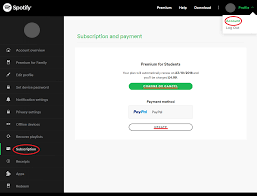
- Update Payment Method: Scroll down to the section labeled “Your Piano” and click on the dropdown arrow next to “Payment method”. Select “Update payment method”.
Step-by-step Guide For Modifying Payment Method on PC
- If you want to add a new credit card:
- Click on the icon corresponding to your desired payment method (Card of credit).
- Fill in the required information (card number, expiration date, and security code) and click on “Modify”.
- If you prefer to use PayPal:
- Select “PayPal” from the dropdown menu.
- You’ll be redirected to the PayPal website; log in and choose your preferred payment method.
Modifying Payment Method on Mobile Devices (Android/iOS)
If you’re using Spotify’s mobile app:
- Access The Web Version: Open your browser on your Android or iOS device, navigate to www.Spotify.Com, and access the web version.
- Follow Steps 3-5 From PC Guide: Proceed as described above.
Modifying Payment Method on Smart Tv/console (e.G., Google Tv, Apple Tv)
For users of Spotify’s mobile app on devices like smart TVs or consoles:
- Use Your Browser: Access the web version of Spotify using your device’s browser.
- Follow Steps 3-5 From PC Guide: Proceed as described above.
Important Note For Apple Devices (iPhone/iPad)
If you’ve subscribed to Spotify through an Apple device, please note that you’ll need to cancel the subscription first before updating your payment method. This will revert your account to a free version. Once updated, you can resubscribe using your preferred payment method.
Modifying Payment Method on Other Devices (e.G., Chromecast, Amazon Fire Tv)
Unfortunately, these devices do not offer direct modification of payment methods within their menus. To change your payment information, we recommend referring back to the PC or mobile device steps above for easier access.
Now that you’ve completed this guide, you’re ready to modify your payment method on Spotify! Take a few minutes to follow these easy steps and ensure seamless transactions in the future.
Frequently Asked Questions
- What if I’m Experiencing Issues With my Current Payment Method?
If you encounter problems with your current payment information, please contact Spotify’s customer support team for assistance. - Can I Change my Payment Method on Apple Devices (iPhone/iPad)?
Yes, but first, cancel the subscription to revert your account to a free version. Once updated, resubscribe using your preferred payment method. - What if I Don’t Have Access to my Current Credit Card?
Contact your bank or credit card company for assistance with retrieving the required information. - Can I Use Multiple Payment Methods on Spotify?
No, you can only have one active payment method at a time. - Will Updating my Payment Method Affect my Subscription Status?
No, updating your payment information will not cancel or interrupt your ongoing subscription.
We hope this guide has been helpful!


