
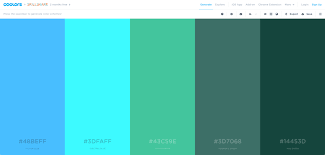
How to Customize The Color Scheme of Your Smartphone’s Apps
Are you tired of looking at the same old colors on your smartphone’s apps? Do you want to give your device a personalized touch? Look no further! In this article, we will guide you through the process of customizing the color scheme of your smartphone’s apps.
Why Customize Your Phone’s Color Scheme?
Customizing your phone’s color scheme can be a great way to personalize your device and make it stand out from the crowd. Not only does it allow you to express your individuality, but it also provides an opportunity to reduce eye strain and improve visual comfort. With so many different colors and themes available, you’re sure to find one that suits your style.
How to Customize Your Phone’s Color Scheme
Customizing your phone’s color scheme is relatively simple on most smartphones. Here are the general steps:
- Open Settings: Go to your phone’s settings app.
- Look For Display or Appearance Options: Scroll through the settings until you find an option related to display or appearance.
- Customize Color Scheme: Once in the display or appearance section, look for options that allow you to customize the color scheme.
Customizing Your Phone’s Color Scheme on Android Devices
On most Android devices, customizing the color scheme is a straightforward process:
- Open the Settings app and go to Display.
- Tap on “Color mode” or “Theme.”
- Select the dark theme to change the overall color scheme of your phone.
- Adjust other display settings as needed.
Customizing Your Phone’s Color Scheme on Samsung Devices
On Samsung devices, customizing the color scheme is similar to the process for Android devices:
- Open Settings and go to Display.
- Tap on “Screen mode” or “Theme.”
- Choose the dark theme to change the overall color scheme of your phone.
Customizing Your Phone’s Color Scheme on Huawei Devices
On Huawei devices, customizing the color scheme is also relatively simple:
- Open Settings and go to Display.
- Tap on “Display style” or “Theme.”
- Select the dark theme to change the overall color scheme of your phone.
Customizing Your Phone’s Color Scheme on Xiaomi Devices
On Xiaomi devices, customizing the color scheme is similar to the process for Android devices:
- Open Settings and go to Display.
- Tap on “Display style” or “Theme.”
- Choose the dark theme to change the overall color scheme of your phone.
Customizing Your Phone’s Color Scheme on Oppo Devices
On OPPO devices, customizing the color scheme is relatively simple:
- Open Settings and go to Display.
- Tap on “Screen mode” or “Theme.”
- Select the dark theme to change the overall color scheme of your phone.
Customizing Your Phone’s Color Scheme on Iphone Devices
On iPhone devices, customizing the color scheme is a bit more complex:
- Open Settings and go to Accessibility.
- Tap on “Display & Text Size.”
- Turn on “Dark Mode” to change the overall color scheme of your phone.
How to Create a Customized Icon Pack For Your Phone
Creating a customized icon pack is a great way to personalize your phone. Here’s how to do it:
- Choose an Icon Pack: Select a pre-made icon pack that suits your style.
- Customize The Icons: Adjust the icons as needed to fit your preferences.
Tips And Tricks For Customizing Your Phone’s Color Scheme
- Use dark mode to reduce eye strain and improve visual comfort.
- Experiment with different color schemes to find one that suits your style.
- Consider using a third-party launcher or icon pack to further customize your phone.
By following these steps, you can easily customize the color scheme of your smartphone’s apps. Whether you prefer bright colors or dark themes, there are countless options available to suit your personal taste.


