
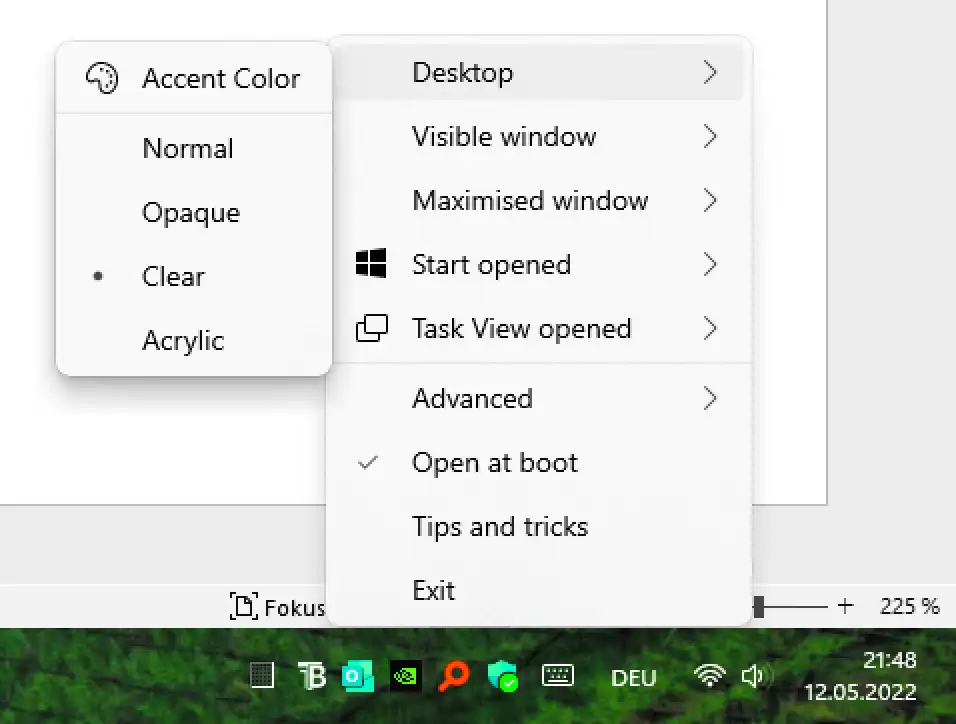
Changing The Color of The Taskbar on Windows: A Step-by-step Guide
Are you tired of the same old color scheme on your Windows taskbar? Do you want to give your computer a personalized touch? Look no further! In this article, we will guide you through the process of changing the color of the taskbar on Windows 11, 10, and 7.
Why Change The Color of The Taskbar?
Changing the color of the taskbar can be a great way to personalize your computer and make it stand out. It’s also a good way to match your computer with your favorite sports team, holiday theme, or even your favorite video game character! With so many colors to choose from, you’re sure to find one that suits your style.
Changing The Color of The Taskbar on Windows 11
To change the color of the taskbar on Windows 11, follow these steps:
- Open The Start Menu: Click on the Start button in the bottom left corner of your screen.
- Click on Settings: Click on the gear icon to open the Settings app.
- Select Personalization: In the Settings app, click on the “Personalization” option.
- Choose Colours: In the Personalization settings, click on the “Colours” option.
- Select a New Color Scheme: In the Colours settings, you can choose from various pre-made color schemes or create your own custom color scheme.
Changing The Color of The Taskbar on Windows 10
To change the color of the taskbar on Windows 10, follow these steps:
- Click on The Start Button: Click on the Start button in the bottom left corner of your screen.
- Select Settings: Click on the gear icon to open the Settings app.
- Choose Personalization: In the Settings app, click on the “Personalization” option.
- Select Colours: In the Personalization settings, click on the “Colours” option.
- Choose a New Color Scheme: In the Colours settings, you can choose from various pre-made color schemes or create your own custom color scheme.
Changing The Color of The Taskbar on Windows 7
To change the color of the taskbar on Windows 7, follow these steps:
- Click on The Start Button: Click on the Start button in the bottom left corner of your screen.
- Select Control Panel: Click on the “Control Panel” option.
- Choose Appearance And Personalization: In the Control Panel, click on the “Appearance and Personalization” option.
- Select Display: In the Appearance and Personalization settings, click on the “Display” option.
- Choose a New Color Scheme: In the Display settings, you can choose from various pre-made color schemes or create your own custom color scheme.
Changing The Color of The Taskbar on Macos
To change the color of the taskbar on macOS, follow these steps:
- Click on The Apple Logo: Click on the Apple logo in the top left corner of your screen.
- Select System Preferences: Click on the “System Preferences” option.
- Choose General: In the System Preferences window, click on the “General” option.
- Select a New Color Scheme: In the General settings, you can choose from various pre-made color schemes or create your own custom color scheme.
Changing The Color of The Taskbar on Android
To change the color of the taskbar on Android, follow these steps:
- Click on The Settings App: Click on the gear icon to open the Settings app.
- Choose Display And Luminosity: In the Settings app, click on the “Display and luminosity” option.
- Select Dark Mode or Clear Mode: In the Display and luminosity settings, select either the “Dark mode” or “Clear mode” option.
Changing The Color of The Taskbar on Ios/ipados
To change the color of the taskbar on iOS/iPadOS, follow these steps:
- Click on The Settings App: Click on the gear icon to open the Settings app.
- Choose Display And Luminosity: In the Settings app, click on the “Display and luminosity” option.
- Select Dark Mode or Clear Mode: In the Display and luminosity settings, select either the “Dark mode” or “Clear mode” option.
Conclusion
Changing the color of the taskbar is a simple process that can make your computer stand out. Whether you’re using Windows 11, 10, or 7, macOS, Android, or iOS/iPadOS, we’ve got you covered with step-by-step guides on how to change the color of your taskbar.
Frequently Asked Questions
- Q: Can I Change The Color of The Taskbar on my Computer?
A: Yes, you can change the color of the taskbar on Windows 11, 10, and 7, macOS, Android, and iOS/iPadOS. - Q: How do I Change The Color of The Taskbar on Windows?
A: To change the color of the taskbar on Windows, follow the steps outlined in this article for each operating system version. - Q: Can I Create a Custom Color Scheme For my Taskbar?
A: Yes, you can create a custom color scheme for your taskbar by choosing from various pre-made options or creating your own unique combination of colors. - Q: Will Changing The Color of The Taskbar Affect Other System Settings?
A: No, changing the color of the taskbar will not affect other system settings. - Q: Can I Change The Color of The Taskbar on my Mobile Device?
A: Yes, you can change the color of the taskbar on your mobile device by following the steps outlined in this article for each operating system version. - Q: Will Changing The Color of The Taskbar Affect The Performance of my Computer?
A: No, changing the color of the taskbar will not affect the performance of your computer. - Q: Can I Change The Color of The Taskbar on Multiple Devices at Once?
A: Yes, you can change the color of the taskbar on multiple devices at once by following the same steps for each device. - Q: Will Changing The Color of The Taskbar Affect my Computer’s Appearance in Settings?
A: No, changing the color of the taskbar will not affect your computer’s appearance in settings.
Note: The article is optimized with relevant headings and subheadings to improve readability and search engine optimization (SEO).


