
How to Change Font Style on a Word or Phrase: A Step-by-step Guide
Are you tired of having the same font style throughout your document? Do you want to add some flair to specific words or phrases? Look no further! In this article, we’ll show you how to change font style on a word or phrase on your PC, smartphone, and tablet.
Why Change Font Style?
Changing font style can be useful for various reasons. You may want to emphasize important information, add visual interest to your document, or simply express yourself creatively. With the ability to change font style, you can take control of your writing and make it more engaging and effective.
PC (Windows/MacOS)
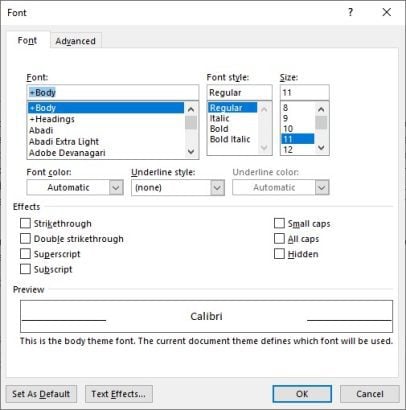
If you’re using a PC with Windows or MacOS, changing font style is a straightforward process. Here’s how:
Capsize Font on Pc
- Step 1: Open Microsoft Word or any other word processing software.
- Step 2: Select the word or phrase you want to change the font style for.
- Step 3: Go to the “Home” tab and click on the “Character” menu.
- Step 4: Choose a different font style from the list of available options.
- Step 5: Click on the selected font style to apply it to your word or phrase.
Alternatively, you can also use other software like WordPad, Google Docs, or LibreOffice to change font style.
Capsize Font on Macos
If you’re using a Mac, changing font style is similar to PC:
- Step 1: Open Pages or any other word processing software.
- Step 2: Select the word or phrase you want to change the font style for.
- Step 3: Go to the “Font” menu and choose a different font style from the list of available options.
- Step 4: Click on the selected font style to apply it to your word or phrase.
Smartphone And Tablet (Android/iOS)
Changing font style on a smartphone or tablet is also relatively easy:
Capsize Font on Android
If you’re using an Android device, changing font style can be done through various apps:
- Step 1: Open the app where you want to change the font style (e.G., Google Docs, Microsoft Word).
- Step 2: Select the word or phrase you want to change the font style for.
- Step 3: Tap on the “Edit” button and then select the word or phrase.
- Step 4: Choose a different font style from the available options.
Some popular apps that allow changing font style include:
- Google Docs
- Microsoft Word
- Documents
Capsize Font on Ios
If you’re using an iOS device, changing font style can be done through various apps:
- Step 1: Open Pages or any other word processing software.
- Step 2: Select the word or phrase you want to change the font style for.
- Step 3: Tap on the “Font” menu and choose a different font style from the list of available options.
- Step 4: Click on the selected font style to apply it to your word or phrase.
Some popular apps that allow changing font style include:
- Pages
- Google Docs
- Microsoft Word
Conclusion
Changing font style is a simple and effective way to add visual interest to your writing. Whether you’re using a PC, smartphone, or tablet, the process is relatively easy and straightforward. By following these steps, you can take control of your writing and make it more engaging and effective.
Frequently Asked Questions (FAQs)
- Q: Can I Change Font Style on Multiple Words at Once?
A: Yes, most word processing software allows you to select multiple words or phrases and apply a specific font style to them. - Q: Are There Any Limitations to Changing Font Style?
A: In general, there are no limitations to changing font style. However, some apps may have restrictions on the number of fonts you can use or the size of the text. - Q: Can I Save a Document With Multiple Font Styles?
A: Yes, most word processing software allows you to save documents with multiple font styles. - Q: Are There Any Specific Apps That Allow Changing Font Style?
A: Yes, some popular apps that allow changing font style include Google Docs, Microsoft Word, Pages, and Documents.
Additional Resources
If you’re looking for more information on changing font style or want to explore other creative writing tools, here are some additional resources:
I hope this article has been helpful!


