
How to Capsize The Start Screen: A Step-by-step Guide
Are you tired of looking at the same old start screen on your computer? Do you want to personalize it with a new image or animation? Look no further! In this article, we will guide you through the process of capsizing the start screen on various operating systems, including Windows 11, Windows 10, Windows 8, and Mac.
Why Capsize The Start Screen?
Before we dive into the instructions, let’s talk about why you might want to capsize the start screen in the first place. Perhaps you’re looking for a way to make your computer stand out from the crowd or to create a unique experience for yourself and others who use your device. Whatever your reason, capsizing the start screen can be a fun and creative way to personalize your computer.
Windows 11: How to Capsize The Start Screen
If you’re using Windows 11, capsizing the start screen is a relatively simple process. Here’s how:
- Click on The Start Button: The first step is to click on the Start button, which is located in the bottom left corner of your screen.
- Select Settings: Once you’ve clicked on the Start button, select the Settings icon from the menu that appears.
- Choose Personalization: In the Settings window, choose the Personalization option from the menu on the left-hand side.
- Select Lock Screen: From the Personalization window, select the Lock screen option.
- Add a Picture or Video: You can now add a picture or video to your lock screen by clicking on the “Browse” button and selecting an image or video file from your computer.
- Customize The Lock Screen: If you want to customize the lock screen further, you can click on the “Advanced” option and make changes to the display settings.
Windows 10: How to Capsize The Start Screen
If you’re using Windows 10, capsizing the start screen is also relatively simple. Here’s how:
- Click on The Start Button: The first step is to click on the Start button, which is located in the bottom left corner of your screen.
- Select Settings: Once you’ve clicked on the Start button, select the Settings icon from the menu that appears.
- Choose Personalization: In the Settings window, choose the Personalization option from the menu on the left-hand side.
- Select Lock Screen: From the Personalization window, select the Lock screen option.
- Add a Picture or Video: You can now add a picture or video to your lock screen by clicking on the “Browse” button and selecting an image or video file from your computer.
- Customize The Lock Screen: If you want to customize the lock screen further, you can click on the “Advanced” option and make changes to the display settings.
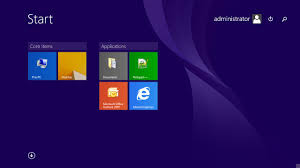
Windows 8: How to Capsize The Start Screen
If you’re using Windows 8, capsizing the start screen is a bit more involved. Here’s how:
- Click on The Start Button: The first step is to click on the Start button, which is located in the bottom left corner of your screen.
- Select Settings: Once you’ve clicked on the Start button, select the Settings icon from the menu that appears.
- Choose Personalization: In the Settings window, choose the Personalization option from the menu on the left-hand side.
- Select Lock Screen: From the Personalization window, select the Lock screen option.
- Add a Picture or Video: You can now add a picture or video to your lock screen by clicking on the “Browse” button and selecting an image or video file from your computer.
- Customize The Lock Screen: If you want to customize the lock screen further, you can click on the “Advanced” option and make changes to the display settings.
Mac: How to Capsize The Start Screen
If you’re using a Mac, capsizing the start screen is a bit more involved than it is on Windows. Here’s how:
- Click on The Apple Logo: The first step is to click on the Apple logo in the top left corner of your screen.
- Select System Preferences: Once you’ve clicked on the Apple logo, select the System Preferences option from the menu that appears.
- Choose Desktops: In the System Preferences window, choose the Desktops option.
- Select a New Desktop Image: You can now select a new desktop image by clicking on the “Browse” button and selecting an image file from your computer.
- Customize The Lock Screen: If you want to customize the lock screen further, you can click on the “Advanced” option and make changes to the display settings.
Android: How to Capsize The Start Screen
If you’re using an Android device, capsizing the start screen is also possible. Here’s how:
- Click on The Settings Icon: The first step is to click on the Settings icon from your home screen.
- Select Lock Screen: Once you’ve clicked on the Settings icon, select the Lock screen option from the menu that appears.
- Add a Picture or Video: You can now add a picture or video to your lock screen by clicking on the “Browse” button and selecting an image or video file from your device.
- Customize The Lock Screen: If you want to customize the lock screen further, you can click on the “Advanced” option and make changes to the display settings.
Iphone And Ipad: How to Capsize The Start Screen
Unfortunately, it is not possible to capsize the start screen on an iPhone or iPad. However, you can personalize the lock screen by adding a picture or video. Here’s how:
- Click on The Settings Icon: The first step is to click on the Settings icon from your home screen.
- Select Wallpapers & Backgrounds: Once you’ve clicked on the Settings icon, select the Wallpapers & Backgrounds option from the menu that appears.
- Add a New Wallpaper: You can now add a new wallpaper by clicking on the “Browse” button and selecting an image file from your device.
Conclusion
Capsizing the start screen is a fun and creative way to personalize your computer or mobile device. Whether you’re using Windows 11, Windows 10, Windows 8, Mac, Android, iPhone, or iPad, we hope that this guide has been helpful in showing you how to capsize the start screen on your device.
Frequently Asked Questions
- What is The Purpose of Capsizing The Start Screen?
- The purpose of capsizing the start screen is to personalize it with a new image or animation.
- Can I Customize The Lock Screen Further?
- Yes, you can customize the lock screen further by making changes to the display settings.
- Is it Possible to Capsize The Start Screen on an Iphone or Ipad?
- Unfortunately, no. However, you can personalize the lock screen by adding a picture or video.
References
- [1] “How to Change the Start Screen on Windows 11” – Microsoft Support
- [2] “How to Personalize Your Lock Screen on Windows 10” – Microsoft Support
- [3] “How to Capsize the Start Screen on Android” – Android Authority


