
Customizing Your Mobile’s Background: A Step-by-step Guide
Are you tired of looking at the same old background on your mobile device? Do you want to give your phone a personalized touch? Look no further! In this article, we will guide you through the process of customizing your mobile’s background, whether you’re using an Android or iPhone.
Why Customize Your Mobile’s Background?
Before we dive into the step-by-step instructions, let’s talk about why customizing your mobile’s background is a good idea. For one, it allows you to express your personality and style. With millions of images available online, you can choose a background that reflects your interests, hobbies, or favorite colors. Additionally, customizing your background can help improve your phone’s appearance and make it stand out from others.
Step-by-step Guide: Customizing Your Android Phone’s Background
If you’re using an Android device, follow these steps to customize your background:
- Open The Settings App: Tap on the settings app icon on your home screen or find it in your app drawer.
- Go to Personalization: Scroll down and select “Personalization” or “Display” from the settings menu.
- Select Wallpaper: Choose “Wallpaper” from the personalization menu.
- Choose a Wallpaper: Browse through your gallery, Google Photos, or download new wallpapers from the internet. You can also choose from pre-installed wallpapers on your device.
- Set as Wallpaper: Select the image you want to use and tap “Set as wallpaper.” Choose whether you want it to be applied only to your home screen, lock screen, or both.
Step-by-step Guide: Customizing Your Iphone’s Background
If you’re using an iPhone, follow these steps:
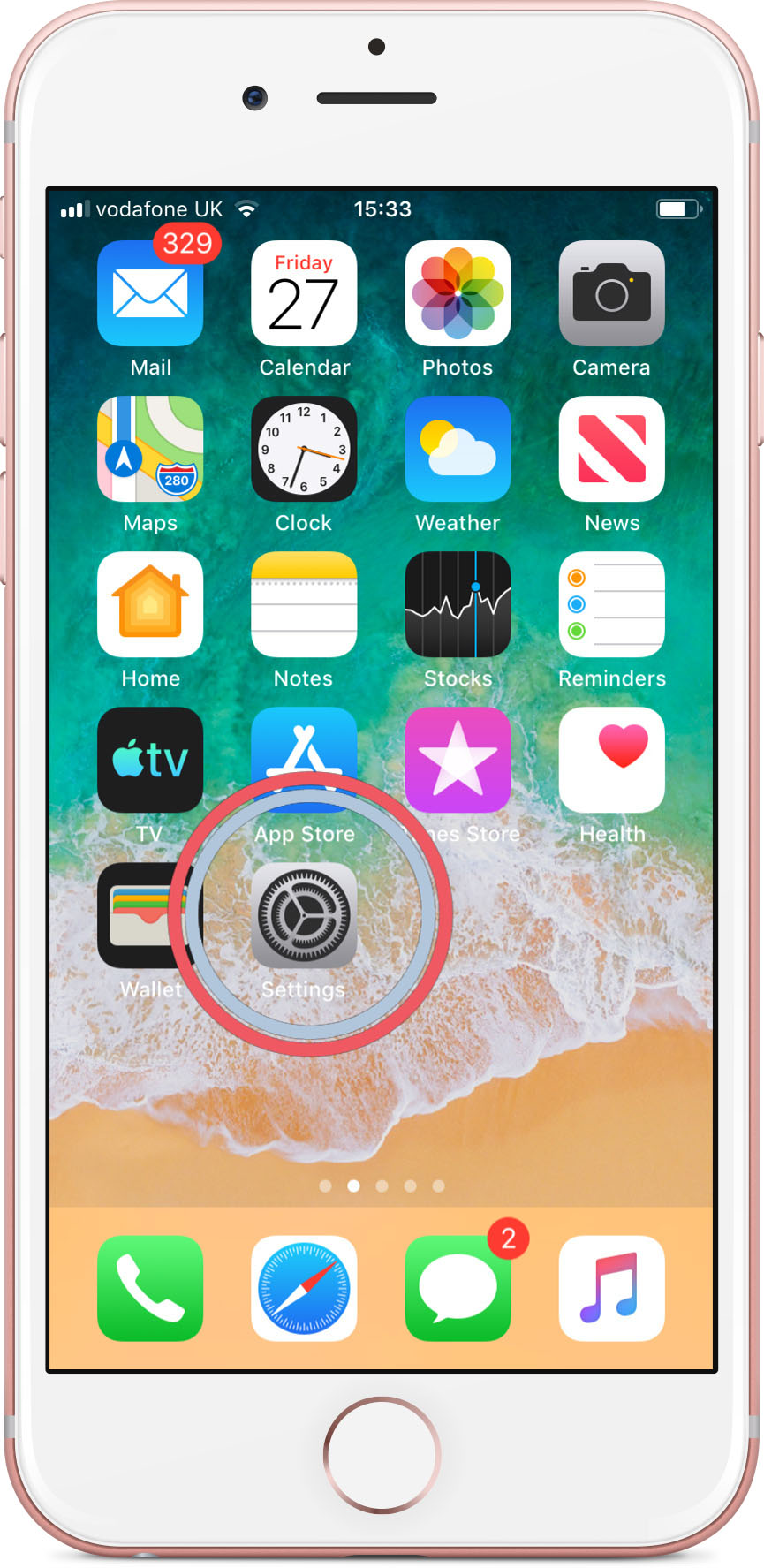
- Open Settings: Tap on the settings app icon on your home screen.
- Go to Wallpaper: Scroll down and select “Wallpaper” from the settings menu.
- Choose a New Wallpaper: Select “Choose a New Wallpaper” and browse through your photos or download new wallpapers from the internet.
- Select an Image: Choose the image you want to use and tap “Set.”
- Apply Wallpaper: Choose whether you want it to be applied only to your home screen, lock screen, or both.
Tips For Customizing Your Mobile’s Background
Here are some additional tips to keep in mind:
- Use High-quality Images: Make sure the image you choose is high-resolution and suitable for your device’s display size.
- Experiment With Different Sizes: Try different sizes and shapes of images to find one that fits your phone perfectly.
- Consider a Gradient Background: Gradients can add a unique touch to your background, but make sure they don’t distract from the content on your screen.
- Keep it Simple: Don’t overdo it with too many patterns or colors. A simple design is often more effective.
Conclusion
Customizing your mobile’s background is a great way to personalize your device and make it stand out. With these step-by-step guides, you can easily change your Android or iPhone’s background in no time. Remember to use high-quality images, experiment with different sizes and shapes, and consider a gradient background for added visual appeal.
Frequently Asked Questions (FAQs)
Here are some frequently asked questions about customizing your mobile’s background:
- Q: Can I Change my Mobile’s Background on an Iphone?
A: Yes, you can change your iPhone’s background by going to Settings > Wallpaper. - Q: How do I Download Wallpapers For my Android Device?
A: You can download wallpapers from the Google Play Store or browse through your gallery and Google Photos. - Q: Can I Use Any Image as a Wallpaper?
A: No, not all images are suitable for mobile backgrounds. Make sure they are high-resolution and compatible with your device’s display size. - Q: How do I Apply a New Background to my Phone?
A: To apply a new background on an Android device, go to Settings > Wallpaper and select the image you want to use. On an iPhone, go to Settings > Wallpaper and choose “Choose a New Wallpaper.” - Q: Can I Change my Mobile’s Background During a Video Call or Meeting?
A: Yes, in some apps like Google Meet, Microsoft Teams, or FaceTime, you can change your background while on a call. - Q: How do I Reset my Mobile’s Background to Its Default Setting?
A: To reset your mobile’s background to its default setting, go to Settings > Wallpaper and select the “Default” option.
I hope this article has been helpful in guiding you through the process of customizing your mobile’s background. Happy customizing!


