
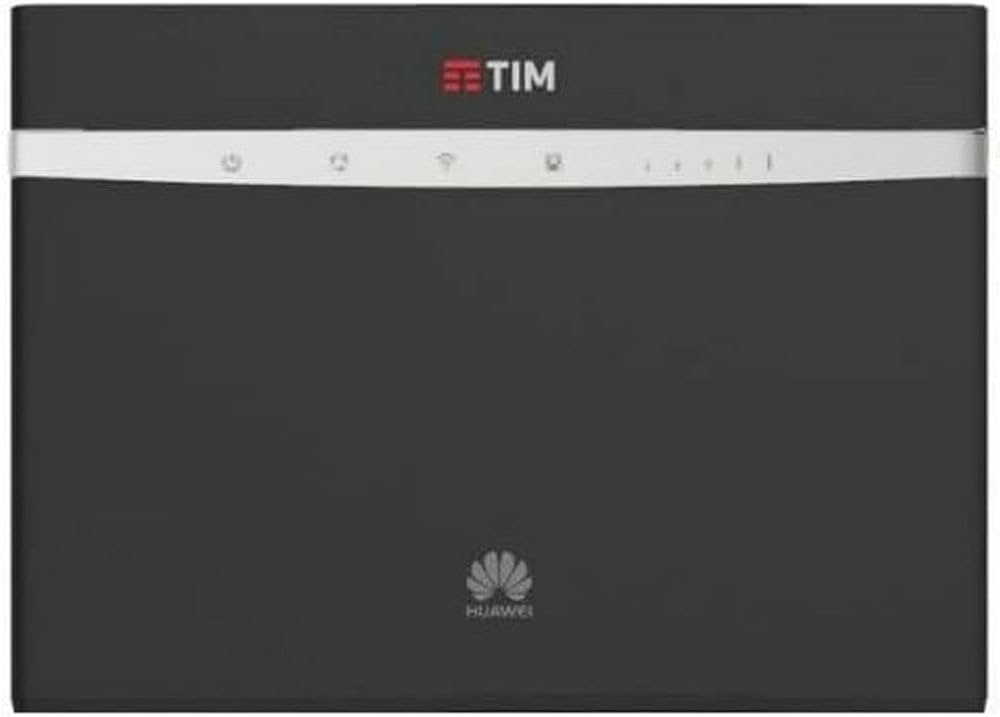
Capsize Frequency Modem Tim: A Comprehensive Guide
As a homeowner, having a stable and fast internet connection is essential for various daily activities, from work to entertainment. However, with the increasing number of devices connected to your network, you might experience slower speeds or interference. In this article, we will explore how to capsize frequency modem TIM, also known as changing the WiFi channel on your router.
Understanding The Basics
Before diving into the steps, let’s understand the basics. Your modem TIM has a dual-band capability, which means it can operate on both 2.4 GHz and 5 GHz frequencies. The 2.4 GHz band is more prone to interference due to its wider range and overlap with other devices, while the 5 GHz band offers faster speeds but has a shorter range.
Why Change The Wifi Channel?
Changing the WiFi channel can help resolve issues like:
- Slow internet speeds
- Interference from neighboring networks or devices
- Connection drops or instability
By switching to a less congested channel, you can improve your overall network performance and reduce dropped connections.
Step 1: Accessing Your Router’s Administrative Panel
To change the WiFi channel on your modem TIM, you need to access its administrative panel. You can do this by:
- Opening a web browser (e.G., Google Chrome, Mozilla Firefox) and typing in the router’s IP address (usually 192.168.1.1 Or 192.168.0.1)
- Entering the username and password (default credentials are usually printed on the router or provided in the user manual)
Step 2: Navigating to The Wifi Settings
Once you’ve accessed the administrative panel, navigate to the WiFi settings by clicking on the “Wireless” or “WiFi” tab.
Step 3: Changing The Wifi Channel
In this section, we’ll cover how to change the WiFi channel for different modem models:
Tim Hub+ Zte H388x
- Click on the “WLAN Base” tab
- Select the desired frequency band (2.4 GHz or 5 GHz)
- To switch between channels, click on the “Channel/Channel wireless” section and select a new channel
Tim Hub+ Technicolor And Tim Hub Fritz! Box 7590
- Click on the “Wireless” tab
- Select the desired frequency band (2.4 GHz or 5 GHz)
- To switch between channels, click on the “Channel wireless” section and select a new channel
Fritz! Box 7590
- Access the router’s administrative panel as described in Step 1
- Click on the “Wi-Fi” tab
- Select the desired frequency band (2.4 GHz or 5 GHz)
- To switch between channels, click on the “Frequency bands” section and select a new channel
Step 4: Saving Changes
After making changes to your WiFi settings, be sure to save them by clicking on the “Apply” or “Save” button.
Tips And Variations
Some additional tips and variations to keep in mind:
- Dual-band Routers: If you have a dual-band router, you can enable or disable both frequencies (2.4 GHz and 5 GHz) independently.
- Channel Steering: Some routers, like the TIM HUB+ ZTE H388X, have an automatic channel steering feature that selects the best available channel for optimal performance.
- Manual Channel Selection: If your router doesn’t have automatic channel steering, you can manually select a new channel by accessing the “Channel wireless” section.
Conclusion
Capsize frequency modem TIM is a simple process that can improve your network’s overall performance and reduce dropped connections. By following these steps and tips, you should be able to change the WiFi channel on your router and enjoy faster, more stable internet speeds.
Frequently Asked Questions (FAQs)
- What is The Difference Between 2.4 Ghz And 5 Ghz Frequencies?
The 2.4 GHz band has a wider range but is more prone to interference due to its overlap with other devices. The 5 GHz band offers faster speeds but has a shorter range.
- Why do I Experience Dropped Connections or Slow Internet Speeds?
Dropped connections or slow internet speeds can be caused by interference from neighboring networks or devices, which can affect your network’s performance.
- How Often Should I Change The Wifi Channel on my Router?
It’s recommended to change the WiFi channel every 2-3 months to ensure optimal performance and reduce dropped connections.
- Can I Use Both 2.4 Ghz And 5 Ghz Frequencies at The Same Time?
Yes, you can enable or disable both frequencies independently, depending on your specific needs and network requirements.
- What is Channel Steering, And How Does it Work?
Channel steering is a feature that automatically selects the best available channel for optimal performance. It’s typically enabled by default but can be disabled if needed.
- Can I Manually Select a New Wifi Channel on my Router?
Yes, you can manually select a new channel by accessing the “Channel wireless” section in your router’s administrative panel.
- How do I Reset my Router to Its Factory Settings?
To reset your router to its factory settings, press and hold the reset button for 10-15 seconds, then release it and wait for the router to restart.
- What is The Recommended Password Length For my Wifi Network?
It’s recommended to use a strong, unique password that’s at least 12 characters long and contains a mix of uppercase and lowercase letters, numbers, and special characters.


