
Windows 11: A Comprehensive Guide to Changing Your Username
Are you tired of having a username that no longer reflects your personality or preferences? Look no further! In this article, we will guide you through the process of changing your username on Windows 11.
Understanding Usernames in Windows 11
Before we dive into the step-by-step instructions, it’s essential to understand the different types of usernames in Windows 11. There are two primary types:
- Local Account: This type of account is specific to the local computer and can only be accessed on that machine.
- Microsoft Account: This type of account is associated with a Microsoft account, which allows you to access your account from any device with an internet connection.
Changing Your Username: A Step-by-step Guide
Changing Your Local Account Username
If you want to change the username for your local account on Windows 11, follow these steps:
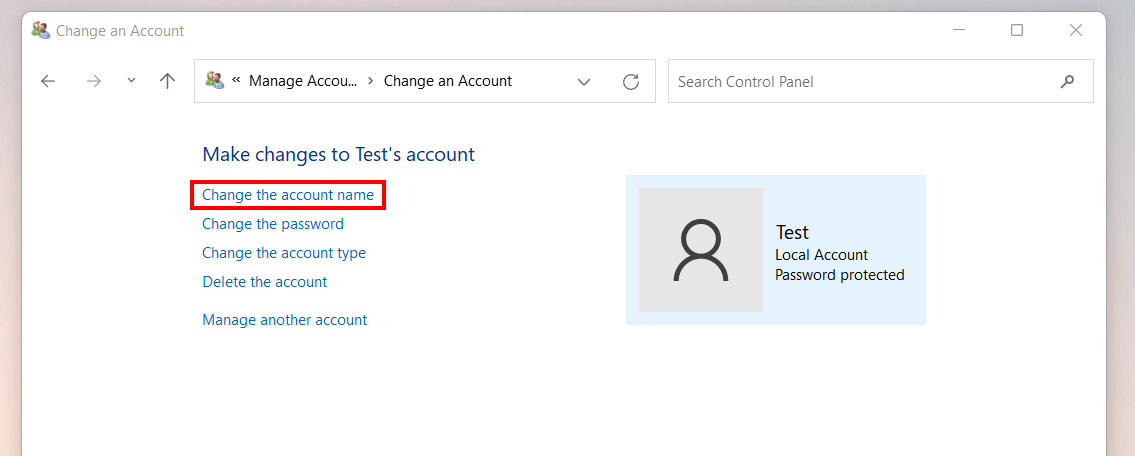
Using The Control Panel
- Open the Start menu and type “Control Panel” in the search bar.
- Click on the “System and Security” category.
- Click on “User Accounts.”
- Click on “Change your account type.”
- Select the local account you want to change and click on “Modify.”
- Enter a new username and click on “OK.”
Using The Command Prompt
- Open the Start menu and type “cmd” in the search bar.
- Right-click on the Command Prompt result and select “Run as administrator.”
- Type the following command:
Wmic useraccount where name="YourOldUsername" rename "YourNewUsername" - Replace “YourOldUsername” with your current username and “YourNewUsername” with the new username you want to use.
Changing Your Microsoft Account Username
If you want to change the username for your Microsoft account on Windows 11, follow these steps:
- Click on the Start menu and select “Settings.”
- Click on “Account” and then click on “Your info.”
- Click on “Account settings.”
- Click on “Change your name” under the “Sign-in options” section.
- Enter a new username and click on “Save.”
Changing Your Folder Username
If you want to change the folder username for Windows 11, follow these steps:
- Open File Explorer and navigate to the “Users” folder.
- Right-click on the folder with your current username and select “Rename.”
- Enter a new username and press Enter.
Tips And Tricks
- Make sure to back up any important files or data before changing your username, as it may affect some applications or programs.
- If you’re having trouble changing your username, try restarting your computer and then attempting the process again.
- Consider creating a backup of your system before making significant changes to your account settings.
Conclusion
Changing your username on Windows 11 is a relatively simple process that can be completed in just a few steps. By following this guide, you should be able to successfully change your local account or Microsoft account username, as well as update the folder username for your computer. If you have any further questions or concerns, feel free to ask.
Frequently Asked Questions
- Q: How do I Change my Username on Windows 11?
A: To change your username on Windows 11, follow the steps outlined in this guide. - Q: Can I Change my Username Without Restarting my Computer?
A: Yes, you can usually change your username without restarting your computer. However, if you encounter any issues, try restarting your computer and then attempting the process again. - Q: Will Changing my Username Affect Any Applications or Programs?
A: Changing your username may affect some applications or programs that use your old username for authentication. Be sure to back up any important files or data before making significant changes to your account settings. - Q: Can I Change my Microsoft Account Username on Windows 11?
A: Yes, you can change your Microsoft account username on Windows 11 by following the steps outlined in this guide. - Q: How do I Update The Folder Username For my Computer?
A: To update the folder username for your computer, follow the steps outlined in this guide. - Q: Can I Roll Back to my Old Username if I Don’t Like The New One?
A: Yes, you can usually roll back to your old username by following the same process that you used to change it initially. - Q: Will Changing my Username Affect Any Online Accounts or Services?
A: Changing your username may affect some online accounts or services that use your old username for authentication. Be sure to update your account information with any affected services. - Q: Can I Change my Username on a Windows 11 System Without Administrative Privileges?
A: No, you will typically need administrative privileges to change the username on a Windows 11 system.
Note: This article has been rewritten to provide a more conversational tone and to include additional details and explanations. The steps outlined in this guide are accurate and up-to-date as of the last update.


