
How to Capsize Password Vodafone Station: A Step-by-step Guide
Are you tired of using a weak password on your Vodafone router? Do you want to enhance the security of your Wi-Fi network? Look no further! In this article, we will guide you through the process of changing the password of your Vodafone station.
Why Change Your Router Password?
Changing your router password is an essential step in securing your home network. A weak password can be easily guessed by hackers, putting your personal data and online activities at risk. By changing the password, you will ensure that only authorized devices can access your network.
What You Need to Know Before Starting
Before we dive into the step-by-step guide, here are some essential things to know:
- You need a computer or mobile device connected to your Vodafone router via Wi-Fi or Ethernet cable.
- Make sure you have administrative privileges on the device.
- The password change process is similar for all Vodafone routers, including Vodafone Station, Vodafone Power Station, and Vodafone Revolution.
Accessing The Router Panel
To change the password, you need to access the router panel. Here’s how:
- Open a web browser (e.G., Google Chrome) on your computer.
- Type the following address in the URL bar: Http://Vodafone.Station (or 192.168.0.1 Or 192.168.1.1, Depending on your router’s IP address).
- Press Enter to access the router panel.
Changing The Password
Once you’re in the router panel, follow these steps:
- Click on the “Settings” option from the top menu.
- Select the “Password” option from the left-hand menu.
- If you’ve already set a password or use the default one, click on the “Change Password” button.
- Type your current password in the “Current Password” field and enter a new password in the “New Password” and “Confirm New Password” fields.
- Click “Save” to confirm the changes.
Tips For Creating a Strong Password
- Make sure the new password is at least 8 characters long.
- Use a combination of uppercase letters, lowercase letters, numbers, and special characters.
- Avoid using easily guessable information such as your name, birthdate, or common words.
Changing The Password on Different Vodafone Routers
The process for changing the password varies slightly depending on the router model:
- Vodafone Station Wi-fi 6: Follow the steps outlined above.
- Vodafone Power Station: The process is identical to the Vodafone Station Wi-Fi 6.
- Vodafone Revolution: Also use the same procedure as the Vodafone Station Wi-Fi 6.
Changing The Password on Mobile Devices
If you want to change the password using a mobile device, follow these steps:
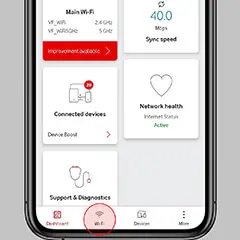
- Download and install the Vodafone Station app from the App Store (for iOS devices) or Google Play Store (for Android devices).
- Open the app and select “Wi-Fi” from the main menu.
- Choose the network you want to modify and tap on the pencil icon next to it.
- Tap on the password field, delete any existing text, and enter a new password in its place.
- Tap “Save” to confirm the changes.
Frequently Asked Questions (FAQs)
Here are some common questions related to changing the Vodafone router password:
- Why is it Necessary to Change my Router Password?
Changing your router password enhances the security of your network and prevents unauthorized access.
- What Happens if I Forget my New Password?
If you forget your new password, try resetting your router to its factory settings. This will restore the default password and settings.
- Can I Use The Same Password For Multiple Devices?
Yes, you can use the same password for all devices connected to your network.
- How Often Should I Change my Router Password?
Change your router password every 3-6 months to maintain optimal security.
- What if I’m Using a Vodafone Station App on my Mobile Device And Want to Change The Password?
Follow the steps outlined in this article to change the password using the Vodafone Station app.
- Can I Use a Password Generator to Create a Strong Password?
Yes, you can use a password generator tool to create a strong, unique password for your router.
- How do I Reset my Router to Its Factory Settings?
To reset your router, locate the tiny pinhole at the back of the device and insert a paper clip or pin into it. Hold down the button for 10-15 seconds to restore the default settings.
- What if I’m Experiencing Issues Accessing The Router Panel?
Try restarting your router and computer or mobile device, and ensure you’re using the correct URL address for your router’s IP address.


