
How to Transfer Whatsapp Number Without Losing Conversations
Are you looking to upgrade your phone or SIM card, but don’t want to lose your WhatsApp conversations? Look no further! In this article, we’ll guide you through the process of transferring your WhatsApp number without losing any chats.
What Happens When You Change Your Phone Number on Whatsapp?
When you change your phone number on WhatsApp, the app will automatically detect the new number and prompt you to confirm it. If you don’t confirm the new number, all your conversations will be deleted. But don’t worry, we’ve got a step-by-step guide to help you transfer your WhatsApp number without losing any chats.
How to Change Your Phone Number on Whatsapp
Changing your phone number on WhatsApp is a relatively straightforward process. Here’s how to do it:
Step 1: Open Whatsapp And Go to Settings
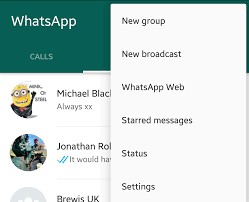
Open WhatsApp and go to the settings menu (represented by three vertical dots). Tap on “Account” and then select “Change Number”.
Step 2: Confirm Your Old Number
Enter your old phone number in the provided field.
Step 3: Enter Your New Phone Number
Enter your new phone number in the provided field. Make sure to include the international prefix if necessary.
Step 4: Choose Whether to Brief Contacts or Not
Decide whether you want to brief your contacts about the change of number. If you choose not to, they won’t receive any notifications about the change.
Step 5: Confirm And Check Your New Number
Confirm your new phone number by tapping on “Yes” in the confirmation screen. You’ll then receive an SMS with a verification code to confirm your new number. Enter this code to complete the process.
How to Transfer Whatsapp Number Without Losing Conversations
To transfer your WhatsApp number without losing conversations, follow these steps:
Step 1: Backup Your Whatsapp Data
Backup your WhatsApp data by going to Settings > Chats > Chat Backup. This will save all your conversations and media to Google Drive or iCloud.
Step 2: Change Your Phone Number on Whatsapp
Follow the steps outlined above to change your phone number on WhatsApp.
Step 3: Restore Your Whatsapp Data
Once you’ve changed your phone number, restore your WhatsApp data from your backup. This will transfer all your conversations and media to the new phone number.
How to Transfer Whatsapp Number Without a Sim Card
If you don’t have a SIM card, but still want to change your WhatsApp number, follow these steps:
Step 1: Access Your Phone’s Settings
Access your phone’s settings menu and go to “Accounts” or “User Accounts”.
Step 2: Look For The Whatsapp App
Look for the WhatsApp app in the list of accounts.
Step 3: Change Your Phone Number on Whatsapp
Follow the steps outlined above to change your phone number on WhatsApp.
How to Transfer Whatsapp Number Without Being Seen
If you don’t want to notify your contacts about the change of number, follow these steps:
Step 1: Follow The Steps Above
Follow the steps outlined above to transfer your WhatsApp number without losing conversations.
Step 2: Don’t Notify Contacts
Don’t check the box to brief your contacts about the change of number. This way, they won’t receive any notifications about the change.
How to Transfer Whatsapp Number in a Group Chat
If you’re part of a group chat on WhatsApp and want to transfer your phone number without losing conversations, follow these steps:
Step 1: Follow The Steps Above
Follow the steps outlined above to transfer your WhatsApp number without losing conversations.
Step 2: Leave The Old Phone Number in The Group Chat
Leave the old phone number in the group chat. This way, you’ll still be able to receive messages from the group.
Frequently Asked Questions (FAQs)
-
Will I Lose my Conversations When I Change my Phone Number on Whatsapp?
No, you won’t lose your conversations when you change your phone number on WhatsApp. -
Can I Transfer my Whatsapp Number Without Losing Conversations?
Yes, you can transfer your WhatsApp number without losing conversations by following the steps outlined above. -
How do I Backup my Whatsapp Data?
To backup your WhatsApp data, go to Settings > Chats > Chat Backup. -
Can I Restore my Whatsapp Data From a Backup?
Yes, you can restore your WhatsApp data from a backup once you’ve changed your phone number. -
Will I Receive Notifications When I Change my Phone Number on Whatsapp?
No, you won’t receive notifications when you change your phone number on WhatsApp unless you choose to brief your contacts. -
Can I Transfer my Whatsapp Number Without a Sim Card?
Yes, you can transfer your WhatsApp number without a SIM card by following the steps outlined above. -
Will I Lose Access to Group Chats if I Change my Phone Number on Whatsapp?
No, you won’t lose access to group chats when you change your phone number on WhatsApp. -
Can I Restore my Whatsapp Data From Icloud or Google Drive?
Yes, you can restore your WhatsApp data from iCloud or Google Drive once you’ve changed your phone number.
Conclusion
Transferring your WhatsApp number without losing conversations is a relatively straightforward process. By following the steps outlined above, you’ll be able to change your phone number on WhatsApp without losing any chats. Remember to backup your WhatsApp data before changing your phone number and restore it after completing the transfer.


