
How to Change Your Wifi Channel: A Step-by-step Guide
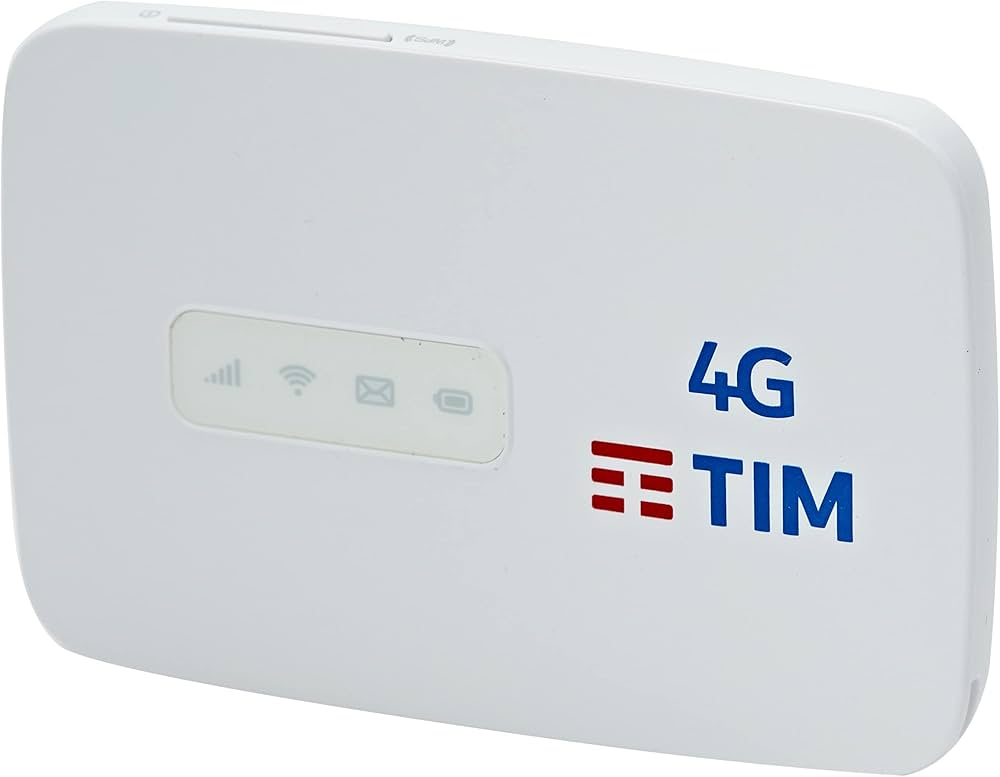
Are you tired of slow internet speeds and dropped connections? Do you want to improve your overall online experience? Changing your WiFi channel is a simple yet effective way to boost your network’s performance. In this article, we’ll show you how to do it on various devices, including the TIM modem.
Why Change Your Wifi Channel?
Before we dive into the step-by-step guide, let’s quickly explain why changing your WiFi channel can make a difference:
- Overlapping channels: Many devices in your vicinity use the same WiFi channel, leading to interference and slow speeds.
- Congested channels: Some channels are more popular than others, causing congestion and reduced performance.
- Interference: Other electronic devices in your area can interfere with your WiFi signal, affecting its quality.
Changing Your Wifi Channel on Tim Modem
If you have a TIM modem, follow these steps:
- Open a Web Browser: Type
http://192.168.1.1In the address bar and press Enter. - Login to Your Modem: Use the default login credentials (usually admin/admin) or the ones you previously set up.
- Select Wireless Settings: Click on the Wireless tab, then select the WiFi network you want to configure.
- Change The Channel: Select the channel you want to use from the dropdown menu. Make sure to choose a channel that’s not congested.
Changing Your Wifi Channel on Tim Hub
If you have a TIM Hub modem, follow these steps:
- Open a Web Browser: Type
http://192.168.1.1In the address bar and press Enter. - Login to Your Modem: Use the default login credentials (usually admin/admin) or the ones you previously set up.
- Select Wireless Settings: Click on the Wireless tab, then select the WiFi network you want to configure.
- Change The Channel: Select the channel you want to use from the dropdown menu. Make sure to choose a channel that’s not congested.
Changing Your Wifi Channel on Tim Fibre Modem
If you have a TIM Fibre modem, follow these steps:
- Open a Web Browser: Type
http://Modemtelecomin the address bar and press Enter. - Login to Your Modem: Use the default login credentials (usually admin/admin) or the ones you previously set up.
- Select Wi-fi Settings: Click on the Wi-Fi tab, then select the network you want to configure.
- Change The Channel: Select the channel you want to use from the dropdown menu. Make sure to choose a channel that’s not congested.
Changing Your Wifi Channel on Fritz!box Modem
If you have a FRITZ!Box modem, follow these steps:
- Open a Web Browser: Type
http://Fritz.Boxin the address bar and press Enter. - Login to Your Modem: Use the default login credentials (usually admin/admin) or the ones you previously set up.
- Select Wi-fi Settings: Click on the Wi-Fi tab, then select the network you want to configure.
- Change The Channel: Select the channel you want to use from the dropdown menu. Make sure to choose a channel that’s not congested.
Troubleshooting And Contacting Tim Support
If you encounter any issues or have trouble changing your WiFi channel, follow these steps:
- Check The Manual: Visit the TIM website and look for the user manual specific to your modem model.
- Contact Tim Support: Reach out to TIM’s customer support team via phone, WhatsApp, or through the MyTIM app.
By following this guide, you should be able to change your WiFi channel on various devices, including the TIM modem. Remember to choose a channel that’s not congested and has minimal interference for optimal performance.


