
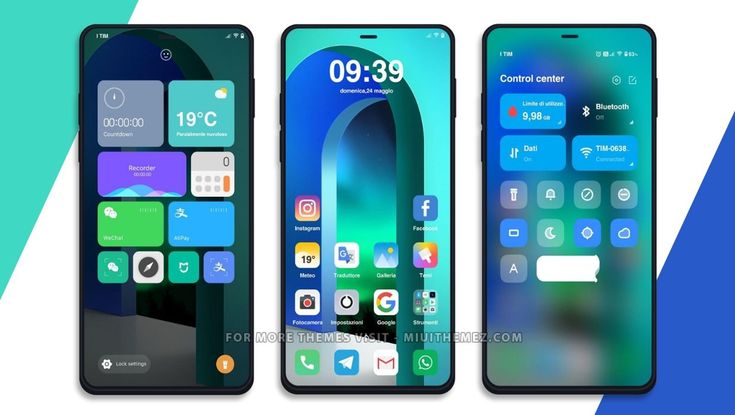
How to Change Your Wallpaper on a Xiaomi Smartphone: A Step-by-step Guide
Are you tired of the same old wallpaper on your Xiaomi smartphone? Do you want to give your device a fresh new look? Look no further! In this article, we will guide you through the process of changing your wallpaper on a Xiaomi smartphone.
Why Change Your Wallpaper?
Changing your wallpaper can be a great way to personalize your device and make it stand out. With so many amazing images available, why settle for the default wallpaper that came with your phone?
Method 1: Changing Your Wallpaper From The Home Screen
The easiest way to change your wallpaper is by using the home screen. Here’s how:
- Tap on an empty spot on the home screen and hold it down.
- A menu will pop up, select “Wallpaper” from the options.
- Browse through the available categories and select the one that interests you most (e.G., Texture, Design, Sunset, etc.).
- Choose the image you want to use as your wallpaper by tapping on its thumbnail.
- Select how you want to apply the wallpaper: Lock screen, Home screen, or both.
That’s it! You’ve successfully changed your wallpaper using the home screen method.
Method 2: Changing Your Wallpaper From The Gallery
If you have a favorite photo taken with your Xiaomi smartphone, you can use it as your new wallpaper. Here’s how:
- Open the Gallery app on your device.
- Find the photo you want to use and tap on its thumbnail.
- Tap on the three dots in the top-right corner of the screen (in some versions, this menu might be accessed by long-pressing on the photo).
- Select “Set as wallpaper” from the menu.
- Choose how you want to apply the wallpaper: Lock screen, Home screen, or both.
By following these steps, you can use a photo taken with your Xiaomi smartphone as your new wallpaper.
Method 3: Changing Your Wallpaper From Android Settings
If you prefer to change your wallpaper from the settings app, here’s how:
- Open the Settings app on your device.
- Tap on “Display” and then select “Wallpaper”.
- Browse through the available categories and select the one that interests you most (e.G., Texture, Design, Sunset, etc.).
- Choose the image you want to use as your wallpaper by tapping on its thumbnail.
- Select how you want to apply the wallpaper: Lock screen, Home screen, or both.
You can also enable the Carousel wallpapers feature, which allows you to automatically change your wallpaper at set intervals.
Method 4: Changing Your Wallpaper Using Third-party Apps
There are many third-party apps available that allow you to change your wallpaper. Some popular options include Google Wallpapers and Mi Wallpaper. Here’s how to use these apps:
- Install the app from the Google Play Store or AppGallery.
- Open the app and browse through the available wallpapers.
- Choose the image you want to use as your wallpaper by tapping on its thumbnail.
- Select how you want to apply the wallpaper: Lock screen, Home screen, or both.
How to Change Your Wallpaper on a Xiaomi Mi Band
If you’re wondering how to change your wallpaper on a Xiaomi Mi Band, here’s what you need to do:
- Make sure your Mi Band is paired with your smartphone.
- Open the Zepp Life app on your device.
- Tap on the icon of the person in the bottom-right corner and select “My devices”.
- Choose your Mi Band from the list and tap on the “Shop” option.
- Browse through the available wallpapers and choose the one you want to use.
That’s it! You’ve successfully changed your wallpaper on a Xiaomi Mi Band.
Conclusion
Changing your wallpaper is a great way to personalize your Xiaomi smartphone and give it a fresh new look. Whether you prefer to use the home screen, gallery, or settings app, there are many ways to achieve this. With so many amazing wallpapers available, why settle for the default one?


