
How to Change Your Yahoo Password: A Step-by-step Guide
Are you tired of using a weak password for your Yahoo account? Do you want to add an extra layer of security to protect your emails, calendar events, and other sensitive information? Look no further! In this article, we’ll guide you through the process of changing your Yahoo password, whether you’re using a computer, Android device, or iPhone.
Why Change Your Yahoo Password?
Before we dive into the steps, let’s talk about why changing your Yahoo password is important. Using a weak password can leave your account vulnerable to hacking and other security threats. By changing your password regularly and choosing a strong one, you can significantly reduce the risk of unauthorized access to your Yahoo account.
Step 1: Access Your Yahoo Account
To change your Yahoo password, you’ll need to access your account first. Here’s how:
- On a computer, go to www.Yahoo.Com and sign in with your current email address and password.
- On an Android device, open the Yahoo Mail app and tap on “Sign In” at the top right corner of the screen.
- On an iPhone or iPad, open the Yahoo Mail app and tap on “Login” at the top left corner of the screen.
Step 2: Go to Your Account Settings
Once you’re signed in, click on your name or profile picture at the top right corner of the page (or tap on it on a mobile device). Then, select “Account Info” from the dropdown menu.
Step 3: Change Your Password
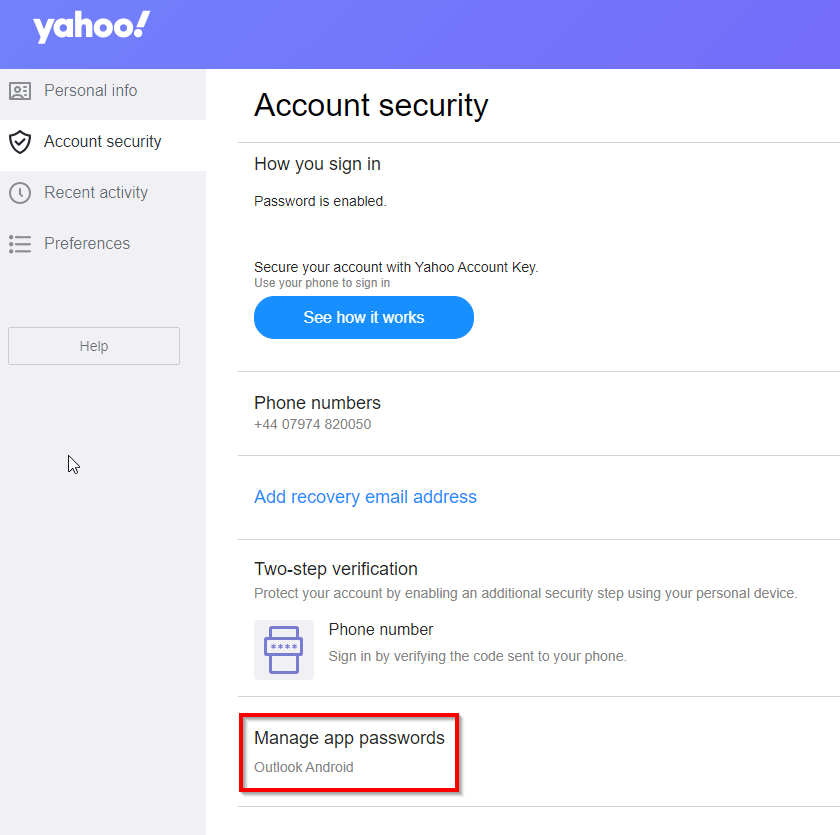
Now that you’re in your account settings, look for the option to change your password. On a computer, this is usually located under the “Security” or “Account Settings” tab. On an Android device, tap on “Settings” and then select “Change Password.” On an iPhone or iPad, tap on “Settings” and then select “Change Password.”
Step 4: Create a New Password
To change your password, you’ll need to create a new one that meets Yahoo’s security requirements. Here are some tips for choosing a strong password:
- Use a combination of uppercase and lowercase letters.
- Include numbers and special characters.
- Avoid using easily guessable information like your name or birthdate.
Step 5: Save Your New Password
Once you’ve created a new password, make sure to save it securely. You can store it in a password manager or write it down on a piece of paper (but be careful not to leave the paper in an insecure location!).
Tips For Changing Your Yahoo Password on Different Devices
Here are some additional tips for changing your Yahoo password on different devices:
- Android: If you’re using the Yahoo Mail app, make sure to tap on “Settings” and then select “Change Password.” Don’t forget to update your password in any other apps that use your Yahoo account.
- Iphone or Ipad: To change your password on an iPhone or iPad, open the Yahoo Mail app and tap on “Login” at the top left corner of the screen. Then, select “Settings” and choose “Change Password.”
- Computer: On a computer, you can access your account settings by clicking on your name or profile picture at the top right corner of the page.
Frequently Asked Questions
Here are some frequently asked questions about changing your Yahoo password:
- Q: How often should I change my Yahoo password?
A: We recommend changing your password every 60-90 days to stay ahead of potential security threats. - Q: What makes a good password?
A: A good password is one that’s strong, unique, and not easily guessable. Avoid using common words or phrases! - Q: Can I recover my Yahoo password if I forget it?
A: Yes! If you forget your Yahoo password, click on the “Forgot Password” link and follow the prompts to reset it.
Conclusion
Changing your Yahoo password is an important step in protecting your account from unauthorized access. By following these steps and choosing a strong password, you can significantly reduce the risk of security threats and keep your information safe. Remember to change your password regularly and consider using a password manager to store all of your passwords securely!


