
How to Change Your Password on Bancoposta: A Step-by-step Guide
Are you tired of using the same old password for your BancoPosta account? Do you want to change it to something more secure and memorable? Look no further! In this article, we will guide you through the process of changing your password on both the website and mobile app.
Why Change Your Password?
Changing your password regularly is an essential step in maintaining the security of your online accounts. A strong password can protect you from identity theft, hacking, and other cyber threats. If you’re using a weak or easily guessable password, it’s time to change it to something more secure.
Method 1: Changing Your Password on The Website
To change your password on the website, follow these steps:
Step 1: Access The Personal Area
Log in to your BancoPosta account and click on the “Personal Area” button located at the top right corner of the page. If you have a PosteID code, you can also use it to access the personal area.
Step 2: Click on Gestisci Account
Once you’re in the Personal Area, click on the “Gestisci Account” (Manage Account) button. This will take you to a new page where you can manage your account settings.
Step 3: Modify Your Password
On the “Gestisci Account” page, click on the pencil icon next to the password field. Enter your current password and create a new one that meets the following criteria:
- A minimum of 8 characters
- A mix of uppercase letters, lowercase letters, numbers, and special characters
- No consecutive identical characters
Step 4: Confirm Your New Password
Once you’ve created your new password, confirm it by re-entering it in the confirmation field. If you have two-factor authentication enabled, you may be prompted to complete an additional verification step.
Method 2: Changing Your Password on The Mobile App
To change your password on the mobile app, follow these steps:
Step 1: Access The Bancoposta App
Open the BancoPosta app and tap on the “Are not tu?” (Are you you?) button. If you have a PosteID code, you can also use it to access the app.
Step 2: Tap on Have Forgotten Your Credentials?
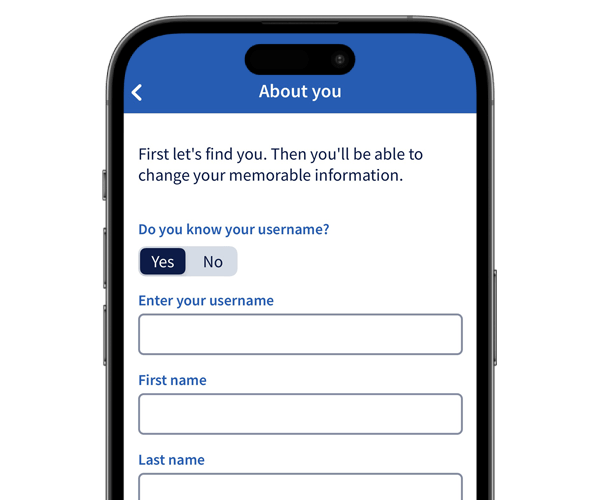
Tap on the “Have Forgotten Your Credentials?” button. This will take you to a new page where you can recover your password.
Step 3: Select Recover Your Password
Select the “Recover Your Password” option and tap on the “Continue” button. Enter your name user and fiscal code, then confirm that you’re not a robot.
Step 4: Receive The Sms Code
You will receive an SMS with a verification code. Enter this code in the app to access the password modification page.
Step 5: Modify Your Password
On the password modification page, enter your current password and create a new one that meets the same criteria as on the website.
Conclusion
Changing your password on BancoPosta is an easy and straightforward process. By following these steps, you can ensure that your account remains secure and protected from cyber threats. Remember to choose a strong and memorable password, and consider using a password manager to generate and store complex passwords.
Frequently Asked Questions (FAQs)
- Q: Why do I Need to Change my Password Regularly?
A: Regularly changing your password is essential to maintaining the security of your online accounts. A strong password can protect you from identity theft, hacking, and other cyber threats. - Q: What Are The Criteria For a Strong Password?
A: A strong password should have at least 8 characters, including a mix of uppercase letters, lowercase letters, numbers, and special characters. It should also not contain consecutive identical characters. - Q: Can I Use The Same Password on Multiple Accounts?
A: No, it’s not recommended to use the same password across multiple accounts. If your password is compromised on one account, all of your other accounts that use the same password may be vulnerable as well. - Q: How do I Enable Two-factor Authentication on Bancoposta?
A: To enable two-factor authentication on BancoPosta, log in to your account and navigate to the “Account Settings” page. Look for the option to enable two-factor authentication and follow the instructions provided. - Q: Can I Recover my Password if I Forget It?
A: Yes, you can recover your password by following the steps outlined in this article. If you’re unable to recover your password, contact the BancoPosta support team for assistance. - Q: How do I Report a Problem With my Account or Password?
A: To report a problem with your account or password, contact the BancoPosta support team via phone, email, or online chat. Provide them with as much detail as possible about the issue you’re experiencing.
Conclusion
Changing your password on BancoPosta is an essential step in maintaining the security of your online accounts. By following these steps and choosing a strong and memorable password, you can ensure that your account remains protected from cyber threats. If you have any questions or concerns, don’t hesitate to reach out to the support team for assistance.


