
How to Capsize The Password of Facebook: A Step-by-step Guide
Are you tired of using a password that’s too easy to guess or forget? Do you want to change your password but don’t know where to start? Look no further! In this article, we’ll guide you through the process of changing and recovering your Facebook password on both smartphone and tablet devices.
Why Change Your Password?
Changing your password is an essential step in maintaining the security and privacy of your online accounts. A strong password can protect you from identity theft, hacking, and other malicious activities. If you’ve forgotten your password or want to change it for safety reasons, this guide will walk you through the process.
Modifying The Password on Smartphone And Tablet Devices
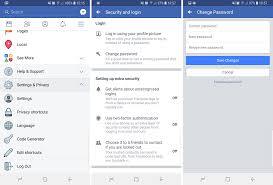
To modify your Facebook password on a smartphone or tablet device:
- Open the Facebook app and access your account.
- Tap on the ≡ icon (three horizontal lines) in the top-right corner of the screen.
- Select “Settings and Privacy” from the menu.
- Scroll down to “Account Settings” and tap on it.
- Tap on “Security and Login” and then select “Edit”.
- Enter your current password and tap on “Save Changes”.
That’s it! You’ve successfully modified your Facebook password on a smartphone or tablet device.
Recovering The Password
If you’ve forgotten your password, don’t panic! Recovering your password is a straightforward process:
- Tap on the “Forgot Account” button on the login page.
- Enter your email address or phone number associated with your account.
- Choose one of the recovery methods (e.G., Email, SMS, or Google account).
- Follow the instructions to reset your password.
Modifying The Password on PC Devices
To modify your Facebook password on a PC device:
- Access the Facebook website and log in to your account.
- Click on the “Account” dropdown menu at the top-right corner of the screen.
- Select “Settings”.
- Scroll down to “Security and Login” and click on it.
- Click on “Edit” next to “Password and Security”.
- Enter your current password, new password, and repeat the new password.
Recovering The Password on PC Devices
If you’ve forgotten your password:
- Go to the Facebook login page and click on “Forgot Account”.
- Enter your email address or phone number associated with your account.
- Choose one of the recovery methods (e.G., Email, SMS, or Google account).
- Follow the instructions to reset your password.
Tips For Choosing a Strong Password
When choosing a new password:
- Use a combination of uppercase and lowercase letters.
- Include numbers and special characters.
- Avoid using easily guessable information such as your name, birthdate, or common words.
- Make it long enough (at least 12 characters).
- Don’t use the same password for multiple accounts.
Conclusion
Changing and recovering your Facebook password is a simple process that can be completed on both smartphone and tablet devices. Remember to choose a strong password that’s difficult to guess and avoid using easily identifiable information. If you’ve forgotten your password, follow the recovery steps outlined above.
Frequently Asked Questions (FAQs)
- Q: Why do I Need to Change my Facebook Password?
A: Changing your password is essential for maintaining security and privacy online. - Q: How Long Should my Facebook Password Be?
A: Your password should be at least 12 characters long and include a combination of uppercase and lowercase letters, numbers, and special characters. - Q: What Happens if I Forget my Facebook Password?
A: If you’ve forgotten your password, follow the recovery steps outlined above to reset it. - Q: Can I Use The Same Password For Multiple Accounts?
A: No, it’s recommended to use a unique password for each account to maintain security and avoid identity theft. - Q: How Often Should I Change my Facebook Password?
A: It’s recommended to change your password every 60-90 days or when you’ve experienced suspicious activity on your account. - Q: Can I Recover my Facebook Password if I’ve Forgotten It?
A: Yes, follow the recovery steps outlined above to reset your password.


