
How to Change Your Name on Twitch: A Step-by-step Guide
Are you tired of your old username on Twitch? Do you want to give your channel a fresh new look? Look no further! In this article, we’ll guide you through the process of changing your name on Twitch, whether you’re using a PC, smartphone, or tablet.
Can I Change My Name on Twitch?
Before we dive into the step-by-step guide, it’s essential to know that Twitch has certain limitations when it comes to changing your username. You can only change your name every 60 days, and after doing so, the old name will not be available for a minimum of 6 months. This is to prevent users from constantly changing their names and disrupting their communities.
Benefits of Changing Your Name on Twitch
Changing your name on Twitch has several benefits. Not only can you give your channel a fresh new look, but you can also choose a name that’s more memorable or easier to spell. Additionally, changing your name doesn’t affect your followers, views, or subscriptions. You’ll still have access to all your data and analytics.
How to Change Your Name on Twitch (PC)
If you’re using a PC, changing your name is relatively straightforward. Here’s what you need to do:
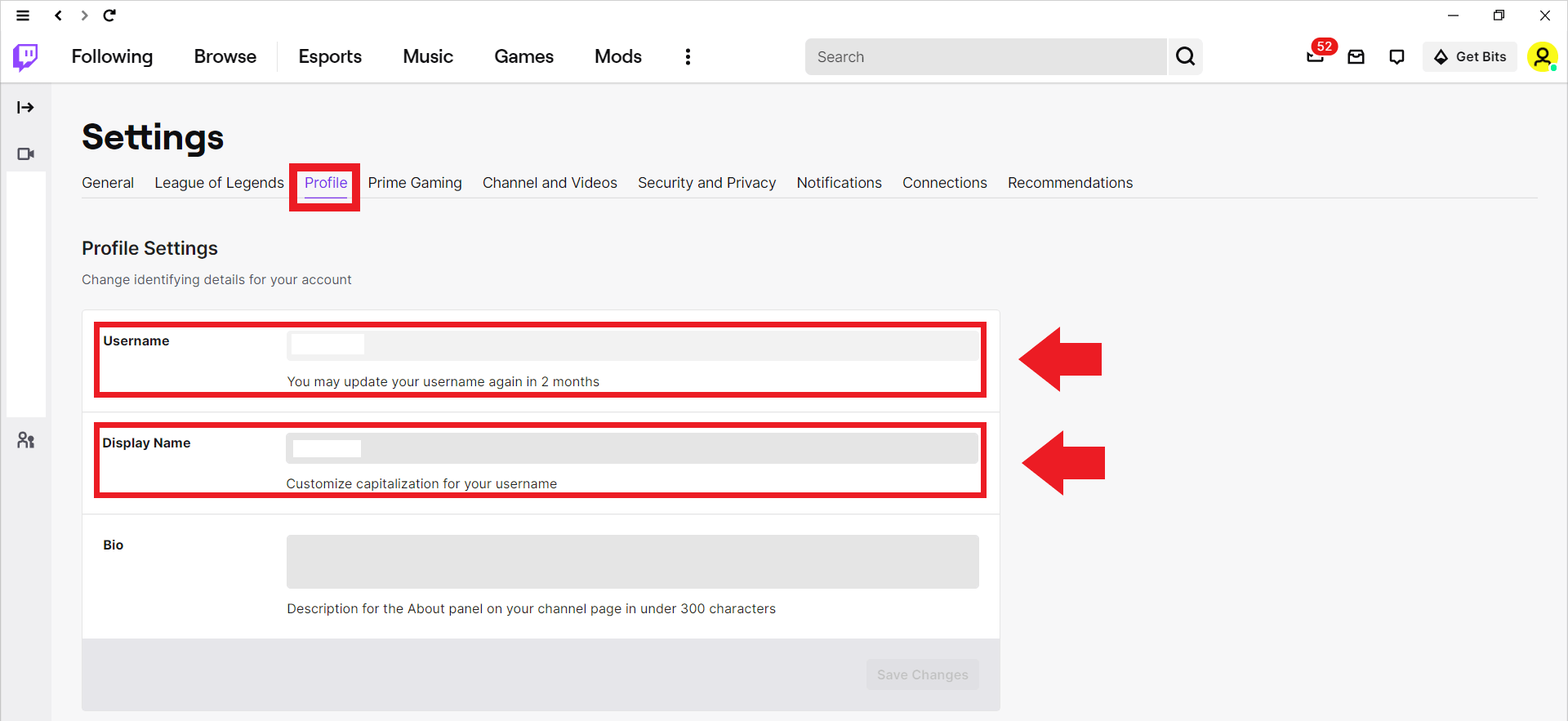
- Log in to Your Account: Go to the Twitch website and log in to your account.
- Click on Your Profile Picture: In the top right corner of the screen, click on your profile picture.
- Select Settings: From the dropdown menu, select “Settings.”
- Click on Profile: In the left-hand menu, click on “Profile.”
- Edit Your Name: Click on the pencil icon next to your current username and enter your new name.
- Save Changes: Click on the “Update” button to save your changes.
How to Change Your Name on Twitch (Mobile)
If you’re using a smartphone or tablet, things are slightly different. Unfortunately, you can’t change your name directly from the app. However, you can use the desktop version of the website by accessing it through your browser. Here’s how:
- Open Safari: On an iPhone or iPad, open Safari.
- Go to The Twitch Website: Type in the URL “twitch.Tv” and press Enter.
- Tap on The Three Dots: In the top right corner of the screen, tap on the three dots.
- Select “Request Desktop Site”: From the menu, select “Request desktop site.”
- Log in to Your Account: Log in to your Twitch account using your username and password.
- Follow The Same Steps as Above: Once logged in, follow the same steps as above to change your name.
Can I Change My Name on Android?
Yes, you can change your name on Android by accessing the desktop version of the website through Chrome. Here’s how:
- Open Chrome: On an Android device, open Chrome.
- Go to The Twitch Website: Type in the URL “twitch.Tv” and press Enter.
- Tap on The Three Dots: In the top right corner of the screen, tap on the three dots.
- Select “Request Desktop Site”: From the menu, select “Request desktop site.”
- Log in to Your Account: Log in to your Twitch account using your username and password.
- Follow The Same Steps as Above: Once logged in, follow the same steps as above to change your name.
Can I Change The Color of My Name on Twitch?
Yes, you can change the color of your name on Twitch. This feature is available on both desktop and mobile devices. Here’s how:
- Access a Live Channel: Access any live channel on Twitch.
- Click on The Chat Icon: In the bottom left corner of the screen, click on the chat icon.
- Select “Modify Your Name”: From the dropdown menu, select “Modify your name.”
- Choose a Color: Select a color from the palette that suits your taste.
Conclusion
Changing your name on Twitch is a straightforward process that can give your channel a fresh new look. Remember to choose a name that’s easy to remember and spell, and don’t forget to update your social media profiles to reflect your new name. If you have any questions or concerns, feel free to ask in the comments below.
Frequently Asked Questions
- Q: Can I Change my Name on Twitch Every Day?
A: No, you can only change your name every 60 days. - Q: Will Changing my Name Affect my Followers And Views?
A: No, changing your name won’t affect your followers or views. - Q: Can I Change The Color of my Name on Twitch?
A: Yes, you can change the color of your name on both desktop and mobile devices. - Q: How do I Access The Desktop Version of Twitch on my Android Device?
A: You can access the desktop version by opening Chrome and typing in the URL “twitch.Tv” followed by pressing Enter.


