
How to Check Active Sessions on Telegram: A Comprehensive Guide
As a responsible online citizen, it’s essential to prioritize your safety and privacy on messaging platforms like Telegram. One way to do this is by monitoring active sessions on your account, which can help prevent unauthorized access or spying. In this article, we’ll guide you through the process of checking active sessions on Telegram across various devices.
Why Check Active Sessions?
Before we dive into the step-by-step guide, let’s quickly discuss why checking active sessions on Telegram is crucial:
- Prevent Unauthorized Access: By monitoring active sessions, you can identify and close any unwanted access to your account, ensuring your conversations remain private.
- Boost Security: Regularly reviewing active sessions helps prevent potential security breaches, keeping your personal data safe.
Checking Active Sessions on Android
Here’s how to check active sessions on Telegram on an Android device:
- Open the official Telegram app on your Android device.
- Tap on the three horizontal lines (☰) in the top-left corner.
- Select “Settings” from the menu.
- Scroll down and tap on “Privacy and Safety.”
- In the new screen, select “Devices” and then tap on “Display all devices.”
- You’ll see a list of active sessions; if you spot any unwanted access, simply tap on the device name and confirm to close the session.
- To end all other active sessions (excluding the current one), tap on “End all other sessions” and confirm.
Checking Active Sessions on Iphone/ipad
If you’re using Telegram on an iPhone or iPad:
- Open the official Telegram app.
- Tap on the three horizontal lines (☰) in the top-right corner.
- Select “Settings” from the menu.
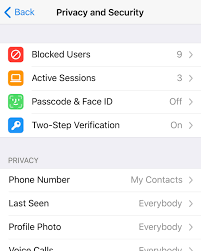
- Scroll down and tap on “Devices to monitor.”
- In this screen, you’ll see a list of active sessions; if you identify any unwanted access, simply tap on the device name and confirm to close the session.
- To end all other active sessions (excluding the current one), tap on “End all other sessions” and confirm.
Checking Active Sessions on Windows
For users with Telegram installed on their Windows PC:
- Launch the official Telegram desktop client.
- Click on the three horizontal lines (☰) in the top-left corner.
- Select “Settings” from the menu.
- Scroll down and click on “Privacy and Safety.”
- In this screen, select “Display all devices” to view active sessions.
- To close a specific session, simply tap on the device name and confirm to close the session.
- To end all other active sessions (excluding the current one), click on “End all other sessions” and confirm.
Checking Active Sessions on Mac
If you’re using Telegram on your Mac:
- Launch the official Telegram desktop client.
- Click on the three horizontal lines (☰) in the top-left corner of the menu bar.
- Select “Settings” from the menu.
- Scroll down and click on “Sessioni active.”
- In this screen, you’ll see a list of active sessions; if you identify any unwanted access, simply tap on the device name and confirm to close the session.
- To end all other active sessions (excluding the current one), click on “Close all other sessions” and confirm.
Checking Active Sessions in Web Browser
Lastly, here’s how to check active sessions on Telegram using your web browser:
- Open Telegram in your preferred web browser.
- Click on the three horizontal lines (☰) in the top-left corner of the screen.
- Select “Settings” from the menu.
- Scroll down and click on “Devices.”
- In this screen, you’ll see a list of active sessions; if you spot any unwanted access, simply tap on the device name and confirm to close the session.
By following these simple steps, you can monitor your Telegram account’s active sessions across various devices, ensuring your conversations remain secure and private.


