
How to Check Your Apple Id: A Step-by-step Guide
Are you having trouble accessing your Apple ID? Do you need help recovering your password or checking your account information? Look no further! In this comprehensive guide, we’ll walk you through the steps to check your Apple ID on various devices and platforms.
Why is Checking Your Apple ID Important?
Checking your Apple ID regularly is essential for ensuring that your account information is up-to-date and secure. By verifying your ID, you can:
- Confirm your account details
- Update your password and security questions
- Review your purchase history and subscriptions
- Access exclusive features and services
Checking Your Apple ID on Iphone or Ipad
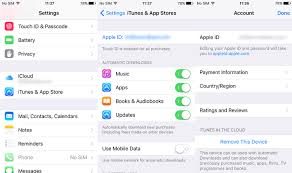
To check your Apple ID on your iPhone or iPad, follow these steps:
- Go to Settings > [Your Name] > iCloud.
- Tap on “Account” and select “Sign in with Apple.”
- Enter your Apple ID and password to access your account information.
Checking Your Apple ID on Mac
If you’re using a Mac, you can check your Apple ID by following these steps:
- Click on the Apple logo in the top left corner of the screen.
- Select “System Preferences” and click on “iCloud.”
- Enter your Apple ID and password to access your account information.
Checking Your Apple ID on Windows
If you’re using a Windows computer, you can check your Apple ID by following these steps:
- Download and install iCloud for Windows from the official website.
- Launch iCloud and click on “Account” in the top left corner of the screen.
- Enter your Apple ID and password to access your account information.
Recovering Your Apple ID Password
If you’re having trouble remembering your Apple ID password, don’t worry! You can recover it by following these steps:
- Go to iforgot.Apple.Com and click on “Forgot Apple ID or password.”
- Enter your Apple ID and select a recovery method (email or phone number).
- Follow the instructions to reset your password.
Two-factor Authentication: What is It And How Does It Work?
Two-factor authentication is an additional security layer that requires you to enter a code sent to your trusted device or email address, in addition to your Apple ID and password. This feature adds an extra layer of protection to your account and helps prevent unauthorized access.
How to Enable Two-factor Authentication on Your Apple Device
To enable two-factor authentication on your iPhone or iPad, follow these steps:
- Go to Settings > [Your Name] > Password & Security.
- Tap on “Two-Factor Authentication” and select “Turn On.”
- Follow the instructions to set up a trusted device or email address.
Faqs
Here are some frequently asked questions about checking your Apple ID:
- Q: How do I Check my Apple ID on Multiple Devices?
A: You can check your Apple ID on multiple devices by following the steps outlined in this guide. - Q: What if I Forgot my Apple ID Password?
A: If you forgot your Apple ID password, you can recover it by going to iforgot.Apple.Com and following the instructions. - Q: How do I Enable Two-factor Authentication on my Device?
A: To enable two-factor authentication on your iPhone or iPad, follow the steps outlined in this guide.
Conclusion
Checking your Apple ID is a simple process that can help you ensure the security and accuracy of your account information. By following the steps outlined in this guide, you can check your Apple ID on various devices and platforms, recover your password if needed, and enable two-factor authentication for an extra layer of protection.


