
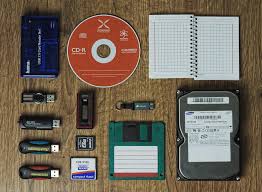
How to Control Which Usb Devices Are Connected to Your PC
Are you tired of wondering who might have been using your PC while you were away? Do you suspect that someone, perhaps a family member or colleague, has been “borrowing” files from your computer and transferring them to a USB drive without your knowledge? If so, this article will show you how to keep track of which USB devices are connected to your PC and when.
Why Monitor Usb Devices?
Monitoring USB devices is an essential step in maintaining the security and integrity of your computer. By tracking which USB devices are connected to your PC, you can:
- Prevent unauthorized access to sensitive files and data
- Detect potential malware or viruses that might be transferred via USB devices
- Identify who has been using your PC while you were away
Solutions For Monitoring Usb Devices
There are several solutions available to monitor USB devices on both Windows and Mac operating systems. Let’s explore each option:
1. Usbdeview (Windows)
USBDeview is a free, user-friendly application that allows you to view the list of USB devices connected to your PC in real-time. This includes the date and time each device was last connected or disconnected.
To download USBDeview, follow these steps:
- Visit the official website: Https://Www.Nirsoft.Net/utils/usbdeview.Html
- Click on the “Download” button for the Windows version (32-bit or 64-bit)
- Choose the language pack if you prefer
- Extract the files to a folder and run USBDeview.Exe
In the main window, click on the “Type of peripheral” column and sort the list by selecting “Memory of mass” (= USB drives). For each USB drive, you’ll see essential information such as:
- First connection date (Creation date)
- Last connection or disconnection date
- Device type and manufacturer
2. Event Viewer (Windows)
If you’re not comfortable with third-party software, you can use the built-in Windows utility called Event Viewer. This tool logs all system events, including USB device connections and disconnections.
To access Event Viewer:
- Click on the Start button and search for “Event Viewer”
- Open the app and navigate to Records > Applications and services > Microsoft > Windows > DriverFrameworks – UserMode > Operating
- Right-click on the “Operating” icon and select Properties
- Check the box next to “Qualify recording” and click OK
Now, Event Viewer will record all USB device connections and disconnections. To view these events:
- Navigate to Records > Applications and services > Microsoft > Windows > DriverFrameworks – UserMode > Operating
- Search for event codes 2003, 2004, 2006, 2010, 2100, 2101, 2102, 2105, or 2106
3. Console (Mac)
On a Mac, you can use the Console utility to monitor USB device connections. This tool is more complex than the Windows equivalent and requires some setup.
To access Console:
- Open Launchpad
- Select the folder “Another”
- Click on the icon of the Console app
- Type “*usb” in the search bar on the right side
- Press the forward arrow to display all events related to USB devices
4. Control The Usb Connected Devices on Mac
If you use a Mac, unfortunately, there isn’t a straightforward solution like USBDeview for Windows. However, you can utilize the Console utility as described above.
Conclusion
Monitoring USB device connections is an essential step in maintaining your PC’s security and integrity. By using one of these solutions – USBDeview (Windows), Event Viewer (Windows), or Console (Mac) – you’ll be able to track which USB devices are connected to your computer and when.


