
Cleaning Your Epson Printer: A Step-by-step Guide
Are you tired of dealing with ink stains, blurry prints, and other issues with your Epson printer? Look no further! In this article, we’ll walk you through a step-by-step guide on how to clean your Epson printer, including tips for PC, Mac, smartphone, and tablet users.
Why Clean Your Printer?
Before we dive into the nitty-gritty of cleaning your printer, let’s talk about why it’s so important. A dirty printer can lead to a range of issues, from poor print quality to clogged printheads. By cleaning your printer regularly, you can:
- Improve print quality
- Reduce ink waste
- Extend the life of your printer
Cleaning Your Epson Printer on PC
If you’re using a PC, follow these steps to clean your Epson printer:
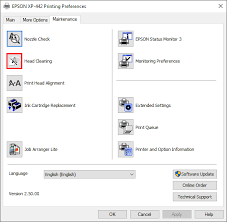
- Open The Printers And Devices Window: Click on Start > Control Panel > Hardware and Sound > Devices and Printers.
- Select Your Epson Printer: Find your Epson printer in the list of devices and click on it.
- Click on The Maintenance Tab: Select the “Maintenance” tab from the top menu bar.
- Click on Clean Head: Click on the “Clean Head” button to initiate the cleaning process.
- Follow The Prompts: The printer will guide you through the cleaning process.
Cleaning Your Epson Printer on Mac
If you’re using a Mac, follow these steps to clean your Epson printer:
- Open The Printers And Scanners Window: Click on System Preferences > Printers & Scanners.
- Select Your Epson Printer: Find your Epson printer in the list of devices and click on it.
- Click on Options & Supplies: Select the “Options & Supplies” tab from the top menu bar.
- Click on Clean Printhead: Click on the “Clean Printhead” button to initiate the cleaning process.
- Follow The Prompts: The printer will guide you through the cleaning process.
Cleaning Your Epson Printer on Smartphone And Tablet
If you’re using a smartphone or tablet, follow these steps to clean your Epson printer:
- Download And Install The Iprint App: Download and install the iPrint app from the App Store (for iOS) or Google Play Store (for Android).
- Open The Iprint App: Open the iPrint app on your device.
- Select Your Epson Printer: Find your Epson printer in the list of devices and click on it.
- Click on Clean Printhead: Click on the “Clean Printhead” button to initiate the cleaning process.
- Follow The Prompts: The printer will guide you through the cleaning process.
Troubleshooting Common Issues
If you encounter any issues during the cleaning process, don’t worry! We’ve got some troubleshooting tips for you:
- If your printer is not responding, try restarting it or checking the power cord.
- If the cleaning process is stuck, try canceling and restarting it.
- If you’re experiencing poor print quality, try adjusting the print settings or using a different type of paper.
Conclusion
Cleaning your Epson printer is an essential step in maintaining its performance and longevity. By following these simple steps, you can ensure that your printer runs smoothly and efficiently. Remember to clean your printer regularly to avoid clogged printheads and poor print quality.
Frequently Asked Questions (FAQs)
- How Often Should I Clean my Epson Printer?
A: Clean your Epson printer every 3-6 months, or as needed. - What Are The Benefits of Cleaning my Epson Printer?
A: Cleaning your Epson printer can improve print quality, reduce ink waste, and extend its lifespan. - How do I Clean my Epson Printer on a Mac?
A: Follow the steps outlined in this article to clean your Epson printer on a Mac. - Can I Clean my Epson Printer on a Smartphone or Tablet?
A: Yes, you can clean your Epson printer using the iPrint app on a smartphone or tablet. - What if I Encounter Issues During The Cleaning Process?
A: Try restarting the printer, checking the power cord, or adjusting print settings to resolve any issues. - How do I Troubleshoot Common Issues With my Epson Printer?
A: Refer to our troubleshooting guide for tips on resolving common issues with your Epson printer. - Can I Reset my Epson Printer if It’s Not Working Properly?
A: Yes, try resetting your Epson printer by following the steps outlined in our guide on resetting an Epson printer. - How do I Download And Install The Iprint App on my Smartphone or Tablet?
A: Download and install the iPrint app from the App Store (for iOS) or Google Play Store (for Android).


