
How to Clean Up Your Gmail Account
As we continue to use our Gmail accounts for both personal and professional purposes, it’s not uncommon for the account to become cluttered with unwanted emails, spam messages, and other unnecessary data. In this article, we’ll explore how to clean up your Gmail account, including steps on how to delete unwanted emails, manage your spam folder, empty your trash can, and more.
Why Clean Up Your Gmail Account?
Before we dive into the nitty-gritty of cleaning up your Gmail account, it’s essential to understand why you should do so. Here are a few reasons:
- Free up Space: By deleting unwanted emails and data, you’ll free up space on your Google account, which can help reduce clutter and make it easier to manage your email.
- Improve Performance: Cleaning up your Gmail account can improve its overall performance, making it faster and more efficient to use.
- Reduce Spam: By regularly cleaning out your spam folder, you’ll reduce the number of unwanted messages that clutter your inbox.
How to Clean Up Your Gmail Account From a Computer
To clean up your Gmail account from a computer, follow these steps:
Delete Unwanted Emails
- Log in to your Google account and navigate to your email inbox.
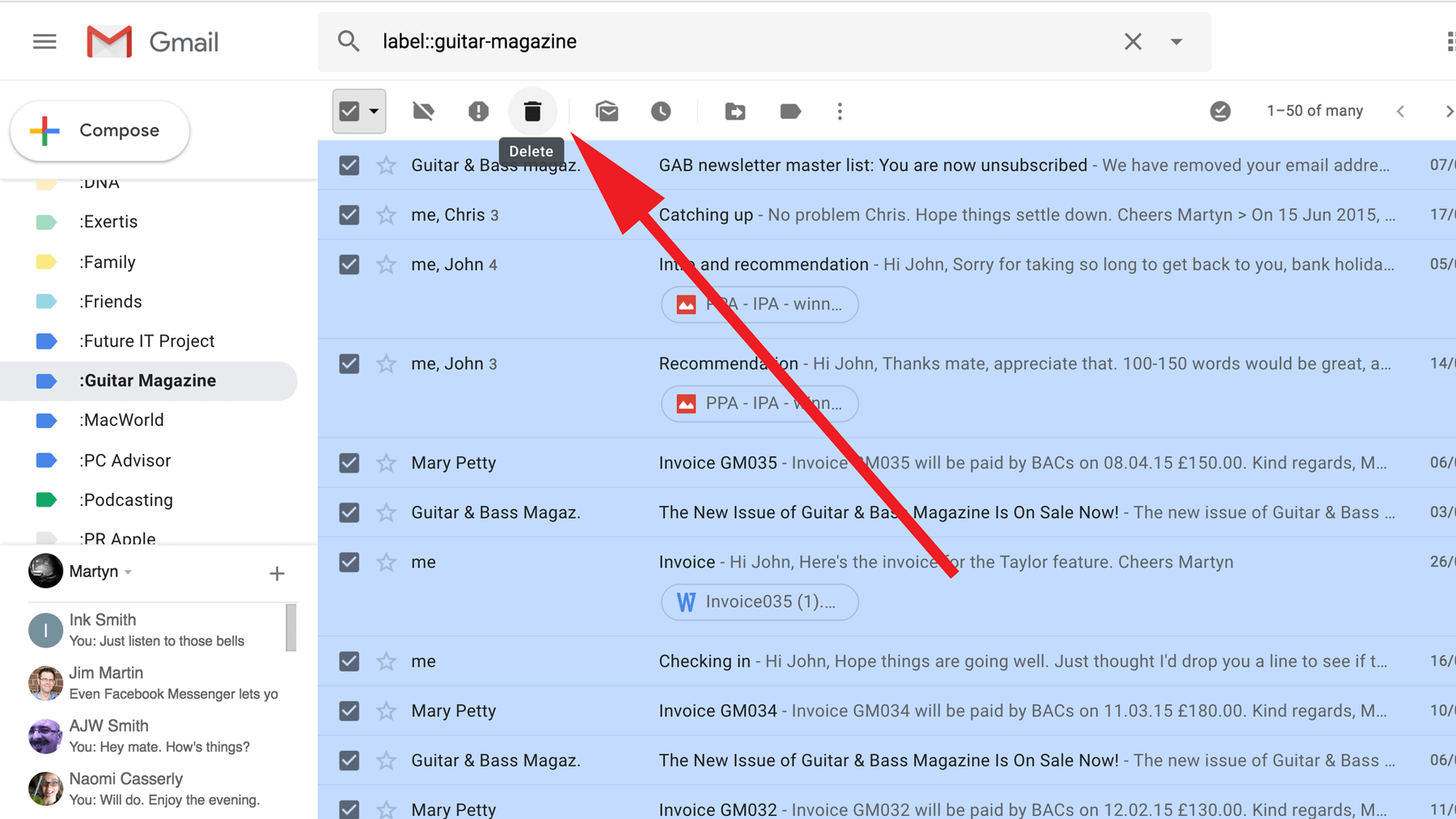
- Select the emails you want to delete by checking the box next to each message or selecting all the messages at once using the “Select all” button.
- Click on the trash can icon at the top of the page to move the selected emails to the trash folder.
Manage Your Spam Folder
- Navigate to your spam folder by clicking on the “Spam” tab in the left-hand menu.
- Select the unwanted messages and click on the “Delete forever” button to remove them permanently from your account.
- To prevent future unwanted messages from being sent to your spam folder, you can also report them as spam by clicking on the three dots next to each message and selecting “Report as spam.”
Empty Your Trash Can
- Navigate to your trash can folder by clicking on the “Trash” tab in the left-hand menu.
- Select all the messages in the trash can by checking the box next to each message or using the “Select all” button.
- Click on the “Empty Trash” button to permanently delete all the selected messages from your account.
How to Clean Up Your Gmail Account From a Smartphone or Tablet
To clean up your Gmail account from a smartphone or tablet, follow these steps:
Delete Unwanted Emails
- Open the Gmail app on your device and log in to your Google account.
- Navigate to your email inbox by tapping on the “Inbox” tab at the bottom of the screen.
- Select the unwanted emails you want to delete by checking the box next to each message or selecting all the messages at once using the “Select all” button.
- Tap on the trash can icon at the top-right corner of the screen to move the selected emails to the trash folder.
Manage Your Spam Folder
- Navigate to your spam folder by tapping on the “Spam” tab in the left-hand menu.
- Select the unwanted messages and tap on the “Delete forever” button to remove them permanently from your account.
- To prevent future unwanted messages from being sent to your spam folder, you can also report them as spam by tapping on the three dots next to each message and selecting “Report as spam.”
Empty Your Trash Can
- Navigate to your trash can folder by tapping on the “Trash” tab in the left-hand menu.
- Select all the messages in the trash can by checking the box next to each message or using the “Select all” button.
- Tap on the “Empty Trash” button to permanently delete all the selected messages from your account.
Tips And Tricks
- Regularly Clean Out Your Spam Folder: Regularly cleaning out your spam folder will help reduce the number of unwanted messages that clutter your inbox.
- Use Filters: Use filters to automatically sort emails into different folders based on their content, sender, or subject.
- Report Unwanted Messages as Spam: Report unwanted messages as spam by clicking on the three dots next to each message and selecting “Report as spam.”
Conclusion
Cleaning up your Gmail account is an essential task that can help free up space, improve performance, and reduce spam. By following these steps, you can easily delete unwanted emails, manage your spam folder, empty your trash can, and more.
Frequently Asked Questions (FAQs)
- How Often Should I Clean Out my Gmail Account?
You should regularly clean out your Gmail account every 2-3 months to free up space and improve performance. - What Happens if I Delete a Message That Was Important?
If you accidentally delete an important message, don’t worry! You can recover it from the trash folder within 30 days of deletion. - Can I Report Unwanted Messages as Spam?
Yes, you can report unwanted messages as spam by clicking on the three dots next to each message and selecting “Report as spam.” - How do I Prevent Future Unwanted Messages From Being Sent to my Spam Folder?
You can prevent future unwanted messages from being sent to your spam folder by reporting them as spam or using filters to automatically sort emails into different folders. - Can I Empty my Trash Can Remotely?
Yes, you can empty your trash can remotely by navigating to the Gmail app on your device and tapping on the “Trash” tab in the left-hand menu. - How do I Recover a Deleted Message From my Trash Folder?
To recover a deleted message from your trash folder, navigate to the trash folder and select the message you want to recover. Tap on the three dots next to each message and select “Restore” to move it back to your inbox. - Can I Use Filters to Automatically Sort Emails Into Different Folders?
Yes, you can use filters to automatically sort emails into different folders based on their content, sender, or subject.
I hope this article has helped you understand the importance of cleaning up your Gmail account and provided you with the necessary steps to do so. If you have any further questions or concerns, please don’t hesitate to reach out!


