
Cleaning Your Ipad: A Step-by-step Guide
Are you tired of looking at a dirty iPad screen? Do you want to know the best way to clean your device without damaging it? Look no further! In this article, we will guide you through the process of cleaning your iPad’s LCD screen in a safe and effective manner.
Why Clean Your Ipad Screen?
Cleaning your iPad screen is essential for maintaining its quality and prolonging its lifespan. A dirty screen can lead to reduced visibility, dead pixels, and even damage to the display. By following our guide, you will be able to remove dust, dirt, and other debris that may have accumulated on your iPad’s LCD screen.
What You Need to Clean Your Ipad Screen
Before we begin, it’s essential to gather the necessary materials:
- A soft, microfiber cloth (preferably anti-static)
- Distilled water
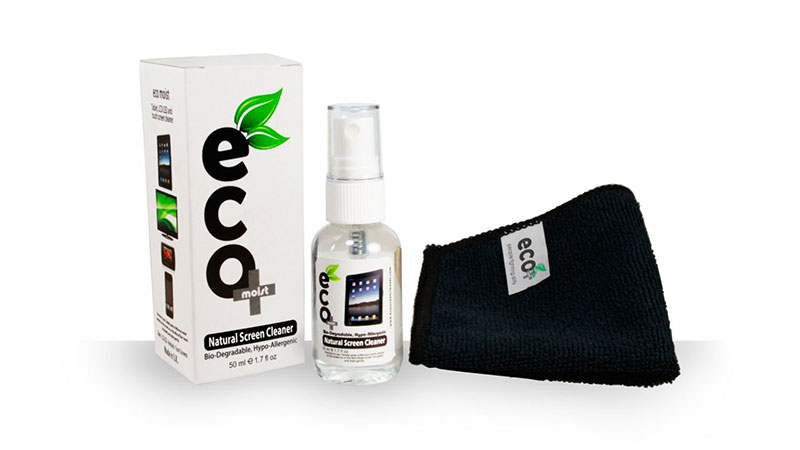
- A cleaning solution specifically designed for screens (optional)
Avoid using household cleaners, paper towels, or any other abrasive materials that can scratch your iPad’s screen.
Step 1: Turn Off Your Ipad And Remove It From Any Power Source
Before you start cleaning, make sure to turn off your iPad and remove it from any power source. This will prevent any accidental damage or electrical shock.
Step 2: Inspect The Screen For Any Obvious Stains or Debris
Take a close look at your iPad’s screen and identify any areas that need extra attention. If you notice any stubborn stains or debris, don’t worry! We’ve got you covered.
Step 3: Dampen Your Microfiber Cloth With Distilled Water
Dampen your microfiber cloth with distilled water, but make sure it’s not soaking wet. You want the cloth to be damp, not dripping with water.
Step 4: Gently Wipe Down The Screen With The Microfiber Cloth
Gently wipe down the screen with the microfiber cloth in a circular motion. Start from one corner and work your way across the screen, making sure to cover all areas evenly.
Step 5: Inspect The Screen Again For Any Remaining Stains or Debris
Once you’ve wiped down the entire screen, inspect it again to see if there are any remaining stains or debris. If you notice any stubborn spots, you can repeat the process until they’re gone.
Additional Tips And Tricks
Here are some additional tips to keep in mind:
- Use a cleaning solution specifically designed for screens only when necessary.
- Avoid using household cleaners, paper towels, or any other abrasive materials that can scratch your iPad’s screen.
- Don’t press too hard on the screen, as this can cause damage to the display.
Protecting Your Ipad Screen
After cleaning your iPad screen, make sure to protect it from dust and debris by applying a screen protector. This will help prevent scratches and other damage to the display.
Conclusion
Cleaning your iPad’s LCD screen is a relatively simple process that requires minimal effort and expertise. By following our step-by-step guide, you’ll be able to remove dirt, dust, and other debris that may have accumulated on your device’s screen. Remember to always use the right materials and techniques to avoid damaging your iPad’s display.
Frequently Asked Questions
Here are some frequently asked questions about cleaning your iPad screen:
- What is the best way to clean my iPad screen?
- How often should I clean my iPad screen?
- Can I use household cleaners to clean my iPad screen?
- What if I accidentally scratch my iPad’s screen while cleaning it?
- Can I use a dry microfiber cloth to clean my iPad screen?
Answers
- The best way to clean your iPad screen is to use a soft, microfiber cloth and distilled water.
- You should clean your iPad screen every few months or when you notice any dirt or debris accumulation.
- No, you shouldn’t use household cleaners to clean your iPad screen as they can damage the display.
- If you accidentally scratch your iPad’s screen while cleaning it, don’t panic! Use a screen protector to prevent further damage.
- Yes, you can use a dry microfiber cloth to clean your iPad screen, but make sure to dampen it with distilled water first.
I hope this article has been helpful in answering all your questions about cleaning your iPad screen. Remember to always take care of your device and follow the right techniques to avoid any damage.


