
Cleaning Your Mac of Viruses: A Step-by-step Guide
Are you concerned about your Mac being infected with viruses? Do you want to ensure that your computer is secure and running smoothly? Look no further! In this article, we will guide you through the process of cleaning your Mac of viruses using some effective solutions.
The Reality of Mac Viruses
While it’s true that Macs are less susceptible to viruses compared to PCs, they are not invincible. With the increasing popularity of Macs, cybercriminals have started targeting these devices as well. If you’re experiencing strange behavior on your Mac or suspect that it has been infected with a virus, don’t panic! There are ways to clean up the mess and ensure your computer’s security.
Installing an Antivirus Software
The first step in cleaning your Mac of viruses is to install a good antivirus software. Among the best options available are CleanMyMac X and other reputable antimalware solutions. These programs can detect and remove malware, optimize your Mac’s performance, and provide real-time protection against future threats.
How to Use Cleanmymac X
CleanMyMac X is an all-in-one solution for maintaining your system’s health. Here’s how you can use it:
- Download and install the software from the official website.
- Launch the program and follow the on-screen instructions.
- Select the option to perform a complete analysis of your Mac, which will scan for malware, delete unnecessary files, and optimize your computer’s performance.
- Choose the options you want to execute, or let CleanMyMac X take care of everything automatically.
Additional Tips
In addition to using CleanMyMac X, here are some more tips to keep your Mac secure:
- Be cautious when downloading software from unknown sources, as this can lead to malware infections.
- Keep your operating system and other software up-to-date with the latest security patches.
- Avoid clicking on suspicious links or attachments in emails.
- Use strong passwords and enable two-factor authentication for added protection.
Protecting Your Browser
If you’re experiencing issues related to browser navigation, such as being redirected to unwanted sites or encountering malicious ads, it’s essential to check your browser extensions. Here’s how to do it:
- For Safari users, go to the menu bar, select “Safari” > “Preferences,” and then click on the “Extensions” tab.
- Identify any suspicious extensions and delete them by clicking on the “X” button next to each extension.
- If you’re unsure about an extension, you can also disable it temporarily to see if it resolves the issue.
Gatekeeper: A Built-in Security Feature
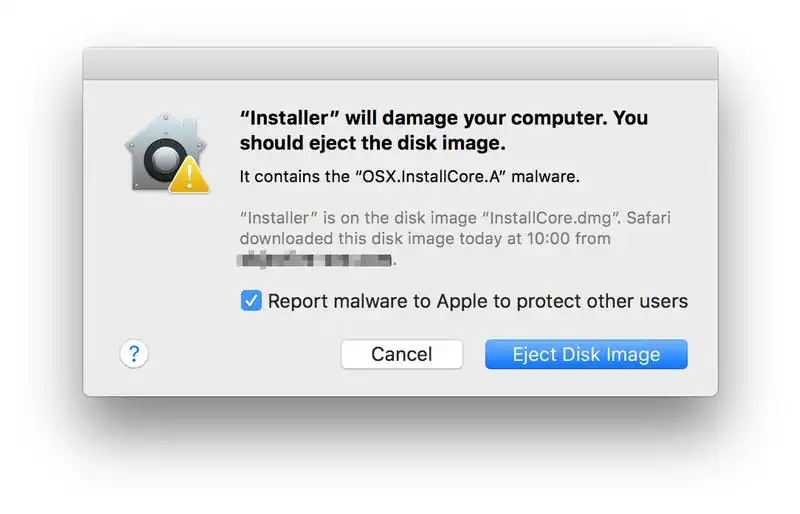
MacOS has a built-in security feature called Gatekeeper that prevents the execution of software from unknown developers. To check if Gatekeeper is enabled on your Mac:
- Go to System Preferences > Safety and Privacy.
- Click on the “General” tab and look for the option to install apps only from the App Store and identified developers.
Formattare Your Mac: A Last Resort
If you’ve tried all other methods and still can’t resolve the issue, it may be time to consider formatting your Mac. Before doing so, make sure to back up all your data and ensure that you have a complete backup of your system.
- Go to Utilities > Disk Utility.
- Select the disk you want to format (usually “Macintosh HD”).
- Click on the “Erase” button and confirm your decision.
Conclusion
Cleaning your Mac of viruses is not as complicated as it seems. By following these steps, you can ensure that your computer is running smoothly and securely. Remember to be cautious when downloading software and browsing online, as this can help prevent malware infections in the first place. If you’re unsure about any aspect of the process or need further assistance, consider consulting a professional for guidance.
Faqs
- Q: How Often Should I Run Antivirus Scans on my Mac?
A: It’s recommended to run scans regularly, such as weekly or bi-weekly, depending on your usage and risk level. - Q: Can I Use Multiple Antivirus Software on my Mac?
A: Yes, you can install and use multiple antimalware solutions, but ensure that they are compatible with each other. - Q: What Should I do if I’ve Already Downloaded a Virus-infected File?
A: Immediately disconnect from the internet, avoid opening the file, and delete it to prevent further damage. - Q: How Can I Protect my Browser From Malware?
A: Regularly update your browser and extensions, use strong passwords, and enable two-factor authentication for added protection. - Q: What is Gatekeeper, And How Does it Help Me?
A: Gatekeeper prevents the execution of software from unknown developers and ensures that only trusted apps are installed on your Mac. - Q: Can I Recover my Data if I Format my Mac?
A: Yes, you can restore your data from a backup created before formatting your Mac. - Q: How Often Should I Back up my Data?
A: It’s recommended to create regular backups, at least weekly, depending on your usage and risk level.


