
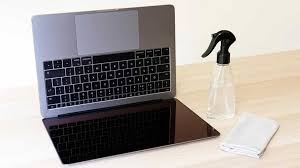
Cleaning Your Mac’s Monitor: A Step-by-step Guide
As a Mac user, you want your device to look its best at all times. However, over time, the monitor can become dirty and dusty, affecting its performance and overall appearance. In this article, we will guide you through the process of cleaning your Mac’s monitor, whether it’s a MacBook, iMac, or external display.
Why Clean Your Mac’s Monitor?
Before we dive into the steps, let’s discuss why cleaning your Mac’s monitor is essential. A dirty monitor can:
- Reduce screen brightness and visibility
- Cause eye strain and fatigue
- Lead to poor performance and increased energy consumption
By regularly cleaning your Mac’s monitor, you can maintain its optimal condition, improve user experience, and prolong its lifespan.
Materials Needed
To clean your Mac’s monitor, you’ll need the following materials:
- A microfiber cloth (preferably antistatic)
- Water
- Optional: Specific detergents for monitors or display cleaners
Step-by-step Instructions
Here are the steps to follow when cleaning your Mac’s monitor:
For Macbook And Imac Monitors
- Turn Off Your Mac: Make sure your device is turned off before cleaning the monitor.
- Unplug Accessories: Disconnect any external devices, such as a keyboard or mouse.
- Dampen The Microfiber Cloth: Moisten the microfiber cloth with water, but make sure it’s not soaking wet.
- Wipe The Monitor: Gently wipe the monitor in circular motions, starting from the top and working your way down. Avoid applying too much pressure, which can damage the screen.
- Clean Any Stubborn Stains: If there are any stubborn stains or smudges, you can dampen the microfiber cloth with a bit more water or use a specific detergent for monitors.
For External Displays
- Unplug The Display: Disconnect the external display from your Mac.
- Dampen The Microfiber Cloth: Moisten the microfiber cloth with water, but make sure it’s not soaking wet.
- Wipe The Monitor: Gently wipe the monitor in circular motions, starting from the top and working your way down. Avoid applying too much pressure, which can damage the screen.
Drying The Monitor
Once you’ve finished cleaning the monitor, use a dry section of the microfiber cloth to wipe it clean. This will help prevent any water spots or mineral deposits from forming.
Tips And Precautions
- Avoid using harsh chemicals, abrasive materials, or excessive force, which can damage the screen.
- Never spray cleaners directly on the monitor; instead, apply them to a microfiber cloth first.
- If you’re unsure about cleaning your Mac’s monitor, consult the user manual or online resources for guidance.
Conclusion
Cleaning your Mac’s monitor is a simple and essential task that can improve its performance and longevity. By following these steps and using the right materials, you can keep your device looking its best. Remember to clean your Mac’s monitor regularly to maintain optimal condition and prevent damage.
Frequently Asked Questions (FAQs)
- Q: What is The Best Way to Clean a Macbook or Imac Monitor?
A: Use a microfiber cloth and water, making sure not to apply too much pressure. - Q: Can I Use Any Type of Cleaner on my Mac’s Monitor?
A: Avoid using harsh chemicals, abrasive materials, or excessive force, which can damage the screen. - Q: How Often Should I Clean my Mac’s Monitor?
A: Clean your Mac’s monitor regularly to maintain optimal condition and prevent damage. - Q: What if I Accidentally Spill Something on my Mac’s Monitor?
A: Turn off your Mac, unplug any accessories, and gently wipe the monitor with a microfiber cloth and water. - Q: Can I Use a Specific Detergent For Monitors or Display Cleaners?
A: Yes, you can use specific detergents for monitors or display cleaners, but make sure to follow the instructions carefully. - Q: How do I Clean an External Display Connected to my Mac?
A: Unplug the external display from your Mac and follow the same steps as cleaning a MacBook or iMac monitor. - Q: What if I’m Unsure About Cleaning my Mac’s Monitor?
A: Consult the user manual or online resources for guidance, or consult with an authorized Apple support representative. - Q: Can I Clean Other Parts of my Mac, Such as The Keyboard And Mouse?
A: Yes, you can clean your Mac’s keyboard and mouse using a soft cloth and mild soap solution.


