
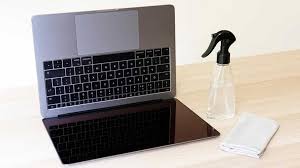
How to Clean Your Macbook’s Monitor: A Step-by-step Guide
Are you tired of looking at a dirty MacBook monitor? Cleaning your MacBook’s screen is easier than you think, and with the right materials, you can get it sparkling clean in no time. In this article, we’ll guide you through the process of cleaning your MacBook’s monitor, including the necessary steps to take before you begin.
Before You Start
Before you start cleaning your MacBook’s monitor, make sure to follow these preliminary operations:
- Turn Off Your Computer: If you haven’t already done so, turn off your MacBook to prevent any accidental damage.
- Unplug Your Laptop: Unplug the power cord and other cables from your MacBook to ensure it remains powered off while cleaning.
- Disconnect External Devices: Disconnect any external devices connected to your MacBook, such as USB drives or headphones.
Gathering Your Cleaning Materials
To clean your MacBook’s monitor, you’ll need a few simple materials:
- A soft, microfiber cloth (preferably antistatic)
- A damp cloth (for tougher stains)
- A cleaning solution specifically designed for monitors (optional)
Avoid using harsh chemicals or abrasive materials that can damage the screen. Instead, opt for gentle, effective cleaning solutions.
Step-by-step Cleaning Instructions
Now that you have your materials ready, it’s time to start cleaning:
- Inspect The Monitor: Take a closer look at the monitor and identify any areas with visible dirt or stains.
- Dampen The Cloth (if Necessary): If there are stubborn stains, dampen the microfiber cloth with water or use a cleaning solution specifically designed for monitors.
- Gently Wipe The Monitor: Using the dampened cloth, gently wipe the monitor in circular motions, working from top to bottom. Avoid applying too much pressure, which can damage the screen.
- Dry The Monitor: Once you’ve cleaned the entire monitor, use a dry microfiber cloth to wipe away any remaining moisture.
Cleaning an External Monitor Connected to Your Macbook
If you have an external monitor connected to your MacBook and want to clean it as well:
- Follow the same steps outlined above for cleaning the internal monitor.
- Use a soft, antistatic microfiber cloth specifically designed for monitors.
- Avoid using harsh chemicals or abrasive materials that can damage the screen.
Additional Tips And Resources
If you encounter any difficulties during the cleaning process or need further assistance:
- Visit the Apple Support website for guidance on cleaning your MacBook’s monitor.
- Contact Apple support directly via phone, email, or online chat for personalized help.
- Refer to our dedicated guide on contacting Apple for more information.
By following these steps and using the right materials, you can keep your MacBook’s monitor looking its best.


