
Optimizing Your Pc: A Comprehensive Guide
Are you tired of your computer being slow and unresponsive? Do you feel like it’s on the brink of collapse, with a full hard drive and outdated software? Fear not! In this article, we’ll show you how to optimize your PC without formatting it. Yes, you read that right – no formatting required!
Why Optimize Your Pc?
Before we dive into the nitty-gritty, let’s talk about why optimizing your PC is essential. A slow computer can be frustrating and waste precious time. Moreover, a cluttered hard drive can lead to crashes and data loss. By optimizing your PC, you’ll:
- Improve performance and speed
- Increase storage capacity
- Reduce clutter and minimize the risk of data loss
Method 1: Reinstalling Windows Without Formatting
Did you know that you can reinstall Windows without formatting your PC? It’s a game-changer! To do this:
- Click on the Start button (Windows logo) and select Settings.
- Go to Update & Security > Recovery.
- Select “Reinstall Windows” and choose “Keep my files” or “Remove everything.”
- Follow the prompts to complete the process.
Method 2: Cleaning Up Unnecessary Files
Over time, your PC accumulates unnecessary files that take up valuable space on your hard drive. These can include:
- Temporary files
- Cache files
- System logs
To clean up these files:
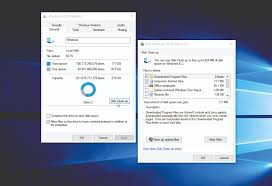
- Open Disk Cleanup (found in Start > All Programs > Accessories).
- Select the files you want to delete and click “OK.”
- Confirm the deletion by clicking “Yes.”
Method 3: Uninstalling Unused Software
Are there programs on your PC that you no longer use? Uninstall them! This will free up space on your hard drive and improve performance.
- Click on the Start button and select Settings.
- Go to Apps & Features (Windows 10) or Apps (Windows 11).
- Select the program you want to uninstall and click “Uninstall.”
Method 4: Creating a New User Account
Want to start fresh with a new user account? This is a great way to use your PC without affecting existing data.
- Click on the Start button and select Settings.
- Go to Accounts > Family & other users.
- Select “Add” and follow the prompts to create a new user account.
Method 5: Removing Viruses
Feeling like you’ve caught a virus? Don’t panic! You can remove it without formatting your PC.
- Open Windows Defender (found in Start > All Programs > Accessories).
- Go to Virus & threat protection.
- Select “Scan” and choose the type of scan you want to run.
- Follow the prompts to complete the removal process.
Conclusion
Optimizing your PC is a breeze, even without formatting it! By following these methods, you’ll improve performance, increase storage capacity, and reduce clutter on your hard drive. Remember, prevention is key – regularly clean up unnecessary files, uninstall unused software, and create new user accounts to keep your PC running smoothly.
Frequently Asked Questions (FAQs)
- Q: Will I Lose my Data by Optimizing my Pc?
A: No, you won’t lose any data. Optimizing your PC is a safe process that preserves existing files. - Q: Can I Reinstall Windows Without Formatting my Pc?
A: Yes, you can! This method is perfect for refreshing your system without losing any files. - Q: How do I Remove Viruses From my Pc?
A: You can use Windows Defender to scan and remove viruses. If necessary, you can also install an external antivirus program. - Q: Can I Create a New User Account on my Mac?
A: Yes, you can! Go to System Preferences > Users & Groups and click “Join” to add a new user. - Q: Will Optimizing my PC Improve Performance?
A: Absolutely! By cleaning up unnecessary files, uninstalling unused software, and removing viruses, you’ll notice significant improvements in performance.
Bonus Tip
Want to keep your PC running smoothly? Regularly clean up unnecessary files, update your operating system, and install reputable antivirus software. Happy computing!


