
How to Clean Your Pc: A Step-by-step Guide
Are you tired of your computer feeling sluggish and slow? Do you have a bunch of unnecessary files and programs taking up space on your hard drive? Look no further! In this article, we’ll show you how to clean your PC like a pro, step by step.
Why Clean Your Pc?
Before we dive into the nitty-gritty, let’s talk about why cleaning your PC is so important. Over time, your computer can accumulate all sorts of junk files, programs, and malware that can slow it down and even compromise its security. By regularly cleaning your PC, you can:
- Free up space on your hard drive
- Improve your computer’s performance
- Protect yourself from malware and other online threats
- Extend the lifespan of your computer
Cleaning Your Pc: A Step-by-step Guide
Now that we’ve covered why cleaning your PC is so important, let’s get started with the step-by-step guide.
1. Delete Unnecessary Files
The first step in cleaning your PC is to delete any unnecessary files that are taking up space on your hard drive. This includes:
- Temporary files
- System logs
- Duplicate files
To delete these files, follow these steps:
Windows:
- Open the Settings app and go to System > Storage.
- Click on “Optimize” or “Clean” to remove temporary files and system logs.
- Use a third-party tool like CCleaner to delete duplicate files.
Macos:
- Go to Apple Menu > About This Mac > Storage.
- Click on “Manage” and then select the type of file you want to delete (e.G. Temporary Files, System Logs).
- Follow the prompts to remove the selected files.
2. Remove Unnecessary Programs
The next step is to remove any unnecessary programs that are taking up space on your hard drive. This includes:
- Unused applications
- Duplicate programs
To remove these programs, follow these steps:
Windows:
- Open the Settings app and go to Apps.
- Click on “Remove” or “Uninstall” to delete unused applications.
Macos:
- Go to Applications folder and drag unwanted apps to the Trash.
- Empty the Trash to permanently delete the apps.
3. Remove Malware And Viruses
Malware and viruses can cause serious problems for your computer, including slowing it down and compromising its security. To remove malware and viruses, follow these steps:
Windows:
- Open the Settings app and go to Update & Security > Windows Defender.
- Run a full scan to detect and remove malware.
Macos:
- Go to System Preferences > Software Update.
- Click on “Update Now” to ensure your computer is up-to-date with the latest security patches.
- Use a third-party tool like Malwarebytes to remove malware and viruses.
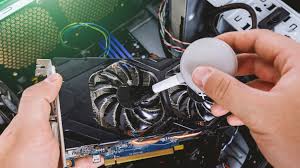
4. Clean Your Pc’s External Surface
Finally, let’s not forget about cleaning your PC’s external surface! Over time, dust and dirt can accumulate on the exterior of your computer, causing it to overheat and malfunction. To clean your PC’s external surface, follow these steps:
- Turn off your computer and unplug it from power.
- Use a soft cloth and mild soap to wipe down the exterior of your computer.
- Use compressed air to blow out any dust or debris that may have accumulated.
Cleaning Your Pc: Additional Tips
Here are some additional tips to keep in mind when cleaning your PC:
- Be careful not to damage any internal components, such as the motherboard or RAM.
- Avoid using harsh chemicals or abrasive cleaners, which can damage your computer’s exterior or compromise its performance.
- Regularly clean your PC’s fans and vents to ensure proper airflow and prevent overheating.
Conclusion
Cleaning your PC is an essential task that can help improve its performance, protect you from malware and other online threats, and extend the lifespan of your computer. By following these step-by-step instructions, you can keep your PC running smoothly and securely for years to come.
Faqs
Here are some frequently asked questions about cleaning your PC:
- Q: How Often Should I Clean my Pc?
A: It’s a good idea to clean your PC every 3-6 months, depending on how heavily you use it. - Q: What Happens if I Don’t Clean my PC Regularly?
A: If you don’t clean your PC regularly, you may experience slowed performance, overheating, and other problems that can compromise its security and longevity. - Q: Can I Clean my PC Myself or Should I Take it to a Professional?
A: You can definitely clean your PC yourself, but if you’re not comfortable with the process or have any concerns about damaging internal components, it’s always best to consult a professional for assistance. - Q: What Tools do I Need to Clean my Pc?
A: To clean your PC, you’ll need some basic tools like compressed air, a soft cloth, and mild soap. - Q: Can Cleaning my PC Affect Its Warranty or Guarantee?
A: In most cases, cleaning your PC will not affect its warranty or guarantee, but it’s always best to check with the manufacturer or vendor for specific guidelines.
Additional Resources
Here are some additional resources you may find helpful when learning how to clean your PC:
- Ccleaner: A popular third-party tool that can help you delete temporary files, system logs, and duplicate files.
- Malwarebytes: A powerful anti-malware tool that can help you detect and remove malware and viruses from your computer.
- Cleanmymac X: A comprehensive cleaning tool for macOS that can help you clean up your Mac’s hard drive, remove unnecessary programs, and protect yourself from malware and other online threats.


