
How to Clean Your Phone’s Memory: A Step-by-step Guide
Are you tired of your phone running slowly due to a full memory? Do you struggle to download new apps or update existing ones because of limited storage space? Cleaning your phone’s memory is easier than you think, and with this guide, you’ll learn how to do it like a pro.
Understanding The Problem
Your phone’s memory is used to store data from various apps, photos, videos, and other files. When the memory becomes full, your phone may slow down or even freeze. This can be frustrating, especially when you need to access important information quickly.
The Solution: Cleaning Your Phone’s Memory
Fortunately, cleaning your phone’s memory is a relatively simple process that can help free up space and improve your device’s performance. In this guide, we’ll show you how to clean your Android or iPhone’s memory using built-in tools and third-party apps.
Cleaning The Memory on an Android Device
If you have an Android device, you can follow these steps to clean your phone’s memory:
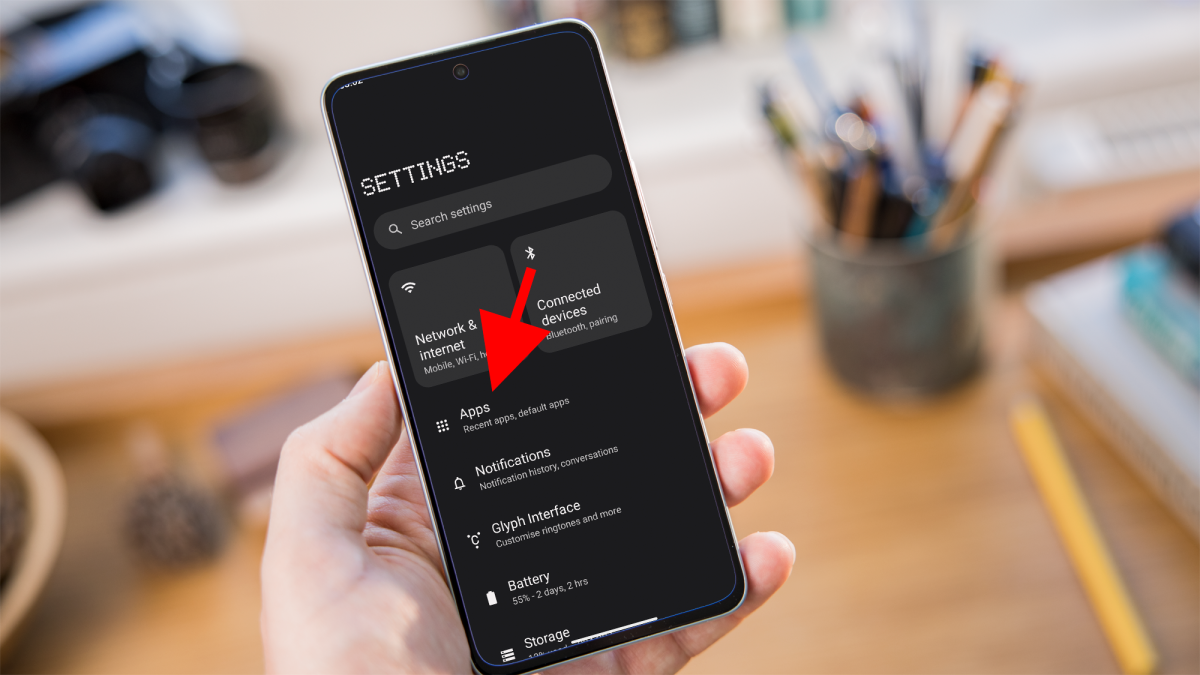
- Go to Settings: Open the Settings app on your phone.
- Tap on Storage: Tap on the “Storage” option, which is usually found in the “Device Maintenance” or “About phone” section.
- Select Internal Storage: Select the internal storage option to view the files and data stored on your device.
- Find Large Files: Look for large files that are taking up space on your device. You can also sort the files by size to easily identify the largest ones.
- Delete Unnecessary Files: Delete any unnecessary files or data that you no longer need.
Using Android’s Built-in Cleaning Tools
Many Android devices come with built-in cleaning tools that can help clean your phone’s memory. Here are a few examples:
- SD Maid: This app is available on the Google Play Store and can help clean up your device’s storage by deleting temporary files, cache data, and other unnecessary items.
- Files by Google: This app is also available on the Google Play Store and provides a simple way to manage your device’s storage. You can use it to delete files, free up space, and optimize your phone’s performance.
Cleaning The Memory on an Iphone
If you have an iPhone, you can follow these steps to clean your phone’s memory:
- Go to Settings: Open the Settings app on your phone.
- Tap on General: Tap on the “General” option.
- Select Storage & Icloud Usage: Select the “Storage & iCloud Usage” option to view the storage usage of your device.
- Find Large Files: Look for large files that are taking up space on your device. You can also sort the files by size to easily identify the largest ones.
- Delete Unnecessary Files: Delete any unnecessary files or data that you no longer need.
Using Iphone’s Built-in Cleaning Tools
Apple provides several built-in cleaning tools that can help clean your iPhone’s memory. Here are a few examples:
- Safari Cache Clearing: You can clear the Safari cache by going to Settings > Safari > Clear History and Website Data.
- Cache Clearing For Other Apps: You can also clear the cache of other apps, such as Google Chrome or Microsoft Edge, by following similar steps.
Optimizing Your Iphone’s Storage With Icloud
If you have an iPhone, you can use iCloud to optimize your device’s storage. Here are a few tips:
- Use Icloud Photo Library: If you have a lot of photos and videos on your device, consider using the iCloud Photo Library feature to free up space.
- Upload Files to Icloud Drive: You can also upload files to iCloud Drive to free up space on your device.
Conclusion
Cleaning your phone’s memory is an essential task that can help improve your device’s performance. By following the steps outlined in this guide, you can easily clean your Android or iPhone’s memory and free up valuable storage space.
Frequently Asked Questions (FAQs)
Here are some frequently asked questions about cleaning your phone’s memory:
- Q: How Often Should I Clean my Phone’s Memory?
A: You should clean your phone’s memory regularly, ideally every few months or when you notice a decrease in performance. - Q: Can I Clean my Phone’s Memory Manually?
A: Yes, you can clean your phone’s memory manually by deleting unnecessary files and data. However, this may not be as effective as using built-in cleaning tools. - Q: Are There Any Risks Associated With Cleaning my Phone’s Memory?
A: Generally, cleaning your phone’s memory is safe. However, it’s essential to back up your data before performing any cleaning tasks. - Q: Can I Use Third-party Apps to Clean my Phone’s Memory?
A: Yes, you can use third-party apps, such as SD Maid or Files by Google, to clean your Android device’s memory. For iPhone users, you can also use built-in tools or third-party apps like Gemini Photos. - Q: How do I Know if my Phone Has Enough Storage Space?
A: You can check the storage usage of your device by going to Settings > Storage & iCloud Usage (for iPhone) or Settings > Device Maintenance (for Android).
Additional Tips
Here are some additional tips for cleaning your phone’s memory:
- Use a Cloud Backup Service: Consider using a cloud backup service, such as Google Drive or Dropbox, to back up your data and free up space on your device.
- Regularly Delete Unused Apps: Regularly deleting unused apps can help free up storage space and improve performance.
- Clear Browser Cache Regularly: Clearing the browser cache regularly can help improve browsing speed and performance.
I hope this guide has been helpful in explaining how to clean your phone’s memory. If you have any further questions or need additional assistance, please don’t hesitate to ask!


