
The Ultimate Guide to Cleaning Your Android Device’s Cache
Are you tired of your Android device feeling slow and sluggish? Do you want to free up some space on your phone or tablet? Look no further! In this article, we will show you how to clean your Android device’s cache, step by step.
Why Clean The Cache?
The cache is a temporary storage area on your device that stores data from applications, the operating system, and other system components. Over time, the cache can become cluttered with unnecessary files, which can slow down your device and even cause crashes. By cleaning the cache, you can free up space on your device, improve performance, and prevent crashes.
How to Clean The Cache: A Step-by-step Guide
Cleaning the cache is a relatively simple process that can be done using the Settings app or by downloading a third-party cleaning app. Here’s how to do it:
Method 1: Using The Settings App
To clean the cache using the Settings app, follow these steps:
- Open The Settings App: Tap on the Settings icon in your device’s home screen or draw.
- Go to Storage & Usb: Select “Storage” and then “Internal shared storage”.
- Select The Cache Folder: Find the “Cache” folder and select it.
- Delete The Cache: Press the “Clear cache” button.
Method 2: Using a Third-party Cleaning App
If you want to clean the cache more thoroughly or if you’re not comfortable using the Settings app, you can download a third-party cleaning app like SD Maid. Here’s how to do it:
- Download And Install SD Maid: Search for SD Maid on the Google Play Store and download and install it.
- Launch SD Maid: Tap on the SD Maid icon in your device’s home screen or draw.
- Select The Cache Tab: Find the “Cache” tab and select it.
- Clean The Cache: Press the “Clear cache” button.
How to Clean The Cache of Specific Applications
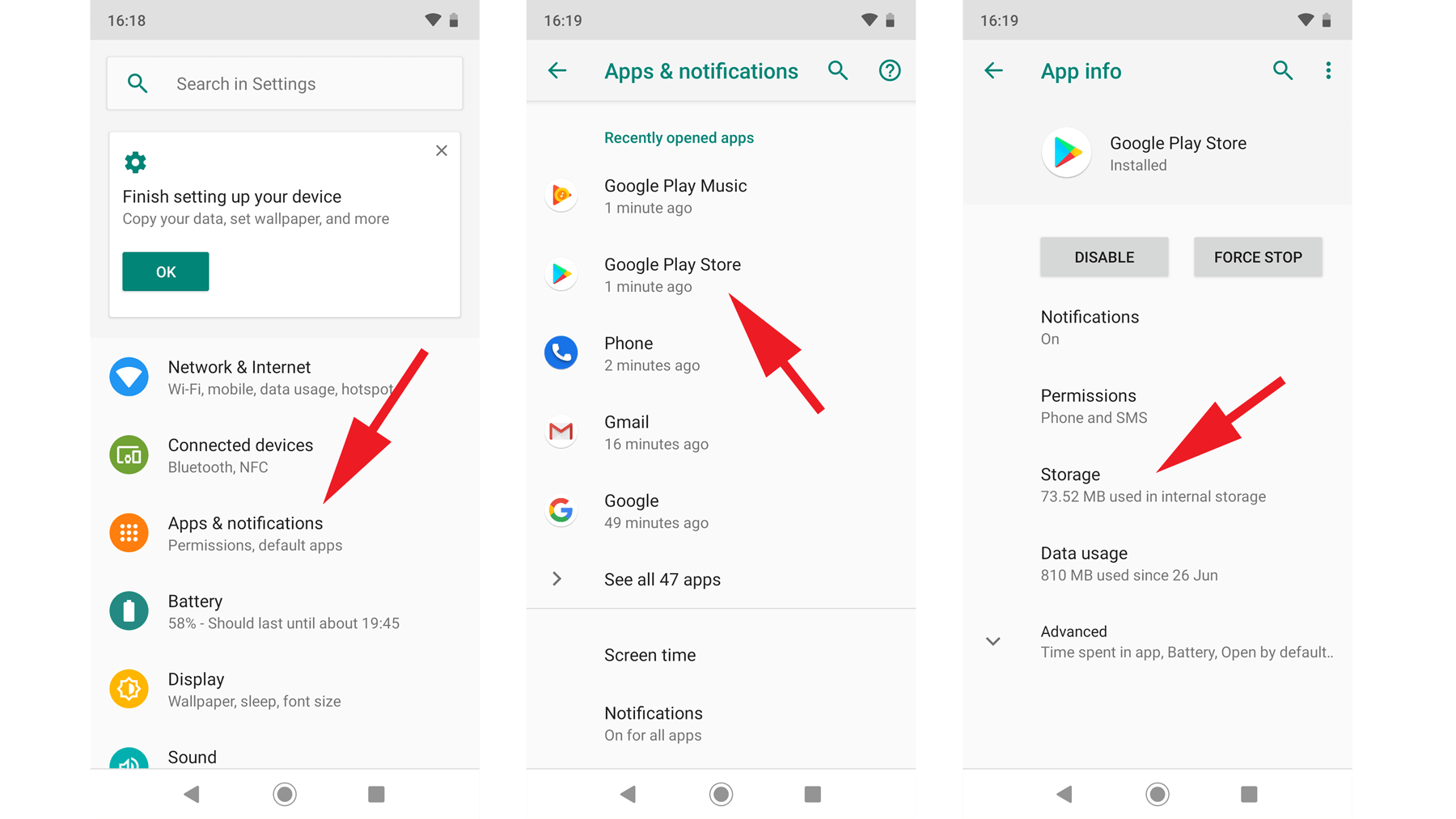
In addition to cleaning the system-wide cache, you can also clean the cache of specific applications using the Settings app or a third-party cleaning app. Here’s how to do it:
Method 1: Using The Settings App
To clean the cache of specific applications using the Settings app, follow these steps:
- Open The Settings App: Tap on the Settings icon in your device’s home screen or draw.
- Go to Apps & Notifications: Select “Apps” and then “Notifications”.
- Select an Application: Find the application you want to clean and select it.
- Clear Cache: Press the “Clear cache” button.
Method 2: Using a Third-party Cleaning App
If you want to clean the cache of specific applications more thoroughly or if you’re not comfortable using the Settings app, you can download a third-party cleaning app like SD Maid. Here’s how to do it:
- Download And Install SD Maid: Search for SD Maid on the Google Play Store and download and install it.
- Launch SD Maid: Tap on the SD Maid icon in your device’s home screen or draw.
- Select The Cache Tab: Find the “Cache” tab and select it.
- Clean The Cache: Press the “Clear cache” button.
How to Clean The Cache of The Browser
In addition to cleaning the system-wide cache, you can also clean the cache of specific browsers like Google Chrome, Firefox, Microsoft Edge, and Opera. Here’s how to do it:
Method 1: Cleaning The Cache of Google Chrome
To clean the cache of Google Chrome, follow these steps:
- Open Google Chrome: Tap on the Google Chrome icon in your device’s home screen or draw.
- Tap on The Three Dots: Tap on the three dots at the top right corner of the browser.
- Go to Settings: Select “Settings”.
- Clear Cache: Press the “Clear cache” button.
Method 2: Cleaning The Cache of Firefox
To clean the cache of Firefox, follow these steps:
- Open Firefox: Tap on the Firefox icon in your device’s home screen or draw.
- Tap on The Three Dots: Tap on the three dots at the top right corner of the browser.
- Go to Settings: Select “Settings”.
- Delete Browsing Data: Press the “Clear now” button.
Method 3: Cleaning The Cache of Microsoft Edge
To clean the cache of Microsoft Edge, follow these steps:
- Open Microsoft Edge: Tap on the Microsoft Edge icon in your device’s home screen or draw.
- Tap on The Three Dots: Tap on the three dots at the top right corner of the browser.
- Go to Settings: Select “Settings”.
- Clear Browsing Data: Press the “Clear” button.
Method 4: Cleaning The Cache of Opera
To clean the cache of Opera, follow these steps:
- Open Opera: Tap on the Opera icon in your device’s home screen or draw.
- Tap on The Three Dots: Tap on the three dots at the top right corner of the browser.
- Go to Settings: Select “Settings”.
- Clear Browsing Data: Press the “Clear” button.
How to Clean The Cache of The Operating System
In some cases, cleaning the cache of the operating system can resolve issues like crashes or slow performance. Here’s how to do it:
- Reboot Your Device: Reboot your device and go to the Recovery mode.
- Select Wipe Cache Partition: Select “Wipe cache partition” from the menu.
- Confirm The Wipe: Confirm the wipe by selecting “Yes”.
- Reboot Your Device: Reboot your device.
Conclusion
Cleaning the cache of your Android device can improve performance, free up space, and prevent crashes. By following the steps outlined in this article, you can clean the system-wide cache, the cache of specific applications, and even the cache of the browser and operating system. Remember to always be cautious when cleaning the cache, as deleting important files can cause issues.
Frequently Asked Questions
Q: What is the purpose of cleaning the cache?
A: The purpose of cleaning the cache is to free up space on your device, improve performance, and prevent crashes.
Q: How do I clean the system-wide cache?
A: To clean the system-wide cache, use the Settings app or a third-party cleaning app like SD Maid.
Q: How do I clean the cache of specific applications?
A: To clean the cache of specific applications, use the Settings app or a third-party cleaning app like SD Maid.
Q: How do I clean the cache of the browser?
A: To clean the cache of the browser, follow the steps outlined in this article for each browser (Google Chrome, Firefox, Microsoft Edge, and Opera).
Q: How do I clean the cache of the operating system?
A: To clean the cache of the operating system, reboot your device and go to the Recovery mode.
References
- [1] Android Authority. “How to Clear Cache on Android Devices”.
- [2] SD Maid. “SD Maid – The Ultimate Cleaning App for Android Devices”.


