
How to Empty Chrome Cache on Pc, Smartphone, And Tablet
Are you tired of experiencing slow navigation on your Google Chrome browser? Do you want to know how to empty Chrome cache on your PC, smartphone, or tablet? Look no further! In this article, we will guide you through the simple steps to clear your Chrome cache, improving your browsing experience.
What is Cache in Chrome?
Before we dive into the process of emptying Chrome cache, let’s first understand what cache means. Cache refers to a set of data that websites save on your device to speed up loading times. When you visit a website, Chrome stores images, text, and other data in its cache to reduce the time it takes to load the page next time.
Why Empty Chrome Cache?
There are several reasons why you might want to empty Chrome cache:
- Your browser is slow or unresponsive.
- You’re experiencing problems with specific websites.
- You’ve installed a new app and want to free up space on your device.
How to Empty Chrome Cache on PC
To empty Chrome cache on your Windows PC, follow these steps:
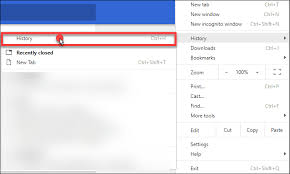
- Open Google Chrome and click on the three vertical dots in the upper right corner.
- Select “Settings” from the drop-down menu.
- Click on “Advanced” at the bottom of the page.
- Scroll down to the “Reset and clean up” section.
- Click on “Clear browsing data.”
- Choose what you want to delete (e.G., History, cookies, saved website data).
- Select the time range for which you want to clear cache (e.G., Last hour, last day, last week).
- Click on “Clear data.”
How to Empty Chrome Cache on Mac
To empty Chrome cache on your Mac, follow these steps:
- Open Google Chrome and click on the three vertical dots in the upper right corner.
- Select “Settings” from the drop-down menu.
- Click on “Advanced” at the bottom of the page.
- Scroll down to the “Reset and clean up” section.
- Click on “Clear browsing data.”
- Choose what you want to delete (e.G., History, cookies, saved website data).
- Select the time range for which you want to clear cache (e.G., Last hour, last day, last week).
- Click on “Clear data.”
How to Empty Chrome Cache on Android
To empty Chrome cache on your Android device:
- Open Google Chrome and tap on the three vertical dots in the upper right corner.
- Select “Settings” from the drop-down menu.
- Tap on “Privacy and security.”
- Scroll down to the “Clear browsing data” section.
- Choose what you want to delete (e.G., History, cookies, saved website data).
- Select the time range for which you want to clear cache (e.G., Last hour, last day, last week).
- Tap on “Clear data.”
How to Empty Chrome Cache on Iphone or Ipad
To empty Chrome cache on your iPhone or iPad:
- Open Google Chrome and tap on the three vertical dots in the upper right corner.
- Select “Settings” from the drop-down menu.
- Scroll down to the “Clear browsing data” section.
- Choose what you want to delete (e.G., History, cookies, saved website data).
- Select the time range for which you want to clear cache (e.G., Last hour, last day, last week).
- Tap on “Clear data.”
Additional Tips
In addition to emptying Chrome cache, there are a few more things you can do to improve your browsing experience:
- Update Chrome regularly to ensure you have the latest features and security patches.
- Use Incognito mode to browse privately and avoid storing cookies and other data.
- Clear cache regularly to free up space on your device.
By following these simple steps, you can empty Chrome cache and enjoy a faster, more responsive browsing experience.


