
How to Erase Cache on Chrome: A Step-by-step Guide
Are you tired of feeling like your browser is slow or cluttered? Do you want to know how to erase cache on Chrome and start fresh? Look no further! In this article, we’ll guide you through the process of clearing cache on Chrome, including manual, keyboard shortcuts, automatic, Android, and iPhone/iPad methods.
What is Cache And Why Should I Clear It?
Before we dive into the nitty-gritty, let’s quickly explain what cache is. Cache refers to a set of data stored by your browser to speed up loading times for frequently visited websites. While it may seem convenient, excessive cache can lead to errors, slow performance, and even security issues.
Why Clear Cache on Chrome?
Clearing cache on Chrome can help resolve various problems, including:
- Slow loading times
- Errors in visualizing web pages
- Security vulnerabilities
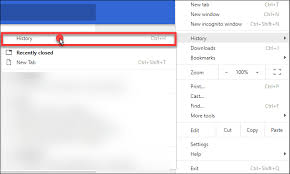
Method 1: How to Erase Cache on Chrome Manually
If you’re comfortable using your browser’s interface, follow these steps to erase cache on Chrome manually:
- Open Chrome and click the three dots in the top-right corner.
- Select “More tools” from the dropdown menu.
- Choose “Clear browsing data.”
- In the dialog box that appears, select the types of data you want to clear (e.G., Browsing history, cookies, cache).
- Choose the time range for which you want to delete the data (e.G., Last hour, last day, last week).
- Click “Clear data.”
Method 2: How to Erase Cache on Chrome Using Keyboard Shortcuts
If you prefer using keyboard shortcuts, follow these steps:
- Open Chrome and click an empty area of the window.
- Press Ctrl+shift+c (Windows) or Cmd+shift+c (macOS).
- A new tab will open with settings to erase data. Select “Images and files” from the dropdown menu.
- Choose the time range for which you want to delete the data (e.G., Last hour, last day, last week).
- Click “Clear now.”
Method 3: How to Erase Cache on Chrome Automatically
If you want to clear cache automatically every time you close Chrome, follow these steps:
- Install the Click&clean extension from the Chrome Web Store.
- Follow the setup instructions and configure the settings as desired.
Method 4: How to Erase Cache on Chrome For Android
Follow these steps to erase cache on Chrome for Android devices:
- Open Chrome on your smartphone or tablet.
- Tap the three dots in the top-right corner.
- Select “Settings” from the dropdown menu.
- Choose “Privacy” and then select “Clear browsing data.”
- In the dialog box that appears, select the types of data you want to clear (e.G., Browsing history, cookies, cache).
- Choose the time range for which you want to delete the data (e.G., Last hour, last day, last week).
Method 5: How to Erase Cache on Chrome For Iphone And Ipad
Follow these steps to erase cache on Chrome for iPhone and iPad devices:
- Open Chrome on your device.
- Tap the three dots in the top-right corner.
- Select “Settings” from the dropdown menu.
- Choose “Privacy” and then select “Clear browsing data.”
- In the dialog box that appears, select the types of data you want to clear (e.G., Browsing history, cookies, cache).
- Choose the time range for which you want to delete the data (e.G., Last hour, last day, last week).
Conclusion
Erasing cache on Chrome can be a simple yet effective way to resolve various problems and improve your browsing experience. By following these step-by-step guides, you’ll learn how to clear cache manually, using keyboard shortcuts, automatically with Click&Clean, for Android devices, and for iPhone and iPad devices.
Frequently Asked Questions (FAQs)
- Q: What is Cache on Chrome?
A: Cache refers to a set of data stored by your browser to speed up loading times for frequently visited websites. - Q: Why Should I Clear Cache on Chrome?
A: Clearing cache can help resolve problems such as slow loading times, errors in visualizing web pages, and security vulnerabilities. - Q: How do I Erase Cache on Chrome Manually?
A: To erase cache on Chrome manually, open Chrome, click the three dots in the top-right corner, select “More tools,” choose “Clear browsing data,” and follow the prompts. - Q: Can I Clear Cache Using Keyboard Shortcuts?
A: Yes! Press Ctrl+shift+c (Windows) or Cmd+shift+c (macOS) to open a new tab with settings to erase data. - Q: How do I Set Chrome to Clear Cache Automatically?
A: Install the Click&Clean extension and configure the settings as desired.
We hope this comprehensive guide has helped you understand how to erase cache on Chrome using various methods!


