
How to Erase Chrome’s Browser History on Pc, Mac, Android, And Iphone
Are you tired of having your browsing history saved on Google Chrome? Do you want to delete all the data from websites you’ve visited in the past? Look no further! In this article, we’ll show you how to erase Chrome’s browser history on different devices.
Why Erase Browser History?
Erasing browser history can be useful for several reasons:
- You don’t want anyone else to see your browsing history
- You want to free up space on your device by deleting unnecessary data
- You’re concerned about online security and want to protect yourself from potential threats
How to Erase Chrome’s Browser History on PC (Windows)
To erase Chrome’s browser history on a PC, follow these steps:
- Open Google Chrome and click on the three vertical dots in the top-right corner.
- Select “Settings” from the dropdown menu.
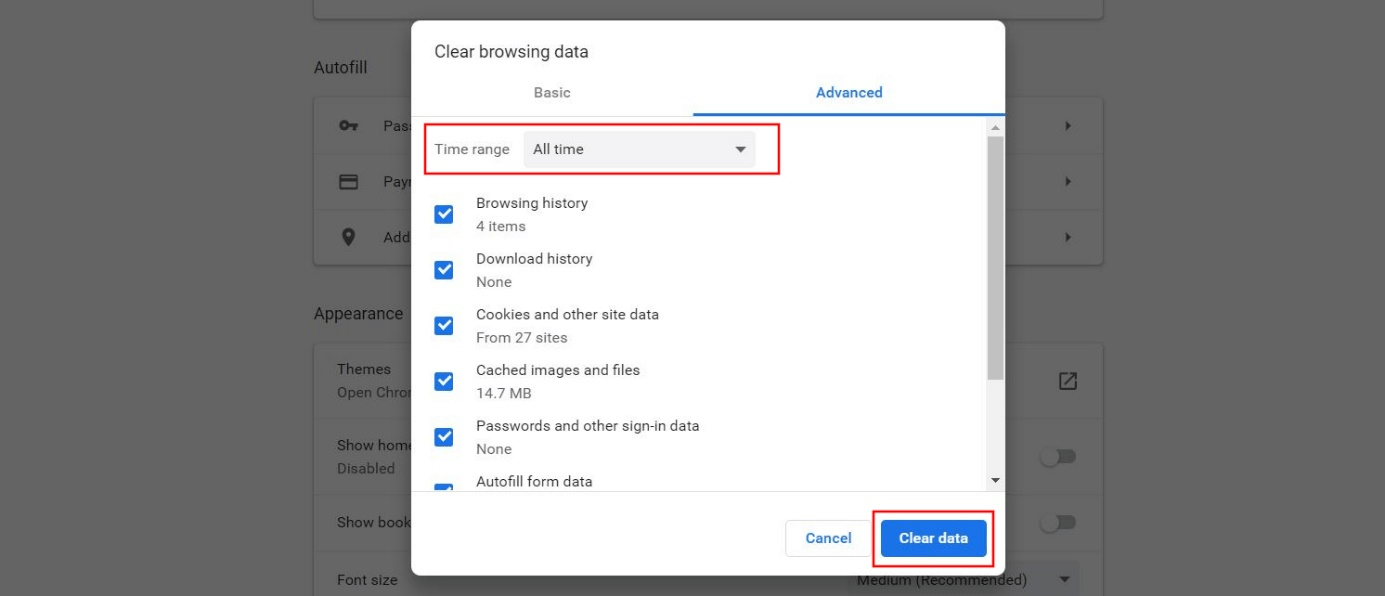
- Scroll down to the “Advanced” section and click on “Clear browsing data.”
- Choose the time range for which you want to delete your browser history (e.G., Last hour, last day, etc.).
- Make sure that “Chronology of navigation” is selected.
- Click on the “Erase given” button.
How to Erase Chrome’s Browser History on Mac
Erasing Chrome’s browser history on a Mac is similar to the process on a PC:
- Open Google Chrome and click on the three vertical dots in the top-right corner.
- Select “Settings” from the dropdown menu.
- Scroll down to the “Advanced” section and click on “Clear browsing data.”
- Choose the time range for which you want to delete your browser history (e.G., Last hour, last day, etc.).
- Make sure that “Chronology of navigation” is selected.
- Click on the “Erase given” button.
How to Erase Chrome’s Browser History on Android
To erase Chrome’s browser history on an Android device:
- Open Google Chrome and tap on the three vertical dots in the top-right corner.
- Select “Settings” from the dropdown menu.
- Scroll down to the “Privacy and safety” section and click on “Erase given of navigation.”
- Choose the time range for which you want to delete your browser history (e.G., Last hour, last day, etc.).
- Make sure that “Chronology of navigation” is selected.
- Click on the “Erase given” button.
How to Erase Chrome’s Browser History on Iphone
Erasing Chrome’s browser history on an iPhone or iPad:
- Open Google Chrome and tap on the three vertical dots in the top-right corner.
- Select “Settings” from the dropdown menu.
- Scroll down to the “Privacy” section and click on “Erase given of navigation.”
- Choose the time range for which you want to delete your browser history (e.G., Last hour, last day, etc.).
- Make sure that “Chronology of navigation” is selected.
- Click on the “Erase given” button.
Automatic Erasing of Chrome’s Browser History
Unfortunately, it’s not possible to erase Chrome’s browser history automatically at closing. However, you can open a new incognito window by tapping on the three vertical dots in the top-right corner and selecting “New incognito tab.”
Conclusion
Erasing browser history is an essential task for maintaining online security and protecting your personal data. By following these simple steps, you can easily erase Chrome’s browser history on different devices.
Frequently Asked Questions (FAQs)
- How do I delete a single page from my browsing history?
- To delete a single page from your browsing history, open Google Chrome and click on the three vertical dots in the top-right corner. Select “History” and then find the page you want to delete.
- Can I restore deleted browser history?
- Unfortunately, it’s not possible to restore deleted browser history.
- How often should I erase my browser history?
- It’s recommended to erase your browser history at least once a week to maintain online security and protect your personal data.
Final Thoughts
Erasing browser history is an essential task for maintaining online security and protecting your personal data. By following these simple steps, you can easily erase Chrome’s browser history on different devices. Remember to regularly clear your browsing data to stay safe online!


