
How to Clear Cache on Firefox: A Step-by-step Guide
Are you experiencing issues with Firefox, such as slow loading times or incorrect visualizations of websites? Do you find yourself wondering how to fix these problems? Look no further! In this article, we will guide you through the process of clearing cache on Firefox, both on PC and mobile devices.
Why Clear Cache on Firefox?
The cache is a set of temporary data, including images and scripts, that Firefox uses to speed up the loading of websites. However, sometimes these cached data can cause errors or incorrect visualizations, leading to frustrating experiences for users.
How to Clear Cache on PC (Windows And Macos)
To clear cache on Firefox on PC, follow these steps:
Step 1: Open Firefox
First, open the Firefox browser on your PC. Once it’s launched, click on the menu icon ☰ located in the top-right corner of the window.
Step 2: Access Settings
From the dropdown menu, select “Settings” or “Preferences.” This will open a new window with various settings options.
In the left-hand sidebar, click on “Privacy and safety.” You’ll see a list of options related to privacy and security.
Step 4: Delete Cookies And Data
Scroll down to the section labeled “Cookies and data from websites” and click on the “Delete” button. In the next window, select the option to delete cookies and site data, as well as cached images and files.
Alternative Method: Erase Recent History And Cache
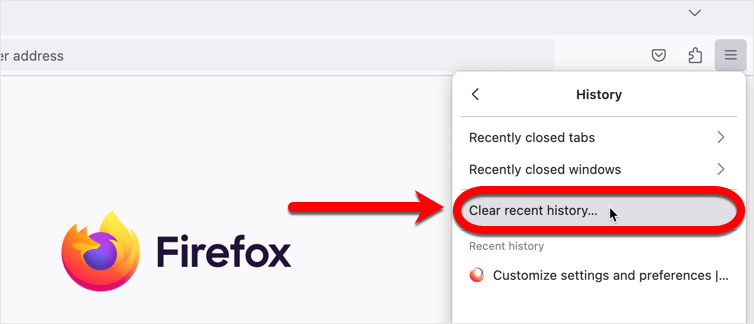
Alternatively, you can use the shortcut by going to ☰ > History > Erase recent history and selecting the cache option.
How to Clear Cache on Mobile Devices (Android)
To clear cache on Firefox on Android devices, follow these steps:
Step 1: Open Firefox
Launch the Firefox app on your Android device. Tap on the menu icon ︙ located in the top-right corner of the screen.
Step 2: Access Settings
From the dropdown menu, select “Settings.” This will open a new window with various settings options.
Scroll down to the section labeled “Privacy and safety” and tap on it. You’ll see a list of options related to privacy and security.
Step 4: Delete Data And Cookies
Tap on the “Delete data and cookies” option and select the time range you want to clear cache for (e.G., Last hour, yesterday, etc.).
How to Clear Cache on Iphone/ipad
To clear cache on Firefox on iOS devices, follow these steps:
Step 1: Open Firefox
Launch the Firefox app on your iPhone or iPad. Tap on the menu icon ☰ located in the top-right corner of the screen.
Step 2: Access Settings
From the dropdown menu, select “Settings.” This will open a new window with various settings options.
Scroll down to the section labeled “Management given” and tap on it. You’ll see a list of options related to data and cookies.
Step 4: Delete Data And Cookies
Tap on the “Delete data and cookies” option and select the time range you want to clear cache for (e.G., Last hour, yesterday, etc.).
How to Clear Cache Automatically at Closing
On both Android and iOS devices, you can set Firefox to clear cache automatically when you exit the app. To do this:
Android:
Go to ︙ > Settings > Management given > Delete data and cookies at closure.
Ios:
Go to ☰ > Settings > Management given > Delete the data of navigation to the gone out.
Conclusion
Clearing cache on Firefox is a simple process that can help resolve issues related to slow loading times or incorrect visualizations. By following these step-by-step guides, you can clear cache on both PC and mobile devices, ensuring a smoother browsing experience.


