
How to Erase Icloud
Are you tired of cluttering your iCloud account? Do you want to delete unnecessary files, photos, and documents from your cloud storage? Look no further! In this article, we will guide you through the process of erasing your iCloud account, including deleting files, photos, and documents, as well as canceling or deactivating your ID Apple.
Understanding Icloud
Before we dive into the process of erasing your iCloud account, let’s first understand what iCloud is. ICloud is a cloud storage service provided by Apple that allows users to store their files, photos, and documents online. This means that you can access your data from any device connected to the internet.
Why Erase Icloud?
There are several reasons why you might want to erase your iCloud account:
- Storage Space: If you have reached your storage limit on iCloud Drive, you may need to delete files or photos to free up space.
- Security Concerns: If you have sensitive information stored in your iCloud account, deleting it can ensure that your data remains secure.
- Account Deactivation: If you no longer use an Apple device or want to cancel your ID Apple, erasing your iCloud account can help with the process.
Erasing Your Icloud Account
Now that we’ve discussed why you might want to erase your iCloud account, let’s move on to the steps involved in doing so. Please note that this process cannot be undone, and all data will be permanently deleted.
Step 1: Prepare For Erasure
Before erasing your iCloud account, it’s essential to:
- Backup Your Data: Make sure you have backed up any important files or photos from your iCloud account.
- Cancel Subscriptions: If you’re subscribed to Apple services like iCloud+, cancel them before proceeding.
Step 2: Delete Files And Photos
To delete files and photos from your iCloud account:
- Iphone, Ipad, or Ipod Touch: Go to Settings > [Your Name] > iCloud > iCloud Drive. Select the file or folder you want to delete.
- Icloud.Com: Sign in with your Apple ID, go to iCloud Drive, select the file or folder you want to delete, and click “Delete.”
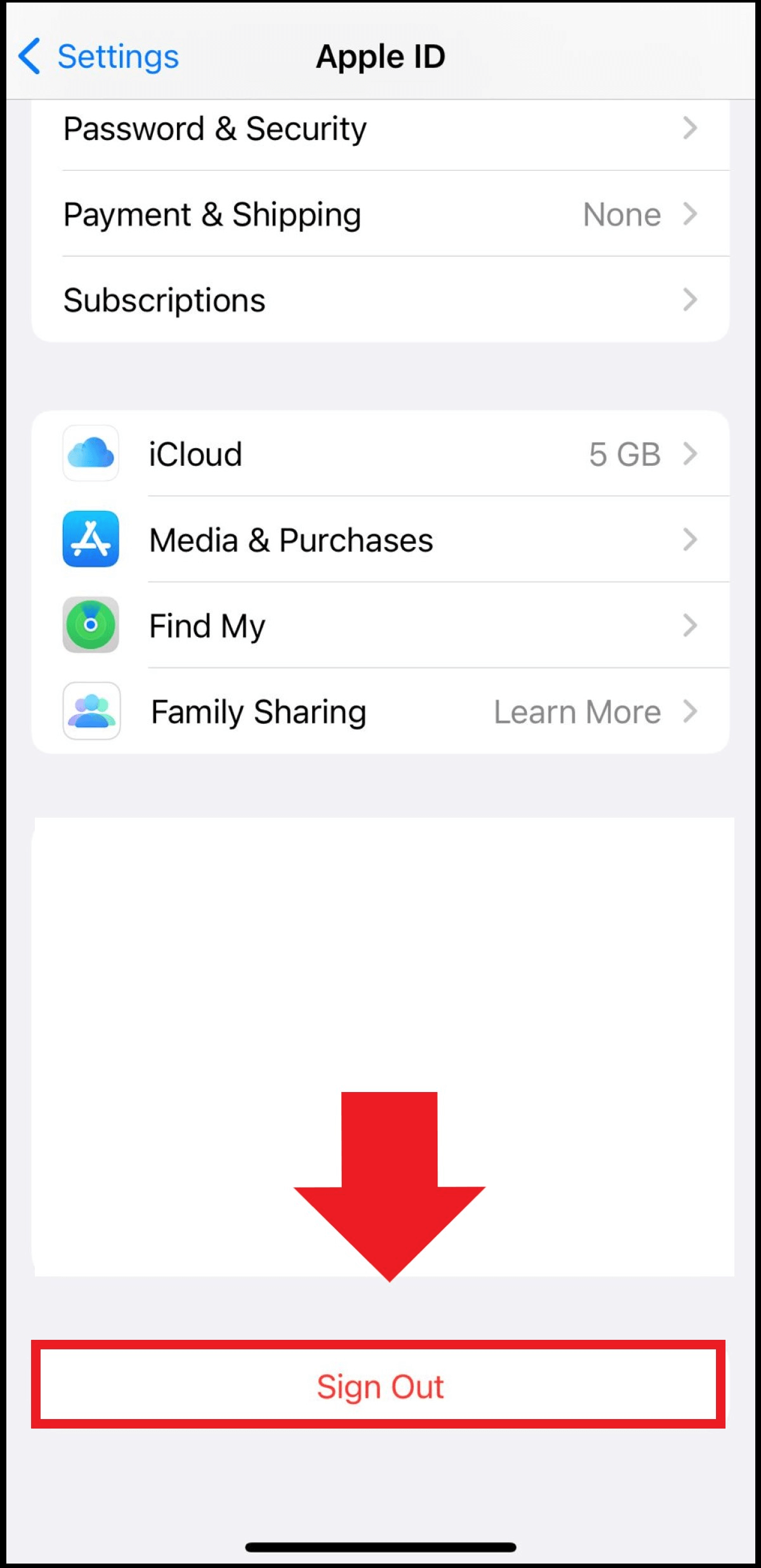
Step 3: Cancel or Deactivate Your ID Apple
To cancel or deactivate your ID Apple:
- Visit The Apple Support Page: Go to the Apple Support page, sign in with your Apple ID, and follow the instructions for cancellation or deactivation.
Important Notes:
- Deleting Icloud Data Permanently Erases It: Once deleted, you won’t be able to recover the data.
- Canceling ID Apple Will Remove Access: Cancelling or deactivating your ID Apple will remove access to all Apple services.
Conclusion
Erasing your iCloud account can help free up storage space and ensure that sensitive information remains secure. However, please note that once deleted, you won’t be able to recover the data. Before proceeding, make sure to backup any important files or photos from your iCloud account and cancel any subscriptions. If you’re ready to proceed, follow the steps outlined above.
Frequently Asked Questions
Here are some frequently asked questions about erasing your iCloud account:
Q: Can I Recover Deleted Data?
A: No, once deleted, data cannot be recovered.
Q: Will Deleting my ID Apple Remove Access to All Apple Services?
A: Yes, cancelling or deactivating your ID Apple will remove access to all Apple services.
Q: Should I Backup my Icloud Data Before Erasing It?
A: Yes, it’s essential to back up any important files or photos from your iCloud account before proceeding with the erasure process.
Q: Can I Cancel Subscriptions And Then Erase my Icloud Account?
A: Yes, you can cancel subscriptions before erasing your iCloud account to ensure that services are not affected during the process.
Q: What Happens When I Cancel ID Apple?
A: Cancelling or deactivating your ID Apple will remove access to all Apple services, including iCloud.
Q: Will Deleting my Icloud Account Affect Other Devices Using my ID Apple?
A: Yes, erasing your iCloud account may affect other devices connected to your ID Apple, as they may lose access to iCloud services.


