
Deleting Errors on Your Pc: A Step-by-step Guide
If your computer is running slowly or displaying error messages, don’t panic! Deleting errors on your PC can be a relatively simple process if you know where to start.
Understanding System Errors
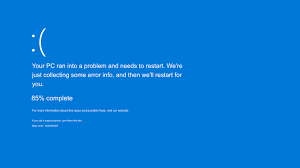
System errors occur when there’s a problem with the operating system or a program that affects how it works. These errors can manifest in various ways, such as:
- Slow computer performance
- Error messages or warnings
- Programs crashing or freezing
Causes of System Errors
There are several reasons why system errors might occur, including:
- Outdated operating systems or software
- Viruses or malware
- Hardware issues (e.G., Faulty RAM or hard drive)
- Incompatible programs or drivers
Solving System Errors: A Step-by-step Guide
Here’s a step-by-step guide to help you resolve system errors on your Windows PC:
- Run The Built-in Troubleshooter: Most Windows versions come with a built-in troubleshooter that can identify and fix common issues. To access it, press the Windows key + S, type “troubleshoot,” and follow the prompts.
- Check For Updates: Ensure your operating system is up-to-date, as newer versions often include fixes for known issues. Go to Settings > Update & Security > Windows Update.
- Scan For Malware: Run a full scan with your antivirus software to detect and remove any malicious programs that might be causing the issue.
Additional Solutions
If the built-in troubleshooter doesn’t resolve the issue, you can try:
- Running System File Checker (SFC) to scan and replace corrupted system files.
- Using a third-party cleaning tool like CCleaner or Glary Utilities to remove temporary files and registry entries that might be causing problems.
- Disabling any recently installed programs or drivers that might be conflicting with the operating system.
Mac-specific Solutions
For Mac users, you can try:
- Running the built-in Disk Utility app to scan and repair disk errors.
- Using a third-party cleaning tool like CleanMyMac X to remove temporary files and registry entries that might be causing problems.
- Resetting System Management Controller (SMC) and NVRAM to resolve hardware-related issues.
Conclusion
Deleting errors on your PC can be a straightforward process if you follow the right steps. Remember to run the built-in troubleshooter, check for updates, scan for malware, and consider additional solutions like running SFC or using cleaning tools. For Mac users, try running Disk Utility or resetting System Management Controller (SMC) and NVRAM.
Frequently Asked Questions
Q: What are system errors?
A: System errors occur when there’s a problem with the operating system or a program that affects how it works.
Q: Why do system errors happen?
A: System errors can be caused by various factors, including outdated operating systems or software, viruses or malware, hardware issues, and incompatible programs or drivers.
Q: How can I delete errors on my Windows PC?
A: Run the built-in Troubleshooter, check for updates, scan for malware, and consider additional solutions like running SFC or using cleaning tools.
Q: What are some common causes of system errors?
A: Outdated operating systems or software, viruses or malware, hardware issues, and incompatible programs or drivers can cause system errors.
Q: How do I resolve system errors on my Mac?
A: Run the built-in Disk Utility app to scan and repair disk errors. You can also try using a third-party cleaning tool like CleanMyMac X or resetting System Management Controller (SMC) and NVRAM.


