
How to Clear Safari Cache: A Step-by-step Guide
Are you tired of feeling like your Safari browser is cluttered with old data and website history? Look no further! In this article, we’ll show you how to clear Safari cache on your Mac, iPhone, or iPad.
What is Safari Cache?
Safari cache refers to the temporary storage of web page information, such as images, stylesheets, and scripts. This cache helps improve browsing performance by reducing the time it takes for pages to load. However, over time, this cache can accumulate and slow down your browser.
Why Clear Safari Cache?
Clearing Safari cache can help:
- Improve browser performance
- Remove old website history and cookies
- Fix issues with websites not loading properly
How to Clear Safari Cache on Mac
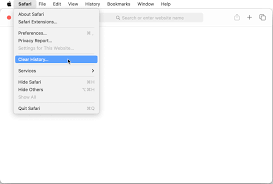
Clearing Safari cache on a Mac is a straightforward process. Here’s how to do it:
- Open Safari: Click on the compass icon in the top-left corner of your screen.
- Click on Develop: From the menu bar, select “Develop” > “Empty Caches”.
- Confirm: In the new window that opens, confirm that you want to empty the cache.
Alternatively, you can use a keyboard shortcut: Command + Option + E
How to Clear Safari Cache on Iphone And Ipad
Clearing Safari cache on an iPhone or iPad is slightly different from clearing it on a Mac. Here’s how to do it:
- Open Settings: Tap on the “Settings” app.
- Tap on Safari: Scroll down and tap on “Safari”.
- Tap on Clear History And Website Data: In the new window that opens, tap on “Clear History and Website Data”.
How to Clear Cache For a Specific Website
If you want to clear cache for a specific website, follow these steps:
- Open Safari: Click on the compass icon in the top-left corner of your screen.
- Click on Preferences: From the menu bar, select “Safari” > “Preferences”.
- Select Advanced: In the new window that opens, click on “Advanced”.
- Check Show Develop Menu in Menu Bar: Make sure this checkbox is selected.
- Open Develop Menu: Click on the “Develop” menu and select “Empty Caches for This Website”.
Using Third-party Software to Clear Safari Cache
If you’re not comfortable using the built-in methods, you can use third-party software like CleanMyMac X to clear Safari cache. CleanMyMac X is a popular cleaning tool that also includes features like disk cleanup, memory optimization, and malware removal.
Benefits of Using Cleanmymac X
Using CleanMyMac X offers several benefits, including:
- Easy-to-use Interface: Clearing Safari cache with CleanMyMac X is as simple as clicking a button.
- Multiple Cleaning Options: CleanMyMac X includes features like disk cleanup, memory optimization, and malware removal.
- Free Version Available: The free version of CleanMyMac X allows you to clear up to 500 MB of data.
Conclusion
Clearing Safari cache on your Mac, iPhone, or iPad is a simple process that can help improve browsing performance and remove old website history. Whether you use the built-in methods or third-party software like CleanMyMac X, clearing Safari cache can make a big difference in how smoothly your browser runs.
Frequently Asked Questions
Q: What happens if I clear my Safari cache?
A: Clearing your Safari cache will remove temporary storage of web page information, including images, stylesheets, and scripts. This may improve browsing performance but could also remove recent website history and cookies.
Q: How often should I clear my Safari cache?
A: You can clear your Safari cache as needed to maintain optimal browser performance. However, it’s not necessary to do so frequently unless you experience issues with slow loading times or outdated website data.
Q: Can I clear Safari cache for a specific website only?
A: Yes, you can clear Safari cache for a specific website by following the steps outlined in this article under “How to Clear Cache for a Specific Website”.
Q: What is the difference between clearing Safari cache and erasing browsing history?
A: Clearing Safari cache removes temporary storage of web page information, while erasing browsing history removes saved data, such as cookies, from specific websites.
Q: Can I use third-party software like CleanMyMac X to clear Safari cache?
A: Yes, you can use CleanMyMac X or other third-party software to clear Safari cache. However, be sure to review the system requirements and ensure that the software is compatible with your device.
Final Thoughts
Clearing Safari cache on your Mac, iPhone, or iPad is a simple process that can improve browsing performance and remove old website history. Whether you use the built-in methods or third-party software like CleanMyMac X, clearing Safari cache can make a big difference in how smoothly your browser runs.


