
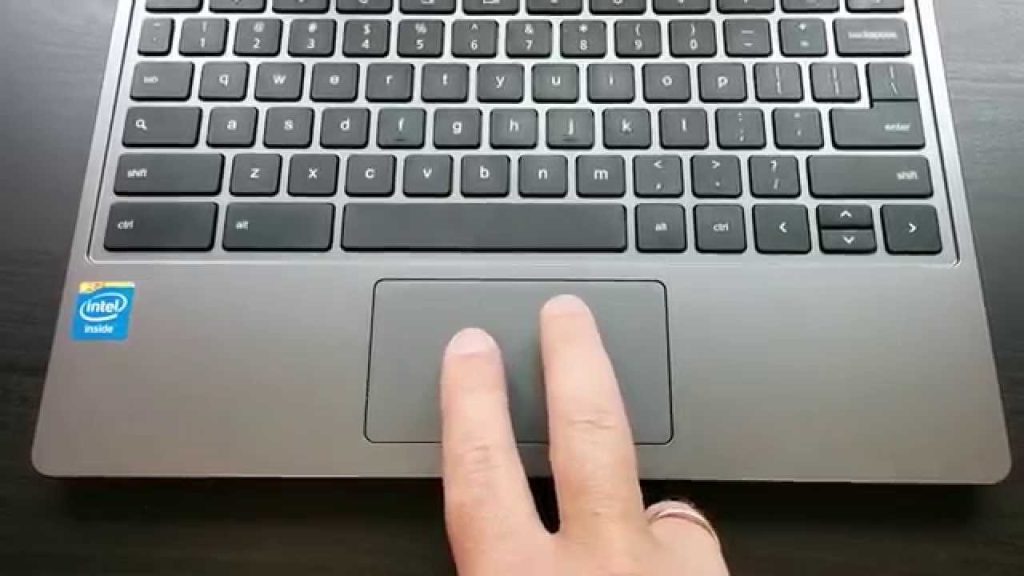
Clicking With The Keyboard: A Life-saver When Your Mouse Fails
Are you tired of waiting for your mouse to start working again? Do you wish there was a way to quickly navigate through your computer without having to physically move your mouse? Well, worry no more! In this article, we will show you how to click with the keyboard and get back to work in no time.
Why Does My Mouse Keep Failing Me?
There are several reasons why your mouse might be malfunctioning. Maybe it’s due to a hardware issue, or perhaps it’s just getting old and worn out. Whatever the reason, it’s essential to identify the problem before trying to fix it.
Hardware Issues: A Possible Culprit
If you’re using a wireless mouse, check if the batteries are drained. If they are, try replacing them with new ones or recharging them if they’re rechargeable. Also, ensure that your mouse is properly connected to your computer via Bluetooth or USB.
Operating System Settings: The Key to Unlocking Keyboard Control
If you’re using a Windows PC, there’s a simple way to control the cursor without having to use a mouse. Here are some steps:
- Press Win + I: Open the Settings app by pressing the Windows key and the letter “I.”
- Go to Accessibility: Navigate to the Accessibility section.
- Select Mouse Options: Click on the option that says “Mouse options” or something similar.
- Enable The Control Key: You’ll see a checkbox that says “Control mouse with keyboard.” Check it, and you’re good to go!
Using Keyboard Shortcuts For Faster Navigation
If you’re using a Mac, there are some essential keyboard shortcuts that can help you navigate faster.
- Cmd + X: Cut an item.
- Cmd + C: Copy an item.
- Cmd + V: Paste an item.
- Cmd + Z: Undo the last action.
- Cmd + Shift + Esc: Open Activity Monitor to force quit an application.
How to Click With The Keyboard on Windows
To click with the keyboard, you can use a combination of keys that will simulate a mouse click. Here are some steps:
- Press Win + Numlock: Enable the Number Lock feature.
- Use The Number Pad: Use the number pad to navigate through your screen.
Using Keyboard Shortcuts on Mac
If you’re using a Mac, there are some essential keyboard shortcuts that can help you navigate faster.
⇥(Tab): Move focus to the next item.⌘ + Tab: Switch between open windows.⌘ + Space: Open Spotlight search.⌘ + Shift + Esc: Force quit an application.
Tips And Tricks
Here are some tips and tricks that might help you navigate faster:
- Use a Keyboard With Media Keys: A keyboard with media keys can be super helpful for navigating through your computer.
- Customize Your Mouse Settings: Experiment with different mouse settings to find what works best for you.
Conclusion
In conclusion, clicking with the keyboard is an excellent way to quickly navigate through your computer when your mouse fails. Whether you’re using a Windows PC or Mac, there are some essential keyboard shortcuts that can help you get back to work in no time.


