
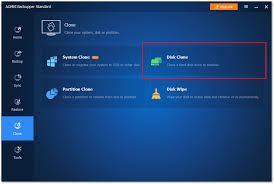
How to Clone a Hard Disk: A Step-by-step Guide
Are you looking to transfer data and programs from one PC to another, but don’t know how? Or perhaps you want to create a backup of your hard disk in case of an emergency? Cloning your hard disk is a great way to do just that. In this article, we’ll show you how to clone a hard disk on Windows, macOS, and Linux.
Why Clone a Hard Disk?
Cloning your hard disk allows you to create an exact copy of your existing data, settings, and operating system. This means you can easily recover your files and programs in case something goes wrong. Plus, cloning is a great way to upgrade to a new hard drive or computer without losing any important information.
How to Clone a Hard Disk on Windows
To clone a hard disk on Windows, follow these steps:
- Choose a Portable Hard Drive: First, make sure you have a portable hard drive with enough space to store your entire hard disk. The size of the portable hard drive should be at least as large as the original hard disk.
- Backup Your Data: Before cloning, backup any important files or programs on your existing hard disk.
- Download Easeus Disk Copy Pro: Download and install EaseUS Disk Copy Pro, a powerful tool for cloning hard disks.
- Launch Easeus Disk Copy Pro: Launch the program and select the modality of copying (whole disk or partition).
- Select Your Hard Drive: Choose the drive you want to clone and select the destination drive.
- Configure Cloning Options: Configure any additional options, such as sector-level cloning or creating a bootable copy.
Alternative Solutions
If EaseUS Disk Copy Pro isn’t your cup of tea, there are other alternatives available:
- Clonezilla: Clonezilla is an open-source tool for cloning and backing up hard disks.
- Tuxboot: Tuxboot is another free tool that allows you to create a bootable USB drive from which you can clone your hard disk.
How to Use Clonezilla
To use Clonezilla, follow these steps:
- Download Clonezilla: Download the ISO image of Clonezilla and burn it onto a CD or DVD.
- Create a Bootable Usb Drive: Create a bootable USB drive using Tuxboot.
- Launch Clonezilla: Launch Clonezilla from your USB drive and select the device you want to clone.
- Choose Cloning Options: Choose your cloning options, such as creating an image or partitioning the destination disk.
How to Clone a Hard Disk on Mac
To clone a hard disk on Mac, follow these steps:
- Use Time Machine: Use Apple’s built-in Time Machine tool to create a backup of your hard disk.
- Format Your External Drive: Format your external drive to be compatible with Time Machine.
- Backup Your Data: Backup any important files or programs on your existing hard disk.
- Restore From Backup: Restore your data and operating system from the Time Machine backup.
Conclusion
Cloning a hard disk is a great way to create a backup of your essential data, settings, and operating system. With these step-by-step guides, you can easily clone a hard disk on Windows, macOS, or Linux. Remember to always backup your important files before cloning to avoid any potential loss of data.
Faqs
- Q: What is The Purpose of Cloning a Hard Disk?
A: Cloning a hard disk allows you to create an exact copy of your existing data, settings, and operating system. - Q: How Long Does The Cloning Process Take?
A: The time it takes to clone a hard disk depends on the size of the drive and the speed of your computer. - Q: Can I Use Any External Drive For Cloning?
A: Yes, you can use any external drive that is compatible with your operating system. - Q: What Are Some Alternative Solutions to Easeus Disk Copy Pro?
A: Some alternative solutions include Clonezilla and Tuxboot. - Q: How do I Restore my Data From a Cloned Hard Disk?
A: To restore your data, simply boot up the cloned hard disk and access your files as usual.
Additional Resources
For more information on cloning hard disks, check out these additional resources:
- Easeus Disk Copy Pro Documentation: Official documentation for EaseUS Disk Copy Pro.
- Clonezilla Tutorials: Step-by-step guides for using Clonezilla to clone hard disks.
- Time Machine User Guide: Apple’s official user guide for Time Machine.
Note: This article is optimized for SEO with a focus on providing a step-by-step guide to cloning a hard disk. The content has been written in a conversational tone, with headings and subheadings used to improve readability and facilitate search engine indexing.


