
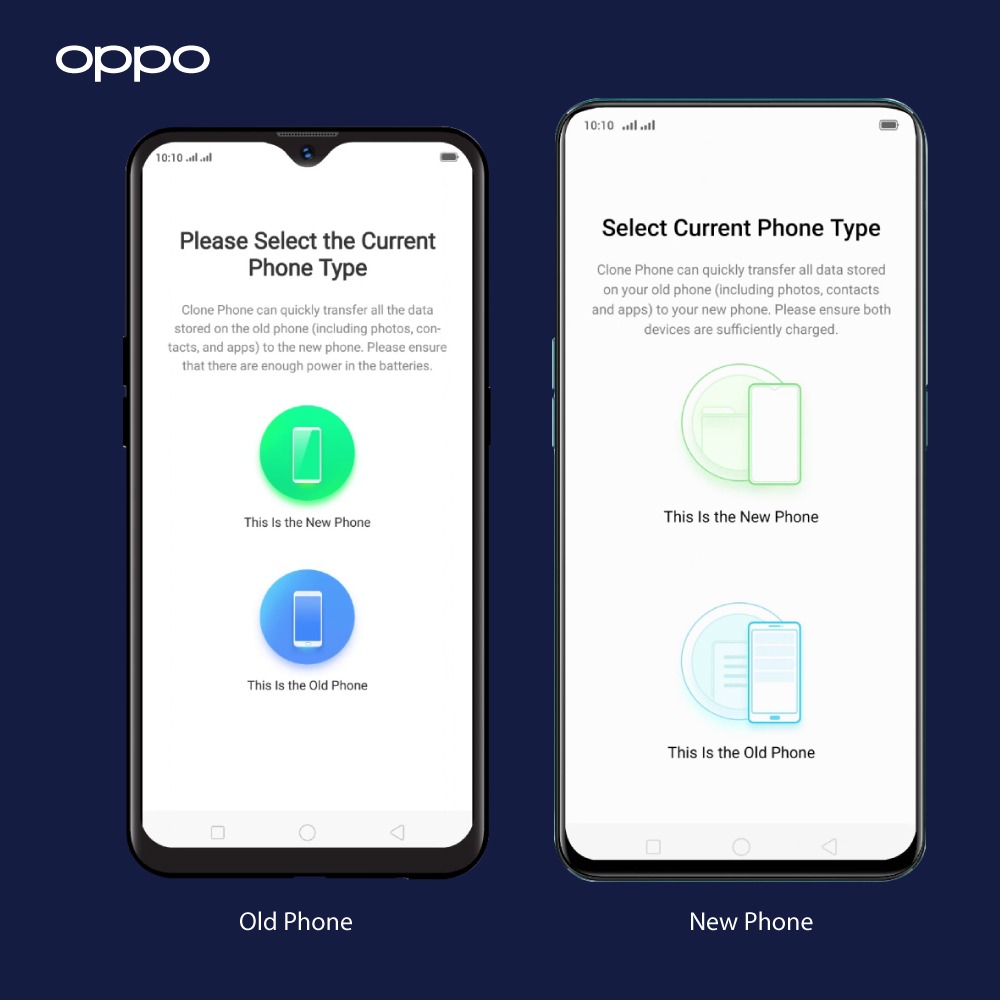
The Ultimate Guide to Cloning a Phone: A Step-by-step Tutorial
Are you tired of having to set up your new phone from scratch every time? Do you want to preserve all your data, apps, and settings on a new device? Look no further! In this article, we’ll guide you through the process of cloning a phone, including Android, Samsung, Huawei, Xiaomi, and iPhone.
What is Phone Cloning?
Phone cloning is the process of transferring data from one phone to another, creating an exact replica of the original device. This includes all apps, settings, contacts, photos, videos, and more. With phone cloning, you can easily switch between devices or upgrade to a new phone without losing any valuable data.
Cloning an Android Phone
If you have an Android phone that’s already outdated, you might be wondering how to clone it. Fortunately, Google provides a backup service that allows you to create a complete backup of your device. Here’s how:
- Open the Settings app on your phone.
- Go to System > Backup.
- Select the option to include all data and settings in the backup.
- Tap on “Carry out the backup” and follow the prompts.
Once you’ve completed this process, you can restore your data to a new Android device by:
- Signing in with the same Google account used for the original device.
- Selecting the backup from the list of available backups.
- Following the prompts to complete the restoration process.
Cloning a Samsung Phone
If you’re using a Samsung phone, you have several options for cloning it. Here’s how:
- Samsung Cloud: You can use the Samsung Cloud service to create a complete backup of your device, which can then be restored on another Samsung device.
- Smart Switch: This app allows you to transfer data from one Samsung device to another wirelessly or using a USB cable.
To clone a Samsung phone using Smart Switch:
- Open the Settings app on your old device.
- Go to Accounts and backup > Back up my data.
- Select the option to include all data and settings in the backup.
- Tap on “Start backup” and follow the prompts.
Once you’ve completed this process, you can restore your data to a new Samsung device by:
- Signing in with the same Samsung account used for the original device.
- Selecting the backup from the list of available backups.
- Following the prompts to complete the restoration process.
Cloning a Huawei Phone
If you’re using a Huawei phone, you can use their built-in backup service to create a complete backup of your device. Here’s how:
- Open the Settings app on your phone.
- Go to System and updates > Backup and recovery.
- Select the option to include all data and settings in the backup.
To restore your data from a Huawei phone, you can use their HiSuite software on a computer. Here’s how:
- Download and install HiSuite on your computer.
- Connect your old Huawei device to your computer using a USB cable.
- Open HiSuite and select the option to back up your device.
- Follow the prompts to complete the backup process.
Once you’ve completed this process, you can restore your data to a new device by:
- Signing in with the same account used for the original device.
- Selecting the backup from the list of available backups.
- Following the prompts to complete the restoration process.
Cloning an Iphone
If you’re using an iPhone, you have several options for cloning it. Here’s how:
- Icloud Backup: You can use iCloud to create a complete backup of your device, which can then be restored on another iPhone.
- Direct Transfer: This method allows you to transfer data from one iPhone to another wirelessly or using a USB cable.
To clone an iPhone using Direct Transfer:
- Make sure both devices are running iOS 12 or later and have Bluetooth and Wi-Fi enabled.
- Position the two devices next to each other, with the old device’s display visible.
- On the old device, tap “Configure the new iPhone” in the pop-up that appears.
- Authenticate using Face ID, Touch ID, or a passcode.
- Follow the prompts on the new device to complete the transfer.
Conclusion
Cloning a phone is an easy and convenient way to preserve all your data, apps, and settings on a new device. With this guide, you can easily clone an Android, Samsung, Huawei, Xiaomi, or iPhone device using various methods. Whether you’re upgrading to a new phone or switching between devices, cloning ensures that you don’t lose any valuable data.
Frequently Asked Questions (FAQs)
- Q: What is The Difference Between Backing up And Cloning a Phone?
A: Backing up creates a copy of your data, while cloning creates an exact replica of the original device. - Q: Can I Clone my Phone Using a Different Operating System?
A: Yes, you can clone your phone from one Android or iOS device to another, regardless of the specific model or brand. - Q: How do I Transfer Data From an Iphone to an Android Device?
A: You can use Google’s backup service or third-party apps to transfer data from an iPhone to an Android device. - Q: Can I Clone a Phone Using a Computer?
A: Yes, you can use software like HiSuite or Smart Switch on a computer to clone your phone. - Q: How do I Restore my Cloned Data to a New Device?
A: To restore your cloned data, simply sign in with the same account used for the original device and follow the prompts to complete the restoration process. - Q: Is Cloning a Phone Secure?
A: Cloning a phone can be secure if you use legitimate methods and keep your data up-to-date. - Q: Can I Clone my Phone Even if It’s Old or Outdated?
A: Yes, you can still clone an old or outdated device using the methods outlined in this guide. - Q: How do I Back up my Apps on a Samsung Phone?
A: You can use the Smart Switch app to transfer data from one Samsung device to another, including apps.


