
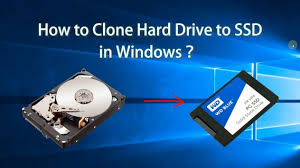
Cloning a Hard Disk: A Step-by-step Guide
Are you looking to upgrade your computer’s storage capacity or replace an old hard disk with a newer, faster Solid-State Drive (SSD)? Cloning a hard disk is a great way to transfer all your data and programs to the new SSD without reinstalling everything from scratch. In this article, we’ll show you how to clone a hard disk on Windows and Mac operating systems.
Why Clone a Hard Disk?
Cloning a hard disk is a convenient and efficient way to transfer all your files, programs, and settings to a newer, faster SSD. This process can save you time and effort compared to reinstalling everything from scratch. With cloning, you’ll have access to all your data and applications on the new drive without having to reinstall them.
Preparation is Key
Before starting the cloning process, make sure you have:
- A new SSD with sufficient storage capacity
- A computer or Mac with a compatible operating system (Windows 10, Windows 8.X, Windows 7, macOS High Sierra, or later)
- A reliable internet connection for software downloads
Windows: Cloning With Easeus Todo Backup
For Windows users, we recommend using EaseUS Todo Backup, a powerful and user-friendly backup and cloning software. Here’s how to clone your hard disk on Windows:
- Download And Install Easeus Todo Backup: Download the EaseUS Todo Backup Home edition from the official website.
- Launch The Software: Run the software and click on the “Clone System” button.
- Select The Source Disk: Choose the original hard disk as the source disk.
- Choose The Destination Ssd: Select the new SSD as the destination drive.
- Optimize For Ssd: Click on the “Advanced Options” button and select the “Optimize for SSD” checkbox.
- Start The Cloning Process: Click on the “Proceed” button to begin the cloning process.
Mac: Cloning With Carbon Copy Cloner
For Mac users, we recommend using Carbon Copy Cloner (CCC), a reliable and user-friendly cloning software. Here’s how to clone your hard disk on Mac:
- Download And Install Ccc: Download the free trial version of CCC from the official website.
- Launch The Software: Run the software and click on the “Select Source” button.
- Choose The Source Disk: Select the original hard disk as the source disk.
- Choose The Destination Ssd: Select the new SSD as the destination drive.
- Start The Cloning Process: Click on the “Clone” button to begin the cloning process.
Post-cloning Steps
Once the cloning process is complete, you can:
- Install the new SSD in your computer or Mac
- Boot up your device with the new SSD
- Test your system to ensure everything is working properly
Tips And Considerations
- Make sure you have a reliable internet connection for software downloads.
- Ensure the new SSD has sufficient storage capacity to accommodate all your data.
- Clone your hard disk on a separate computer or Mac if possible, to avoid any potential conflicts.
Conclusion
Cloning a hard disk is a simple and efficient way to transfer all your files, programs, and settings to a newer, faster SSD. With the right software and guidance, you can complete this process with ease. Whether you’re upgrading your storage capacity or replacing an old hard disk, cloning is a great option to consider.
Frequently Asked Questions (FAQs)
- What is The Best Cloning Software For Windows?
- EaseUS Todo Backup Home edition is highly recommended.
- Can I Clone my Hard Disk on a Mac With an Older Operating System?
- Yes, but ensure you have the latest version of macOS installed.
- How Long Does The Cloning Process Take?
- The time required for cloning depends on the size of your data and the speed of your computer or Mac.
- Can I Clone my Hard Disk if It’s Damaged or Faulty?
- No, cloning requires a functional original drive to work properly.
- What Should I do With The Old Hard Disk After Cloning?
- You can either keep the old hard disk as an external storage device or dispose of it responsibly.
- Can I Clone my Hard Disk if I Have Multiple Operating Systems Installed?
- Yes, but ensure you choose the correct source and destination drives accordingly.
- What Happens to my Data During The Cloning Process?
- Your data is copied to the new SSD without any modifications or loss.
By following this step-by-step guide and considering these FAQs, you’ll be well on your way to cloning a hard disk with ease.


