
How to Clone a Hard Disk With Operating System: A Step-by-step Guide
Are you looking for a way to create a perfect copy of your hard disk, including the operating system, programs, and data? Look no further! In this article, we will explore three different methods to clone a hard disk with operating system, using EaseUS Disk Copy, Clonezilla, and AOMEI Backupper.
Why Clone a Hard Disk?
Before we dive into the methods, let’s talk about why cloning a hard disk is useful. Cloning a hard disk allows you to create an exact copy of your current setup, including the operating system, programs, and data. This can be especially useful when:
- Upgrading to a new computer or hardware
- Replacing a faulty hard disk
- Creating a backup for disaster recovery purposes
- Transferring data from one device to another
Method 1: Easeus Disk Copy
EaseUS Disk Copy is a powerful software that allows you to clone a hard disk with operating system. Here’s how to use it:
Step 1: Download And Install Easeus Disk Copy
Download the free version of EaseUS Disk Copy from their official website. Follow the installation prompts to install the software.
Step 2: Select The Source Hard Disk
Launch EaseUS Disk Copy and select the source hard disk you want to clone. Make sure it’s the correct one, as this will be used for the cloning process.
Step 3: Choose The Destination Hard Disk
Select the destination hard disk where you want to clone the data. This can be an internal or external drive.
Step 4: Start The Cloning Process
Click on “Clone” and start the cloning process. EaseUS Disk Copy will begin transferring all data from the source hard disk to the destination hard disk.
Method 2: Clonezilla
Clonezilla is a free, open-source software that allows you to clone a hard disk with operating system. Here’s how to use it:
Step 1: Create a Clonezilla Bootable Usb Drive
Download the Clonezilla Live ISO image from their official website and create a bootable USB drive using Tuxboot.
Step 2: Connect The Source Hard Disk
Connect the source hard disk to your computer. This will be used for the cloning process.
Step 3: Run Clonezilla
Boot up your computer with the Clonezilla Live USB drive and run the software. Select “Clonezilla live” and choose the language you prefer.
Step 4: Choose The Cloning Option
Select the option to create a clone of the source hard disk. You can choose between creating an image file or cloning the entire hard disk.
Method 3: Aomei Backupper
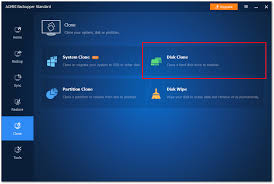
AOMEI Backupper is another powerful software that allows you to clone a hard disk with operating system. Here’s how to use it:
Step 1: Download And Install Aomei Backupper
Download the free version of AOMEI Backupper from their official website. Follow the installation prompts to install the software.
Step 2: Select The Source Hard Disk
Launch AOMEI Backupper and select the source hard disk you want to clone. Make sure it’s the correct one, as this will be used for the cloning process.
Step 3: Choose The Destination Hard Disk
Select the destination hard disk where you want to clone the data. This can be an internal or external drive.
Step 4: Start The Cloning Process
Click on “Clone” and start the cloning process. AOMEI Backupper will begin transferring all data from the source hard disk to the destination hard disk.
Conclusion
Cloning a hard disk with operating system is a useful task that can be achieved using EaseUS Disk Copy, Clonezilla, or AOMEI Backupper. These software programs offer powerful features and ease of use, making it simple to create an exact copy of your current setup. Whether you’re upgrading to a new computer, replacing a faulty hard disk, or creating a backup for disaster recovery purposes, these methods can help you achieve your goals.
Frequently Asked Questions (FAQs)
- What is The Difference Between Cloning And Backing Up?
Cloning creates an exact copy of the source hard disk, while backing up creates a copy of selected files or folders.
- Can I Clone a Hard Disk With Operating System Using Clonezilla?
Yes, you can use Clonezilla to create a clone of your hard disk with operating system.
- What Are The Benefits of Using Easeus Disk Copy?
EaseUS Disk Copy offers a user-friendly interface and powerful features that make it easy to clone a hard disk with operating system.
- Can I Use Aomei Backupper to Clone a Hard Disk With Operating System?
Yes, you can use AOMEI Backupper to create a clone of your hard disk with operating system.
- Is Cloning a Hard Disk With Operating System Safe?
Cloning a hard disk with operating system is generally safe, but make sure to backup any important data before proceeding.
- Can I Clone a Hard Disk With Operating System on an External Drive?
Yes, you can clone a hard disk with operating system onto an external drive using EaseUS Disk Copy or AOMEI Backupper.
- How Long Does The Cloning Process Take?
The duration of the cloning process depends on the size of the source and destination drives.
- Can I Use These Methods to Clone a Hard Disk With Operating System on a Mac?
Yes, you can use EaseUS Disk Copy or AOMEI Backupper to clone a hard disk with operating system on a Mac using an external drive.


