
The Art of Cloning: How to Use Photoshop Like a Pro
Are you tired of dealing with unwanted objects or people in your photos? Do you want to learn how to clone them out like a pro? Look no further! In this article, we’ll show you how to use Adobe Photoshop’s “Timbre Clone” feature to easily remove unwanted elements from your images.
What is The Timbre Clone Feature?
The Timbre Clone feature is an advanced tool in Adobe Photoshop that allows you to clone parts of an image and place them elsewhere in the same image. This feature is perfect for removing unwanted objects or people, covering up blemishes, or even creating special effects.
How to Use The Timbre Clone Feature on PC
To use the Timbre Clone feature on your PC, follow these steps:
- Open Photoshop: First, make sure you have Adobe Photoshop installed on your computer. If not, download it and try it out for free for 7 days.
- Initiate The Program: Open Photoshop and select the file you want to work with.
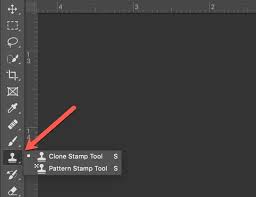
- Select The Timbre Clone Tool: Go to the toolbar on the left side of the screen and click on the “Timbre Clone” tool. You can also use the keyboard shortcut Ctrl+Shift+F (Windows) or Command+Shift+F (Mac).
- Choose Your Brush: Select the type and size of your brush from the menu at the top right corner of the screen.
- Select The Source Area: Hold down the Alt key on your keyboard and click on the area you want to clone from.
- Clone The Area: Click and drag the mouse while holding down the Alt key to clone the selected area onto another part of the image.
Tips And Tricks
Here are some additional tips and tricks to help you master the Timbre Clone feature:
- Use parts of adjacent images to create a more natural look.
- Experiment with different brush sizes and shapes to achieve the desired effect.
- You can also use other Photoshop tools like the “Spot Healing Brush” or “Content-Aware Fill” to remove unwanted elements.
Using Photoshop on The Web
You don’t need to have Adobe Photoshop installed on your computer to use this feature. You can also use it online for free! To do so:
- Sign In: Go to the Creative Cloud website and sign in with your Adobe ID.
- Open The Image: Click on the image you want to work with.
- Click “Edit”: Select the “Edit” button at the top right corner of the screen.
- Choose Timbre Clone: From the menu, select the “Timbre Clone” tool.
- Follow The Same Steps: Follow the same steps as described above to clone the area.
Using Photoshop on Mobile Devices
You can also use Adobe Photoshop’s cloning feature on your mobile device! To do so:
- Download The App: Download and install the Adobe Photoshop Express app on your Android or iOS device.
- Open The Image: Open the image you want to work with in the app.
- Tap “Edit”: Tap the “Edit” button at the top right corner of the screen.
- Choose Timbre Clone: Select the “Timbre Clone” tool from the menu.
- Follow The Same Steps: Follow the same steps as described above to clone the area.
Conclusion
Cloning unwanted objects or people from your photos is now easier than ever! With Adobe Photoshop’s Timbre Clone feature, you can easily remove unwanted elements and achieve professional-looking results. Whether you’re using Photoshop on your PC, online, or mobile device, this feature is a must-have for any photographer or graphic designer.
Frequently Asked Questions
- Q: What is The Timbre Clone Feature?
A: The Timbre Clone feature is an advanced tool in Adobe Photoshop that allows you to clone parts of an image and place them elsewhere in the same image. - Q: How do I Use The Timbre Clone Feature on Pc?
A: To use the Timbre Clone feature on your PC, follow the steps described above. - Q: Can I Use The Timbre Clone Feature Online?
A: Yes! You can also use Photoshop’s cloning feature online for free by signing in to the Creative Cloud website and following the same steps as described above. - Q: Is There a Mobile App That Allows me to Use The Timbre Clone Feature?
A: Yes, Adobe Photoshop Express is available on both Android and iOS devices. - Q: What Are Some Tips For Using The Timbre Clone Feature?
A: Some additional tips and tricks include using parts of adjacent images to create a more natural look, experimenting with different brush sizes and shapes, and using other Photoshop tools like the “Spot Healing Brush” or “Content-Aware Fill”.


