
How to Close Apps in Background on Android, Iphone, PC Windows, And Mac
Are you tired of dealing with apps running in the background on your smartphone, tablet, or computer? Do you want to free up space and improve performance? Look no further! In this article, we will guide you through the process of closing apps in the background on various devices.
What Are Background Apps?
Background apps are programs that continue to run even after you’ve closed them. They can consume battery life, memory, and other system resources, causing your device to slow down or become unresponsive. Closing these apps can help improve overall performance and extend battery life.
Closing Apps in Background on Android
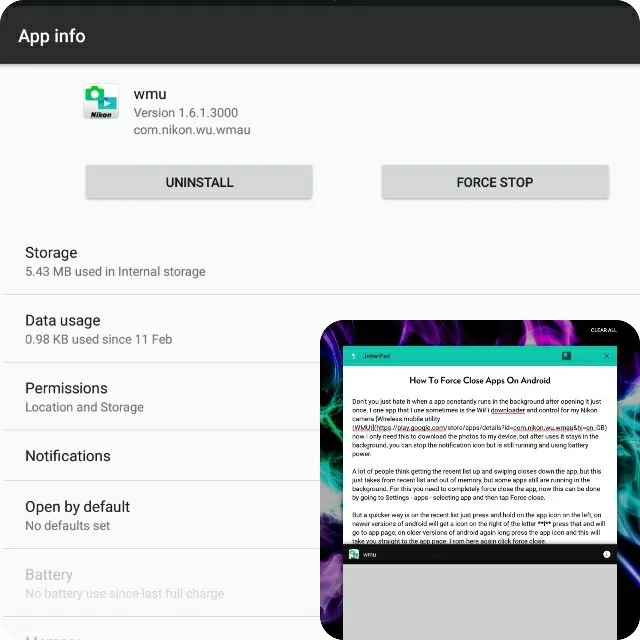
To close an app in the background on Android, follow these steps:
- Access Multitasking Mode: Access multitasking mode by swiping up from the bottom of your screen.
- Find The App: Find the app you want to close in the list of running apps.
- Swipe Left or Right: Swipe left or right on the app icon to bring it to the front.
- Tap X: Tap the X button to close the app.
Closing Apps in Background on Iphone
To close an app in the background on iPhone, follow these steps:
- Double-tap Home Button: Double-tap the home button to access multitasking mode.
- Swipe Left or Right: Swipe left or right on the app icon to bring it to the front.
- Tap X: Tap the X button to close the app.
Closing Apps in Background on PC Windows
To close an app in the background on PC Windows, follow these steps:
- Access Task Manager: Press Ctrl+Shift+Esc to access Task Manager.
- Find The App: Find the app you want to close in the list of running processes.
- Right-click And Select End Process: Right-click on the app and select “End process” to close it.
Closing Apps in Background on Mac
To close an app in the background on Mac, follow these steps:
- Access Activity Monitor: Press Command+Space to access Spotlight, type “Activity Monitor,” and press Enter.
- Find The App: Find the app you want to close in the list of running processes.
- Double-click And Select Quit: Double-click on the app and select “Quit” to close it.
Tips And Precautions
- Be careful when closing apps, as some may require permission to continue running in the background.
- Avoid closing system processes or essential apps, as this can cause instability or even crash your device.
- Consider using a third-party task manager to monitor and close unwanted apps.
Conclusion
Closing apps in the background on various devices can help improve performance, extend battery life, and free up space. By following these simple steps, you can take control of your device’s resources and enjoy a smoother user experience.


