
How to Close Open Applications on a Mac: A Step-by-step Guide
Are you tired of having multiple applications open on your Mac, taking up valuable resources and making it difficult to focus? Closing unnecessary apps can be a great way to boost productivity and free up space on your device. In this article, we’ll show you how to close open applications on a Mac using various methods.
What is an Open Application?
Before we dive into the nitty-gritty of closing applications, let’s quickly define what an open application is. An open application refers to any program or software that is currently running on your Mac, whether it’s in the background or foreground. This can include web browsers like Safari or Chrome, productivity apps like Microsoft Office or Google Docs, and even games or multimedia programs.
Method 1: Closing Applications From The Menu Bar
One of the simplest ways to close an open application is by using the menu bar. Here’s how:
- Bring The Application in Question Into Focus: Click on the application’s icon in the dock or click on its name in the menu bar.
- Select Quit From The Application Menu: Go to the “Application” menu and select “Quit”. This will close the application, but keep it running in the background.
Method 2: Using Keyboard Shortcuts
If you’re comfortable using keyboard shortcuts, closing an open application is just a few key presses away:
- Press Command + Q: Pressing the Command (⌘) and “Q” keys simultaneously will close the current application.
- Press Command + Option + Esc: If the application is frozen or unresponsive, press Command + Option + Esc to force quit.
Method 3: Closing Applications From The Dock
If you’re having trouble closing an application using the menu bar or keyboard shortcuts, you can try using the dock:
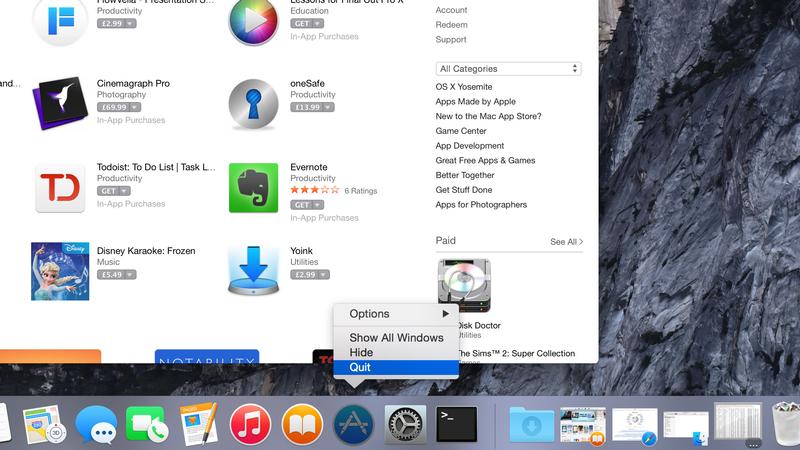
- Right-click on The Application Icon: Right-click on the application’s icon in the dock and select “Quit” from the context menu.
- Press Option + Command + Q: If the application is frozen or unresponsive, press Option + Command + Q to force quit.
Method 4: Using Activity Monitor
If you’re not sure which applications are open or want more control over closing them, you can use Activity Monitor:
- Open Activity Monitor: Open Activity Monitor by searching for it in Spotlight or using the Launchpad.
- Select The Application to Close: Select the application you want to close from the list of running processes.
- Click “Quit”: Click the “Quit” button to close the application.
Method 5: Using Automator
If you need to close multiple applications at once, you can use Automator:
- Open Automator: Open Automator by searching for it in Spotlight or using the Launchpad.
- Create a New Document: Create a new document and select “Application” as the type.
- Add an Action: Add an action to close all applications by clicking on the “+” button and selecting “Get Specified Applications”.
- Save And Run The Application: Save and run the application, which will close all open applications.
Closing unnecessary applications can be a great way to boost productivity and free up space on your device. By using the methods outlined in this article, you can easily close open applications on your Mac and keep your device running smoothly.
Frequently Asked Questions
Here are some frequently asked questions about closing open applications on a Mac:
Q: How do I close an application that is frozen or unresponsive?
A: You can try pressing Command + Option + Esc to force quit the application. If this doesn’t work, you may need to restart your device.
Q: Can I close multiple applications at once?
A: Yes, you can use Automator to create a script that closes all open applications.
Q: How do I prevent applications from opening in the background?
A: You can set your device to close all applications when you shut it down or press the power button.
Q: What happens if I force quit an application without saving my work?
A: If you force quit an application without saving your work, you may lose any unsaved changes. Make sure to save your work regularly to avoid losing progress.


