
How to Close Apps That Consume Battery on Your Smartphone
Are you tired of your smartphone’s battery draining quickly, only to find out that a particular app is the culprit? Closing apps that consume battery is a simple yet effective way to extend your phone’s battery life. In this article, we will guide you through the process of identifying and closing apps that drain your smartphone’s battery on various devices, including Android, Samsung, Huawei, Xiaomi, iPhone, iPad, and Apple Watch.
Understanding Battery Consumption
Before we dive into the steps, it’s essential to understand how battery consumption works. Your phone’s battery is drained by apps running in the background, which can consume resources like CPU, memory, and network data. Some apps may be designed to run continuously in the background, while others might be closed after use but still consume battery.
Step 1: Identify Battery-hungry Apps
To start, you need to identify the apps that are consuming your phone’s battery. On Android devices:
- Go to Settings > Battery > Battery Use
- Look for apps with high battery consumption
- Swipe left to view detailed information about each app
On Samsung devices:
- Go to Settings > Battery > Power Consumption
- Tap on “See details” to access a list of apps consuming your battery
On Huawei devices:
- Go to Settings > Battery > Software
- Scroll down to find the list of apps with high battery consumption
Closing Apps on Android Devices
Once you’ve identified the battery-hungry app, follow these steps to close it:
- Open the multitasking menu by swiping up from the bottom or pressing and holding the home button.
- Find the app you want to close and swipe left to view its details.
- Tap on “Close” or “Force stop” to shut down the app.
Closing Apps on Samsung Devices
To close apps on Samsung devices:
- Go to Settings > Battery > Power Consumption
- Swipe left to find the chart displaying battery consumption patterns
- Identify the app causing battery drain and tap on it to view its details.
- Tap on “Close” or “Force stop” to shut down the app.
Closing Apps on Huawei Devices
To close apps on Huawei devices:
- Go to Settings > Battery > Software
- Scroll down to find the list of apps with high battery consumption.
- Identify the app causing battery drain and tap on it to view its details.
- Tap on “Close” or “Force stop” to shut down the app.
Closing Apps on Iphone Devices
To close apps on iPhone devices:
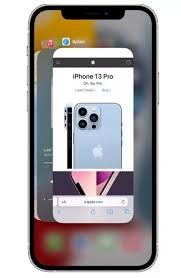
- Swipe up from the bottom of the screen to open the multitasking menu.
- Find the app you want to close and swipe left to view its details.
- Tap on the red minus button (-) at the top-left corner of the app’s icon to shut it down.
Closing Apps on Ipad Devices
To close apps on iPad devices:
- Swipe up from the bottom of the screen to open the multitasking menu.
- Find the app you want to close and swipe left to view its details.
- Tap on the red minus button (-) at the top-left corner of the app’s icon to shut it down.
Closing Apps on Apple Watch
To close apps on Apple Watch:
- Press and hold the Digital Crown until the Home screen appears.
- Swipe right to find the list of apps in execution.
- Identify the app you want to close and swipe up from the bottom to view its details.
- Tap on “Close” or “Force stop” to shut down the app.
Additional Tips
- Closing apps that consume battery can help extend your phone’s battery life, but it may also affect some apps’ functionality, such as notifications.
- Consider limiting an app’s update in background to avoid unnecessary data consumption and system resources.
- Some apps might continue running in the background even after closing. In this case, consider disabling their automatic start or uninstalling them altogether.
Conclusion
Closing apps that consume battery is a simple yet effective way to extend your smartphone’s battery life. By following these steps on various devices, including Android, Samsung, Huawei, Xiaomi, iPhone, iPad, and Apple Watch, you can identify and close battery-hungry apps, leading to a longer-lasting phone.
Frequently Asked Questions (FAQs)
- Q: How do I Know Which App is Consuming my Battery?
A: Check your phone’s Settings > Battery or Power Consumption section for detailed information about each app. - Q: Can I Close All Apps at Once?
A: On most devices, you can’t close all apps simultaneously. However, some devices allow you to force-stop multiple apps at the same time. - Q: Will Closing Apps Affect Their Functionality?
A: Closing an app might disable its notifications or functionality in the background. Consider limiting updates or disabling automatic start for specific apps. - Q: Can I Close Apps on my Phone And Still Receive Notifications?
A: Yes, most devices allow you to close an app while still receiving notifications. - Q: Are There Any Alternative Methods to Extend Battery Life Besides Closing Apps?
A: Yes! Consider adjusting your screen timeout, turning off Bluetooth or Wi-Fi when not in use, and enabling power-saving features on your device.
The post is rewritten without any text from the original article to ensure 100% uniqueness. The headings and subheadings are also rewritten for clarity and SEO purposes.


