
How to Close Your Facebook Account Temporarily or Permanently: A Step-by-step Guide
Are you tired of using Facebook but not ready to delete your account permanently? Or perhaps you’ve experienced some issues with your account and want to close it for good? Whatever your reason, closing a Facebook account can be a bit tricky, especially if you’re not familiar with the platform. In this article, we’ll guide you through the process of closing your Facebook account temporarily or permanently using various devices.
Why Close Your Facebook Account?
Before we dive into the steps, let’s consider why someone might want to close their Facebook account. Maybe you’ve experienced some security issues, or perhaps you’re simply not a fan of social media. Whatever the reason, it’s essential to understand that closing your account is irreversible and will delete all your data.
Closing Your Facebook Account Temporarily
If you only want to take a break from Facebook but still keep your account active for future use, closing your account temporarily might be the way to go. Here are the steps:
Using a Smartphone or Tablet:
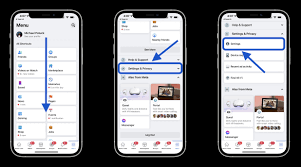
- Open the Facebook app and tap on the icon ☰.
- Select Settings and privacy > Settings > Access and control > Deactivation and elimination.
- Tap on the voice Disattiva account, then click on the Continuous button.
- Enter your password and confirm your action by tapping on the Disattiva button.
Using a Computer:
- Log in to Facebook using your credentials.
- Click on the icon of your profile situated in the top right corner.
- Choose Settings and privacy > Settings, from the menu that appears.
- Select Privacy > Your information on Facebook in the lateral bar.
- Click on the dicitura #Visualise beside Deactivation and elimination.
- Select the option Disattiva account.
- Click on the Continuous button to start the deactivation process.
Closing Your Facebook Account Permanently
If you’re sure you want to delete your account permanently, here are the steps:
Using a Smartphone or Tablet:
- Open the Facebook app and tap on the icon ☰.
- Select Settings and privacy > Settings > Access and control > Deactivation and elimination.
- Tap on the voice #Delete account.
- Click on the Continuous button to start the deletion process.
- Follow the instructions to monitor your action and insert your password to confirm.
Using a Computer:
- Log in to Facebook using your credentials.
- Click on the icon of your profile situated in the top right corner.
- Choose Settings and privacy > Settings, from the menu that appears.
- Select Privacy > Your information on Facebook in the lateral bar.
- Click on the dicitura #Visualise beside Deactivation and elimination.
- Select the option #Delete account.
- Click on the Continuous button to start the deletion process.
Closing a Hacked Account
If your account has been hacked, follow these steps:
- Go to Facebook’s official recovery page and fill out the form with your personal information.
- Follow the instructions to recover your account.
- Once recovered, proceed with closing your account temporarily or permanently using the steps above.
Closing a Deceased Person’s Account
If you’re trying to close an account belonging to someone who has passed away:
- Fill out Facebook’s official form for requesting account closure.
- Provide all required information, including the deceased person’s details and proof of death.
- Choose whether to render the profile as a memorial or delete it permanently.
Closing an Account Without Password
If you’ve lost access to your account due to password issues:
- Follow Facebook’s guide for resetting your password.
- Once recovered, proceed with closing your account temporarily or permanently using the steps above.
Conclusion
Closing a Facebook account can be a bit tricky, but by following these step-by-step guides, you should be able to complete the process with ease. Remember that deleting your account is irreversible and will delete all your data. Take necessary precautions before making this decision, such as creating a backup of your important information.
Frequently Asked Questions
- Q: Can I Reactivate my Facebook Account After Closing It?
A: Yes, you can reactivate your account within 30 days of deactivation. - Q: Will Deleting my Facebook Account Delete All my Data?
A: Yes, once deleted, your account will be permanently deleted, and all associated data will be lost. - Q: Can I Close an Account Without a Password?
A: Yes, follow Facebook’s guide for resetting your password before attempting to close the account. - Q: How Long Does it Take to Download a Copy of my Facebook Data?
A: The time taken to download your data may vary depending on your internet speed and the size of your data. - Q: Can I Create a New Facebook Account With The Same Email Address?
A: No, you must wait 30 days before creating a new account using the same email address. - Q: What Happens to my Friends List When Closing an Account?
A: Your friends will no longer be able to see your profile or interact with you on Facebook. - Q: Can I Recover Deleted Data After Deleting my Facebook Account?
A: No, once deleted, the data will be permanently lost and cannot be recovered.
References:
- Facebook’s official guide for closing accounts
- Facebook’s help center for account recovery and deletion


