
How to Close Applications on Iphone: A Step-by-step Guide
Are you tired of wondering how to close applications on your iPhone? Look no further! In this article, we’ll show you the easy ways to shut down apps on your device, whether you’re using an iPhone X or earlier models.
Why Close Apps on Iphone?
Closing apps on your iPhone might seem like a trivial task, but it’s essential for maintaining your device’s performance and battery life. When you close an app, it stops running in the background, which can help conserve memory and battery power.
Method 1: Closing Apps on Iphone X And Later Models
If you’re using an iPhone X or later model, closing apps is a breeze. Here’s how:
- Take your device and unblock it.
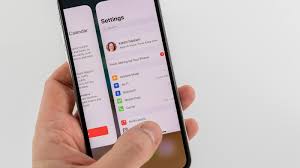
- Swipe up from the bottom of the screen to access the app switcher.
- Swipe left or right to find the app you want to close.
- Swipe up on the app to close it.
Repeat this process for each app you want to shut down. Once you’re done, tap on an empty area of the screen to return to your home screen.
Method 2: Closing Apps on Iphone 6s And Earlier Models
If you’re using an iPhone 6s or earlier model, closing apps is a bit different. Here’s how:
- Take your device and unblock it.
- Double-click the Home button to access the app switcher.
- Swipe left or right to find the app you want to close.
- Swipe up on the app to close it.
Again, repeat this process for each app you want to shut down. Once you’re done, tap on an empty area of the screen to return to your home screen.
Method 3: Closing Apps on Iphone With Broken Home Button
If your Home button is broken, don’t worry! You can still close apps using the Accessibility feature:
- Go to Settings > Accessibility.
- Select AssistiveTouch and toggle it on.
- Tap on the virtual AssistiveTouch button.
- Tap on Device > Show All Applications.
- Swipe left or right to find the app you want to close.
- Swipe up on the app to close it.
Why Close Apps in This Way?
Closing apps in this way might seem like a hassle, but it’s actually more efficient than manually closing each app. By using these methods, you can conserve battery life and memory, making your device run smoother and faster.
Benefits of Closing Apps on Iphone
Closing apps on your iPhone has several benefits:
- Conserves Battery Life: Closing apps helps reduce power consumption, which is especially important if you’re running low on juice.
- Improves Performance: By shutting down unnecessary apps, you can improve your device’s overall performance and responsiveness.
- Enhances Security: Closing apps can also help prevent malicious software from running in the background and compromising your device’s security.
Conclusion
Closing apps on iPhone might seem like a trivial task, but it’s essential for maintaining your device’s performance and battery life. By following these easy steps, you can shut down unnecessary apps and keep your device running smoothly. Remember to always close apps when you’re not using them to conserve memory and battery power.
Frequently Asked Questions (FAQs)
- How Often Should I Close Apps on my Iphone?
You don’t need to close apps constantly, but it’s a good idea to shut down unnecessary apps every now and then. - Can Closing Apps Drain my Iphone’s Battery?
Closing apps can actually help conserve battery life by reducing power consumption. - Will Closing Apps Affect my Iphone’s Performance?
Shutting down unnecessary apps can improve your device’s overall performance and responsiveness. - How do I Close Multiple Apps at Once on my Iphone?
To close multiple apps, simply follow the steps outlined above for each app you want to shut down. - Can I Still Use my Iphone if it Has a Broken Home Button?
Yes, you can still close apps using the Accessibility feature.


